Kavinthira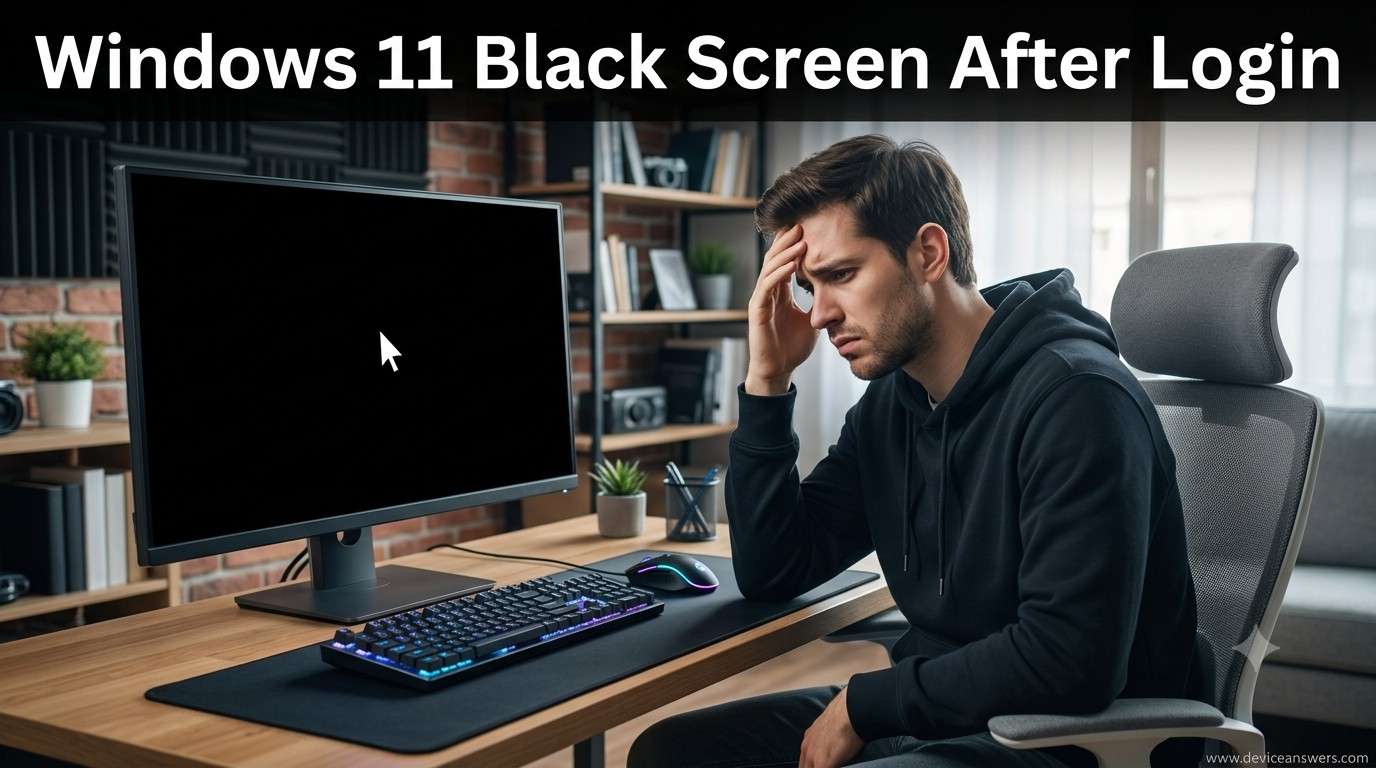
Windows 11 Black Screen After Login: 12 Proven Fixes That Actually Work
Introduction
A Windows 11 black screen after login can be frustrating, especially when you successfully sign in but your desktop never appears. In some cases, you’ll only see a black screen with a mouse cursor, while in others the taskbar, icons, and desktop remain completely blank. This issue can occur after a Windows Update, a graphics driver installation, or an unexpected system shutdown.
The good news is that a black screen after logging in is usually caused by software-related problems, not hardware failure. Issues such as a corrupted File Explorer process, outdated graphics drivers, damaged system files, incorrect display settings, or startup software conflicts are among the most common causes. Most users can resolve the problem without reinstalling Windows.
This guide explains why Windows 11 displays a black screen after login and provides proven troubleshooting methods that work for most desktop and laptop computers.
Quick Answer
If Windows 11 shows a black screen after login, restart Windows Explorer using Task Manager, reboot your PC, disconnect external devices, and boot into Safe Mode if necessary. Updating or rolling back your graphics driver, running Startup Repair, and repairing corrupted system files often resolve the issue. In most cases, these solutions restore the desktop without deleting your files.
Common Signs Windows 11 Shows a Black Screen After Login
The problem may appear in different ways depending on the underlying cause.
Common symptoms include:
- Black screen with mouse cursor
- Desktop never loads after login
- Missing taskbar
- Desktop icons do not appear
- File Explorer fails to start
- Screen flashes between black and normal
- Endless loading after signing in
- External monitor shows a blank display
- Login succeeds but desktop remains black
- Black screen appears after a Windows Update
- Screen remains black after waking from sleep
- Keyboard shortcuts still respond but nothing appears on screen
These symptoms usually indicate a startup, display, or system software issue.
Why Windows 11 Shows a Black Screen After Login
1. Temporary System Glitch
A temporary software error may prevent Windows from loading the desktop correctly. Restarting the computer often resolves these minor issues.
2. Corrupted File Explorer
The Windows desktop relies on File Explorer (explorer.exe). If this process fails to start, you’ll see a black screen instead of your desktop.
3. Graphics Driver Problems
An outdated, incompatible, or corrupted graphics driver may prevent Windows from displaying the desktop after login.
4. Windows Update Bug
Occasionally, a recent Windows Update may introduce display compatibility issues that result in a black screen.
5. Corrupted System Files
Damaged Windows system files can interfere with the normal startup process and prevent the desktop from loading.
6. Fast Startup Issue
The Fast Startup feature sometimes causes startup problems, especially after hardware or driver changes.
7. Third-Party Startup Applications
Recently installed software may conflict with Windows startup services, causing the screen to remain black.
8. Display Configuration Problem
Incorrect display settings, multiple monitor configurations, or unsupported display resolutions may prevent the desktop from appearing.
9. Faulty External Monitor
A disconnected or malfunctioning external monitor may cause Windows to display the desktop on the wrong screen.
10. Corrupted User Profile
If your Windows user profile becomes damaged, Windows may fail to load the desktop environment properly.
11. Registry Problems
Incorrect Registry settings or changes made by third-party software can interrupt the Windows login process.
12. Hardware Failure
Although less common, faulty graphics hardware, defective RAM, or storage drive issues may also cause a black screen after login.
Quick Troubleshooting Table
| Problem | Recommended Fix |
|---|---|
| Black screen with cursor | Restart Windows Explorer |
| Desktop not loading | Restart your PC |
| Black screen after update | Run Startup Repair |
| External monitor blank | Disconnect external displays |
| Display driver issue | Update or roll back Graphics Driver |
| Endless black screen | Boot into Safe Mode |
| Missing taskbar | Restart File Explorer |
| Startup problem | Run Startup Repair |
| Random black screen | Disable Fast Startup |
| Multiple display issues | Check display settings |
Fix 1: Restart Windows Explorer
If File Explorer doesn’t start correctly, Windows cannot display the desktop, taskbar, or icons. Restarting Windows Explorer is often the quickest solution.
Steps
- Press Ctrl + Shift + Esc to open Task Manager.
- Click More Details if necessary.
- Locate Windows Explorer under the Processes tab.
- Select Windows Explorer.
- Click Restart.
If Windows Explorer isn’t listed:
- Click File.
- Select Run New Task.
- Type explorer.exe.
- Click OK.
Your desktop should reload within a few seconds.
Tip: If the desktop appears after restarting Explorer, the issue was likely a temporary startup problem.
Fix 2: Restart Your PC
A simple restart refreshes Windows services, reloads system drivers, and clears temporary software glitches.
Steps
- Press Ctrl + Alt + Delete.
- Click the Power icon.
- Select Restart.
If your computer doesn’t respond:
- Hold the Power Button for about 10 seconds until the PC turns off.
- Wait 30 seconds.
- Turn the computer back on.
Avoid performing repeated force shutdowns unless the system is completely unresponsive.
Fix 3: Disconnect External Devices
External hardware can sometimes interfere with Windows during startup.
Disconnect all unnecessary devices, including:
- USB flash drives
- External hard drives
- Docking stations
- Printers
- Webcams
- Additional monitors
- HDMI adapters
After disconnecting these devices:
- Restart your computer.
- Log in again.
- Check whether the desktop loads normally.
If Windows starts correctly, reconnect devices one at a time to identify the source of the problem.
Fix 4: Boot into Safe Mode
Safe Mode starts Windows using only essential drivers and services. If your desktop appears normally in Safe Mode, a third-party driver or startup application is likely causing the black screen.
Enter Safe Mode
- Turn the PC off.
- Turn it on and interrupt the startup process three times to enter the Windows Recovery Environment.
- Select Troubleshoot.
- Choose Advanced Options.
- Click Startup Settings.
- Select Restart.
- Press 4 or F4 to start Safe Mode.
Once inside Safe Mode, uninstall recently installed software or update problematic drivers.
Fix 5: Update or Roll Back Graphics Driver
Display issues often occur after installing a new graphics driver or after a Windows update.
Update Graphics Driver
- Press Windows + X.
- Select Device Manager.
- Expand Display Adapters.
- Right-click your graphics card.
- Choose Update Driver.
- Select Search Automatically for Drivers.
Roll Back Graphics Driver
If the problem started after a recent driver update:
- Open Device Manager.
- Right-click your graphics adapter.
- Select Properties.
- Open the Driver tab.
- Click Roll Back Driver (if available).
Restart your computer after updating or rolling back the driver.
Fix 6: Run Startup Repair
If Windows cannot load correctly because of damaged startup files, Startup Repair can automatically detect and repair common startup problems.
Steps
- Enter the Windows Recovery Environment.
- Select Troubleshoot.
- Click Advanced Options.
- Choose Startup Repair.
- Select your Windows installation.
- Wait while Windows scans and repairs startup files.
Your PC may restart several times during this process.
Important: Startup Repair does not delete your personal files or installed applications. It only repairs startup-related issues that prevent Windows from loading correctly.
“`html
Fix 7: Run System File Checker (SFC)
Corrupted or missing Windows system files can prevent the desktop from loading correctly after login. The System File Checker (SFC) scans protected Windows files and automatically replaces damaged copies.
Steps
- Boot into the Windows Recovery Environment if necessary.
- Open Command Prompt.
- Type the following command:
sfc /scannow- Press Enter.
- Wait for the scan to complete.
- Restart your computer.
Note: The scan may take several minutes depending on your system.
Fix 8: Run DISM Scan
If SFC cannot repair damaged files, use the Deployment Image Servicing and Management (DISM) tool to repair the Windows image.
Steps
- Open Command Prompt as an administrator.
- Run the following command:
DISM /Online /Cleanup-Image /RestoreHealth- Press Enter.
- Allow Windows to complete the repair.
- Restart your PC.
Tip: After DISM finishes, run sfc /scannow again to verify that all system files have been repaired.
Fix 9: Disable Fast Startup
Fast Startup speeds up boot time by saving part of the Windows session. Occasionally, this feature causes display problems after login.
Steps
- Open Control Panel.
- Select Power Options.
- Click Choose What the Power Buttons Do.
- Select Change Settings That Are Currently Unavailable.
- Uncheck Turn On Fast Startup.
- Click Save Changes.
Restart your computer and check whether the black screen issue has been resolved.
Fix 10: Perform System Restore
If the black screen started after installing a driver, application, or Windows update, System Restore can return your PC to a previous working state.
Steps
- Enter the Windows Recovery Environment.
- Select Troubleshoot.
- Choose Advanced Options.
- Click System Restore.
- Select a restore point created before the problem began.
- Follow the on-screen instructions.
Important: System Restore removes recently installed drivers and software but does not delete your personal documents.
Fix 11: Uninstall Recent Windows Updates
Although Windows updates improve security and stability, a newly installed update may occasionally create compatibility problems.
Steps
- Open the Windows Recovery Environment.
- Select Troubleshoot.
- Click Advanced Options.
- Choose Uninstall Updates.
- Select either Latest Quality Update or Latest Feature Update.
- Restart your PC.
If Windows starts normally afterward, wait until Microsoft releases a newer update before reinstalling it.
Fix 12: Reset Windows 11 (Keep My Files)
If every troubleshooting step fails, resetting Windows may repair serious operating system corruption while preserving your personal files.
Warning: Although the Keep My Files option preserves personal files, installed applications and customized settings will be removed.
Steps
- Open Settings.
- Select System.
- Click Recovery.
- Select Reset This PC.
- Choose Keep My Files.
- Follow the on-screen instructions.
Create a complete backup before starting the reset process.
Troubleshooting Checklist
| Task | Status |
|---|---|
| Restarted Windows Explorer | ☐ |
| Restarted the PC | ☐ |
| Disconnected external devices | ☐ |
| Booted into Safe Mode | ☐ |
| Updated or rolled back graphics driver | ☐ |
| Ran Startup Repair | ☐ |
| Executed SFC scan | ☐ |
| Executed DISM scan | ☐ |
| Disabled Fast Startup | ☐ |
| Performed System Restore | ☐ |
| Uninstalled recent Windows updates | ☐ |
| Reset Windows 11 (Keep My Files) | ☐ |
Tips to Prevent Windows 11 Black Screen Problems
- Keep Windows 11 updated with the latest security patches.
- Install graphics drivers only from trusted sources.
- Create regular System Restore points.
- Avoid interrupting Windows updates.
- Keep enough free disk space available.
- Disconnect unnecessary USB devices during startup.
- Update BIOS or UEFI only when recommended by your computer manufacturer.
- Run Windows Security scans regularly.
- Check your storage drive for errors periodically.
- Back up important files before making major system changes.
Frequently Asked Questions
1. Why does Windows 11 show a black screen after login?
The most common causes include corrupted File Explorer, graphics driver problems, damaged system files, startup software conflicts, or a faulty Windows update.
2. Why can I only see the mouse cursor?
This usually means Windows has loaded the login session, but the desktop shell (explorer.exe) failed to start.
3. Can graphics drivers cause a black screen?
Yes. Corrupted or incompatible graphics drivers are one of the most common reasons for black screen problems after login.
4. Will Startup Repair delete my files?
No. Startup Repair only repairs Windows startup components and does not remove personal files.
5. Does System Restore remove documents?
No. It restores system settings, drivers, and installed programs without affecting your personal files.
6. Should I reinstall Windows?
Reinstall Windows only after trying every troubleshooting method, including Startup Repair, SFC, DISM, and System Restore.
7. How do I boot into Safe Mode?
Interrupt the Windows startup process three times to enter the Windows Recovery Environment, then navigate to Troubleshoot → Advanced Options → Startup Settings.
8. When is it a hardware problem?
If the black screen continues after resetting Windows or appears before Windows starts loading, faulty hardware such as the graphics card, RAM, monitor, or storage drive may be responsible.
Conclusion
A Windows 11 black screen after login is usually caused by software issues rather than hardware failure. Restarting Windows Explorer, updating your graphics driver, repairing system files, and using Startup Repair solve most cases without reinstalling Windows.
Keeping Windows updated, maintaining healthy drivers, and creating regular restore points can reduce the chances of this issue returning. If the problem persists after trying every solution, professional hardware diagnostics may be necessary.