Kavinthira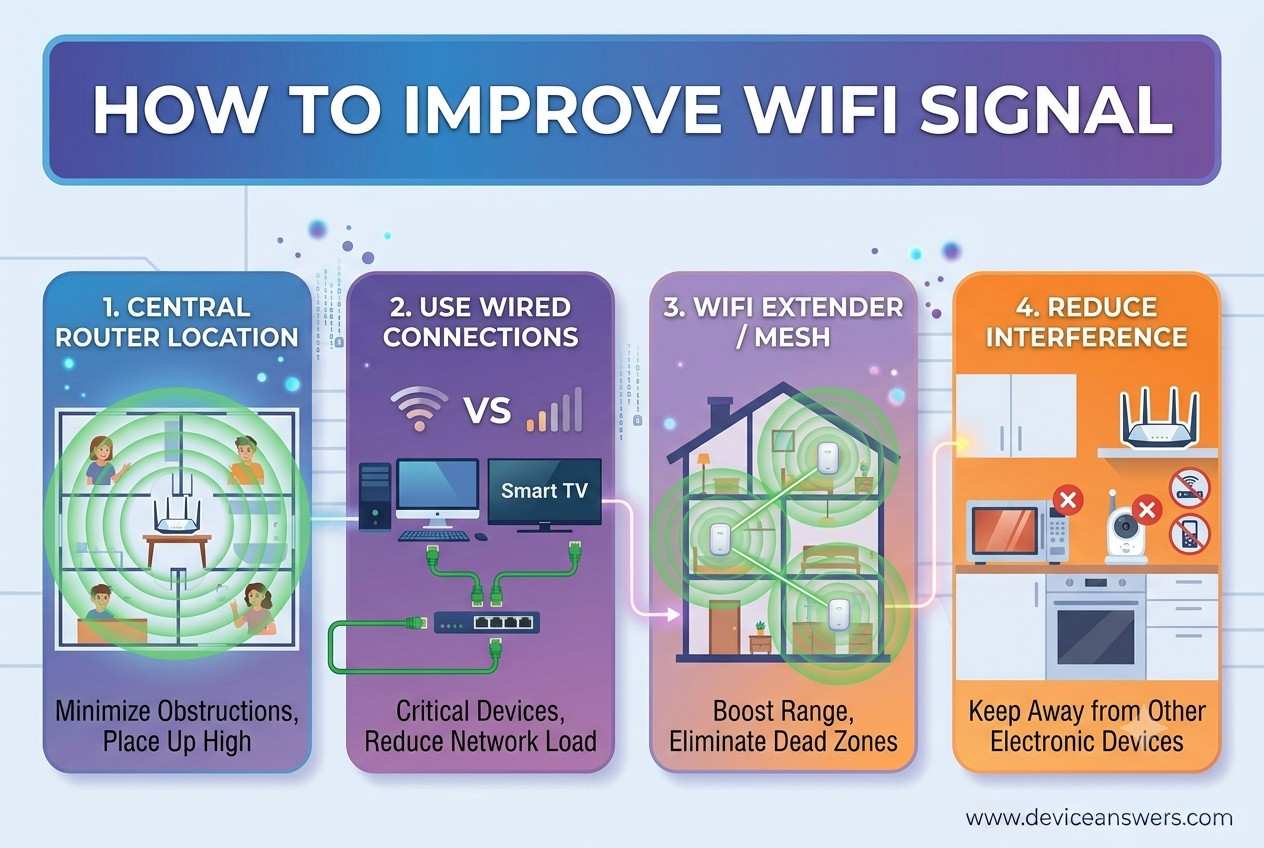
How to Improve WiFi Signal: 12 Easy Ways to Boost Your Wireless Network
A weak WiFi connection can make everyday tasks like streaming videos, joining video meetings, playing online games, and browsing the web frustrating. If you’re wondering how to improve WiFi signal, the good news is that many wireless issues can be fixed without replacing your internet service. Simple changes like moving your router, reducing interference, updating firmware, and optimizing your network settings can significantly improve both WiFi coverage and speed throughout your home.
Quick Answer: How Can I Improve My WiFi Signal?
The best way to improve WiFi signal is to place your router in a central, elevated location, minimize interference from walls and electronic devices, restart and update your router regularly, switch to the appropriate WiFi band, and limit unnecessary connected devices. If coverage is still poor, consider using a WiFi extender or a Mesh WiFi system.
What Causes Weak WiFi Signals?
Before troubleshooting your network, it’s helpful to understand why your WiFi signal is weak. Several environmental and hardware factors can affect wireless performance.
- Long Distance from the Router: WiFi signals naturally become weaker as you move farther away.
- Walls and Floors: Concrete, brick, metal, and thick wooden walls reduce wireless signal strength.
- Electronic Interference: Microwave ovens, cordless phones, Bluetooth devices, baby monitors, and wireless cameras can interfere with WiFi signals.
- Poor Router Placement: Keeping the router inside a cabinet or behind furniture blocks wireless coverage.
- Too Many Connected Devices: Multiple smartphones, laptops, TVs, and smart home devices share the available bandwidth.
- Outdated Router Hardware: Older routers may not support modern WiFi standards like WiFi 6 or WiFi 7.
- Old Router Firmware: Firmware bugs can reduce performance and create connectivity problems.
- Internet Service Provider Limitations: Your internet plan may not provide enough bandwidth for your household’s usage.
How to Improve WiFi Signal
Method 1: Move Your Router to a Better Location
Problem: Some rooms have a strong WiFi signal while others experience slow speeds or constant disconnections.
Why it happens: WiFi signals spread outward from the router. If the router is placed in one corner of the house, coverage becomes uneven.
- Move the router to a central location.
- Keep it away from large metal objects.
- Avoid placing it inside cabinets or behind televisions.
- Test WiFi speed in different rooms.
Why this works: A central location allows wireless signals to reach more areas with fewer obstacles.
If it doesn’t help: Continue with the next troubleshooting method.
Method 2: Place the Router Higher
Problem: The WiFi signal becomes weaker on the opposite side of your home.
Why it happens: Wireless signals spread downward as well as outward. Placing the router on the floor limits signal distribution.
- Place the router on a shelf or table.
- Keep it several feet above the floor.
- Avoid placing objects directly around the antennas.
Why this works: Elevating the router improves signal coverage across multiple rooms and floors.
Method 3: Reduce Signal Interference
Problem: Your WiFi connection randomly slows down or disconnects.
Why it happens: Nearby electronic devices operating on similar frequencies may interfere with wireless communication.
- Move the router away from microwave ovens.
- Keep it away from cordless phones.
- Separate it from Bluetooth speakers and baby monitors.
- Keep large metal appliances away from the router whenever possible.
Why this works: Reducing interference allows your router to transmit a cleaner and stronger wireless signal.
Method 4: Switch Between 2.4GHz and 5GHz WiFi Bands
Problem: Your WiFi is either slow or doesn’t reach distant rooms.
Why it happens: Different WiFi bands provide different advantages.
- 2.4GHz: Longer range but slower speeds.
- 5GHz: Faster speeds but shorter coverage.
- Log in to your router settings.
- Enable both wireless bands if available.
- Connect nearby devices to 5GHz.
- Use 2.4GHz for devices farther from the router.
Why this works: Choosing the appropriate WiFi band improves both coverage and performance depending on your location.
Method 5: Restart Your Router
Problem: Internet speeds gradually become slower over time.
Why it happens: Routers continuously manage connected devices and network traffic. After running for long periods, temporary software issues or memory usage can reduce performance.
- Turn off the router.
- Unplug the power cable.
- Wait for about 30 seconds.
- Reconnect the power.
- Allow the router to fully restart.
- Test your WiFi connection again.
Why this works: Restarting clears temporary memory, refreshes network services, and often resolves minor connectivity issues without changing any settings.
Continue with the remaining troubleshooting methods if your WiFi signal is still weak. Next, you’ll learn how to update router firmware, change the WiFi channel, upgrade your router, use a WiFi extender, install a Mesh WiFi system, and optimize your network for maximum coverage and speed.
Method 6: Update Your Router Firmware
Problem: Your WiFi connection frequently disconnects, performs inconsistently, or feels slower than expected.
Why it happens: Router manufacturers regularly release firmware updates to fix bugs, improve security, increase stability, and optimize wireless performance. Running outdated firmware can lead to connectivity issues.
- Open a web browser on a device connected to your router.
- Sign in to your router’s administration page.
- Navigate to Firmware Update or System Update.
- Check for available updates.
- Install the latest firmware and allow the router to restart.
Why this works: Firmware updates often improve WiFi reliability, device compatibility, and overall network performance.
If it doesn’t help: Continue by optimizing your wireless channel.
Method 7: Change the WiFi Channel
Problem: Your WiFi signal is unstable, especially in apartments or neighborhoods with many nearby wireless networks.
Why it happens: Multiple routers operating on the same wireless channel create congestion, resulting in slower speeds and intermittent connections.
- Log in to your router settings.
- Locate the Wireless Settings menu.
- Select the WiFi Channel option.
- Choose a less congested channel or enable Auto Channel Selection.
- Save the changes and reconnect your devices.
Why this works: Using a less crowded wireless channel reduces interference and improves signal quality.
Method 8: Upgrade to a WiFi 6 or WiFi 7 Router
Problem: Your current router struggles to handle multiple connected devices or high-speed internet plans.
Why it happens: Older routers may not support the latest wireless technologies, resulting in slower speeds and limited coverage.
- Check your router’s model and release year.
- If it’s more than five years old, consider upgrading.
- Choose a router that supports WiFi 6 or WiFi 7.
- Configure the new router using the manufacturer’s setup guide.
Why this works: Modern routers provide faster speeds, improved efficiency, lower latency, and better performance when multiple devices are connected.
Method 9: Use a WiFi Extender
Problem: Certain rooms receive little or no WiFi coverage.
Why it happens: Large homes and thick walls can prevent the router’s signal from reaching every area.
- Place the WiFi extender halfway between the router and the weak signal area.
- Connect it to your existing WiFi network.
- Follow the setup instructions provided by the manufacturer.
- Test the signal strength in previously weak areas.
Why this works: A WiFi extender receives your existing wireless signal and rebroadcasts it to expand coverage.
If it doesn’t help: Consider upgrading to a Mesh WiFi system for larger homes.
Method 10: Install a Mesh WiFi System
Problem: Your home has multiple floors or a large floor plan with inconsistent WiFi coverage.
Why it happens: A single router may not provide reliable coverage throughout the entire property.
- Install the primary Mesh WiFi unit near your modem.
- Place additional mesh nodes in areas with weak coverage.
- Complete the setup using the manufacturer’s mobile app.
- Walk through your home and test the connection.
Why this works: A Mesh WiFi system creates one seamless wireless network, allowing devices to move between nodes automatically without losing connection.
Method 11: Limit the Number of Connected Devices
Problem: Your internet slows down whenever multiple people are online.
Why it happens: Every connected device shares your available bandwidth. Streaming, gaming, and large downloads can quickly consume network resources.
- Disconnect devices you aren’t using.
- Pause large downloads during video calls or gaming.
- Schedule software updates for off-peak hours.
- Use wired Ethernet connections for desktop computers whenever possible.
Why this works: Reducing unnecessary network traffic frees up bandwidth for important devices and improves overall WiFi performance.
Method 12: Upgrade Your Internet Plan
Problem: Your WiFi signal appears strong, but websites load slowly and streaming frequently buffers.
Why it happens: In some cases, the issue isn’t the WiFi network—it’s the speed of your internet connection from your service provider.
- Run an internet speed test.
- Compare the results with the speed included in your internet plan.
- Contact your Internet Service Provider if speeds are consistently below expectations.
- Upgrade to a faster plan if your household regularly streams, games, or works from home.
Why this works: A faster broadband plan provides more bandwidth, improving performance for multiple connected devices.
Still Experiencing Weak WiFi?
If you’ve completed all twelve troubleshooting methods and your wireless network is still slow or unreliable, the issue may be related to aging networking equipment, severe interference, or your internet service itself. Testing your modem, replacing older hardware, or consulting your Internet Service Provider can help identify the underlying cause.
In the next section, you’ll learn how to recognize when it’s time to replace your router, discover practical maintenance tips for keeping your WiFi fast, and find answers to the most frequently asked questions about improving wireless signal strength.
Signs You Need a New Router
Even after trying every troubleshooting step, your WiFi performance may still be poor if your router is outdated or beginning to fail. Modern homes often have dozens of connected devices, and older routers may struggle to keep up with current networking demands.
1. Frequent WiFi Disconnects
If your wireless connection drops several times a day on multiple devices, the router may have hardware problems or outdated wireless technology. Frequent disconnects are one of the clearest signs that it’s time for an upgrade.
2. Slow Internet Speeds Despite a Fast Plan
If your internet service provides high-speed broadband but your devices consistently receive much slower speeds over WiFi, your router may be limiting network performance.
3. No More Firmware Updates
Manufacturers eventually stop releasing firmware updates for older routers. Without updates, the router may miss important security patches, bug fixes, and performance improvements.
4. Router Is More Than Five Years Old
Wireless technology continues to improve every few years. Routers that are more than five years old often lack support for newer standards such as WiFi 6 or WiFi 7, making them less efficient for modern households.
5. Limited WiFi Coverage
If certain rooms consistently experience weak signals even after repositioning the router, upgrading to a newer router or a Mesh WiFi system may provide much better coverage.
5 Tips to Keep Your WiFi Fast
Regular maintenance helps your wireless network perform reliably and reduces the likelihood of future connectivity issues.
- Restart your router every few weeks to refresh its memory and improve stability.
- Install firmware updates whenever they become available to improve security and performance.
- Use strong WiFi passwords to prevent unauthorized devices from using your bandwidth.
- Keep your router in an open, elevated location away from walls, metal objects, and electronic interference.
- Review connected devices regularly and disconnect devices that no longer need network access.
Frequently Asked Questions
1. Does moving the router really improve WiFi?
Yes. Placing your router in a central, elevated location allows wireless signals to spread more evenly throughout your home. Avoid placing the router inside cabinets, behind televisions, or near large metal objects that can block the signal.
2. Should I use 2.4GHz or 5GHz?
The 2.4GHz band provides longer range and better wall penetration, making it ideal for distant rooms. The 5GHz band offers faster speeds with lower interference but has a shorter range, making it better for devices close to the router.
3. How often should I restart my router?
Restarting your router once every few weeks is generally sufficient for most households. If you frequently experience slow speeds or connectivity problems, restarting the router can refresh network services and resolve temporary software issues.
4. Does a WiFi extender reduce internet speed?
Some traditional WiFi extenders may reduce wireless speeds because they rebroadcast the existing signal. However, placing the extender in the correct location and using modern dual-band models can minimize performance loss while expanding network coverage.
5. Where is the best place to install a router?
The ideal location is near the center of your home, elevated above the floor, and away from thick walls, metal objects, microwaves, and other electronic devices. This placement helps distribute the wireless signal more evenly.
Conclusion
If you’re looking for how to improve WiFi signal, start with the simplest solutions before purchasing new equipment. Moving your router, reducing wireless interference, updating firmware, switching to the correct WiFi band, and limiting unnecessary connected devices can significantly improve both signal strength and network performance.
If your router is several years old or your home has persistent coverage problems, upgrading to a WiFi 6, WiFi 7, or Mesh WiFi system may provide faster speeds, stronger coverage, and a more reliable wireless experience. With proper router placement, regular maintenance, and the right networking equipment, you can enjoy stable internet connectivity for streaming, gaming, remote work, and everyday browsing.
Related WiFi Troubleshooting Guides
- WiFi Connected but No Internet
- WiFi Keeps Disconnecting
- Router Not Connecting to the Internet
- How to Reset a WiFi Router
- Best Router Placement for Maximum Coverage
- How to Change Your WiFi Password
- Slow Internet Speed: Causes and Fixes
- Mesh WiFi vs WiFi Extender: Which Is Better?
Expert Tips to Improve WiFi Signal at Home
Improving your WiFi signal isn’t always about buying new equipment. Network professionals often begin with simple optimizations that deliver noticeable improvements without additional cost. These expert tips can help maximize your wireless network’s performance.
1. Position Router Antennas Correctly
If your router has adjustable antennas, position one antenna vertically and another horizontally. This helps distribute the wireless signal more evenly across multiple floors and rooms.
2. Keep Your Router Away from Electronic Devices
Devices such as microwave ovens, cordless phones, Bluetooth speakers, baby monitors, and wireless security cameras may interfere with WiFi signals. Place your router several feet away from these devices whenever possible.
3. Use Ethernet for High-Bandwidth Devices
Desktop computers, gaming consoles, smart TVs, and network storage devices perform better with a wired Ethernet connection. Moving these devices off WiFi reduces wireless congestion for phones, tablets, and laptops.
4. Secure Your Wireless Network
Use a strong WPA2 or WPA3 password to prevent unauthorized users from accessing your network. Unknown devices sharing your bandwidth can reduce WiFi speed for everyone in your home.
5. Restart Both Your Modem and Router
If restarting the router doesn’t improve performance, restart both the modem and router. This refreshes your internet connection and often resolves temporary communication issues between your home network and your Internet Service Provider.
Common Mistakes That Reduce WiFi Signal
Many WiFi problems are caused by simple setup mistakes. Avoiding these common errors can significantly improve wireless performance.
- Placing the router inside a cabinet or behind furniture.
- Installing the router near thick concrete or brick walls.
- Ignoring router firmware updates.
- Connecting too many devices to an older router.
- Using the same crowded WiFi channel as neighboring networks.
- Leaving the router on the floor.
- Using outdated wireless security settings.
- Never restarting networking equipment.
WiFi Troubleshooting Checklist
If your wireless connection is still weak, work through this checklist before replacing your networking equipment.
- ✓ Place the router in a central location.
- ✓ Elevate the router above floor level.
- ✓ Remove nearby electronic interference.
- ✓ Restart the modem and router.
- ✓ Install the latest firmware update.
- ✓ Switch between 2.4GHz and 5GHz bands.
- ✓ Select a less congested WiFi channel.
- ✓ Disconnect unused devices.
- ✓ Test your internet speed.
- ✓ Consider upgrading to a WiFi 6 or WiFi 7 router if your current router is outdated.
When Should You Contact Your Internet Service Provider?
If your WiFi signal is strong but your internet remains slow, the issue may not be with your wireless network. Contact your Internet Service Provider if you notice any of the following:
- Internet speeds are consistently much lower than your subscribed plan.
- The modem frequently loses its internet connection.
- Service outages occur regularly.
- The modem displays warning or error lights.
- You’ve completed all router troubleshooting without improvement.
Your provider can test the connection remotely, identify line issues, and determine whether your modem or internet service requires attention.
Key Takeaways
- Weak WiFi signals are commonly caused by poor router placement, interference, outdated equipment, or network congestion.
- Moving the router to a central, elevated location is often the fastest and most effective improvement.
- Keeping firmware updated improves both security and wireless performance.
- Modern technologies like WiFi 6, WiFi 7, and Mesh WiFi systems provide better coverage for larger homes.
- Always test your internet speed before assuming the router is the problem.
SEO Summary
Primary Keyword: How to improve WiFi signal
Search Intent: Informational / Troubleshooting
Target Audience: Home users, apartment residents, remote workers, gamers, students, small business owners, and anyone experiencing weak wireless coverage.
Content Highlights:
- Common causes of weak WiFi signals
- 12 step-by-step methods to improve wireless coverage
- Router placement best practices
- WiFi extender and Mesh WiFi recommendations
- Router upgrade guidance
- Preventive maintenance tips
- Expert troubleshooting advice
- Frequently asked questions
This guide is structured to answer common user questions clearly, provide actionable troubleshooting steps, and perform well in both traditional search engines and AI-powered search experiences by delivering concise, trustworthy, and well-organized information.
How Different Home Layouts Affect WiFi Signal
Your home’s size, layout, and building materials play a major role in wireless performance. Even a high-end router can struggle if the environment blocks or weakens the signal. Understanding these challenges can help you choose the best solution.
Small Apartment
In a studio or one-bedroom apartment, a single modern router placed near the center of the home is usually enough to provide strong coverage. Avoid placing the router inside cabinets or near large appliances.
Two-Story House
For multi-level homes, position the router on the first floor near the center of the house whenever possible. If the upper floor receives a weak signal, adding a Mesh WiFi node or WiFi extender can improve coverage.
Large Home
Homes larger than 2,500 square feet often require more than one wireless access point. A Mesh WiFi system provides better whole-home coverage than relying on a single router.
Homes with Thick Walls
Concrete, brick, stone, and metal walls absorb wireless signals more than drywall or wood. Position the router where fewer obstacles exist between it and your devices.
How to Test Your WiFi Signal Strength
Testing your WiFi signal helps identify weak coverage areas and confirms whether your troubleshooting steps are working.
- Connect your device to your WiFi network.
- Stand near the router and run an internet speed test.
- Repeat the test in each room.
- Compare download speed, upload speed, and latency.
- Identify areas where performance drops significantly.
If only one room has poor coverage, the issue is likely signal range. If every room is slow, the problem may involve your router, modem, or internet service.
Should You Buy a WiFi Extender or a Mesh WiFi System?
Choosing the right equipment depends on the size of your home and the severity of your WiFi coverage issues.
Choose a WiFi Extender If:
- You have one or two rooms with weak WiFi.
- Your home is relatively small.
- You want an affordable coverage improvement.
- Your existing router is still modern and performs well.
Choose a Mesh WiFi System If:
- You have a large or multi-story home.
- Several rooms have weak coverage.
- You frequently move around the house while using video calls or streaming services.
- You want one seamless wireless network without manually switching between WiFi names.
Best Practices for Long-Term WiFi Performance
Maintaining a healthy wireless network is easier than fixing repeated connectivity problems. Following these habits can help your WiFi remain fast and reliable throughout the year.
- Check for firmware updates every few months.
- Restart networking equipment occasionally.
- Replace aging routers before they begin failing.
- Keep the router clean and well ventilated.
- Review connected devices and remove unknown users.
- Use strong wireless encryption such as WPA3 whenever supported.
- Consider upgrading your networking equipment as your household grows.
Final Thoughts
If you’re trying to learn how to improve WiFi signal, remember that the solution isn’t always purchasing expensive new equipment. In many homes, relocating the router, reducing wireless interference, updating firmware, and selecting the correct WiFi band can dramatically improve coverage and connection quality.
For larger homes or households with many connected devices, upgrading to a modern WiFi 6 or WiFi 7 router or installing a Mesh WiFi system can deliver faster speeds, stronger coverage, and a more reliable online experience. By following the troubleshooting methods and maintenance tips in this guide, you’ll be better equipped to enjoy stable, high-performance WiFi throughout your home.