Kavinthira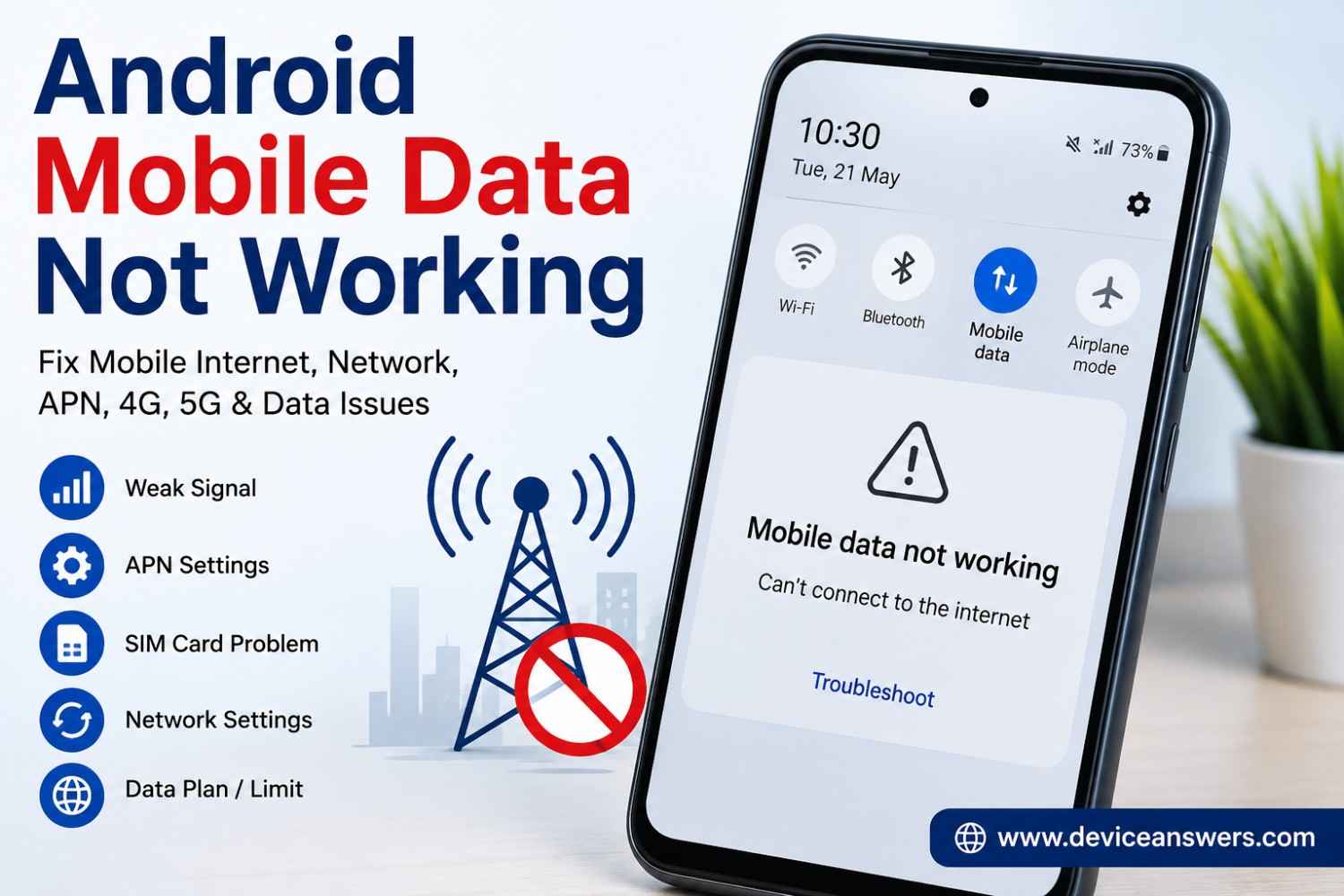
Is mobile data not working on your Android phone even though you have
a SIM card and network signal? You may see 4G, LTE, or 5G on your screen,
but websites and apps still cannot connect to the internet. In other
cases, mobile data may stop working completely, work only intermittently,
or fail after changing a network setting.
Android mobile data problems can be caused by disabled mobile data,
an exhausted data plan, weak network coverage, incorrect SIM selection,
APN configuration issues, or a temporary problem with your mobile
carrier. Some problems are related to the phone’s network settings
or software.
This guide explains how to troubleshoot mobile data on Android phones,
including Samsung Galaxy, Google Pixel, Motorola, OnePlus, Xiaomi,
Redmi, Oppo, and Realme devices. Settings may have different names
depending on your phone model, Android version, and carrier.
Quick Answer: How to Fix Mobile Data Not Working on Android
If mobile data is not working on your Android phone, try these steps
in order:
- Turn Wi-Fi off and confirm that mobile data is enabled.
- Turn Airplane Mode on for about 10 seconds, then turn it off.
- Restart your Android phone.
- Check your mobile signal, data balance, and active plan.
- Confirm that the correct SIM is selected for mobile data.
- Check Data Saver, app data restrictions, and VPN settings.
- Reset APN settings to the carrier defaults if necessary.
- Reset network settings only if the earlier steps do not work.
Test your connection after each step. If mobile data still does not
work, the next sections will help you identify the likely cause.
1. Turn Mobile Data Off and On Again
Mobile data may stop working because of a temporary connection problem.
Toggling the setting forces the phone to retry its cellular data
connection.
- Open Settings on your Android phone.
- Select Network & internet, Connections, or Mobile network.
- Open the Mobile data or Cellular data setting.
- Turn mobile data off.
- Wait approximately 10 seconds.
- Turn mobile data back on.
- Turn Wi-Fi off and try opening a website.
If you cannot find Mobile data, use the Settings search box to search
for “Mobile data” or “Cellular data.” The menu location varies between
Android manufacturers.
2. Turn Airplane Mode On and Off
Airplane Mode temporarily disables wireless connections. Turning it
on and off can help the phone reconnect to the cellular network.
- Open Quick Settings by swiping down from the top of the screen.
- Tap Airplane Mode to turn it on.
- Wait about 10 seconds.
- Turn Airplane Mode off.
- Wait for the phone to reconnect to the mobile network.
- Check whether mobile data works.
If your phone does not reconnect, move to an area with better signal
coverage and try again. Airplane Mode will not fix a carrier outage,
an inactive data plan, or a faulty SIM.
3. Restart Your Android Phone
A restart can resolve temporary software or network connection problems.
It is a useful next step if mobile data stopped working unexpectedly.
- Save your work and close any important tasks.
- Open the phone’s power menu.
- Select Restart, if available.
- Wait for the phone to start completely.
- Turn Wi-Fi off and test mobile data again.
If the phone has no Restart option, use the normal power-off procedure
recommended by its manufacturer, then turn it on again.
4. Check Your Mobile Signal and Network Coverage
Your phone may show that it is connected to a mobile network without
having a strong enough connection for reliable internet access.
Coverage can vary inside buildings, underground, in remote locations,
and in crowded areas.
- Look at the signal bars at the top of your screen.
- Check whether a mobile network indicator such as 4G, LTE, or 5G appears.
- Move near a window or go outside if it is safe to do so.
- Wait for the signal to stabilize.
- Open a website with Wi-Fi turned off.
The 4G, LTE, or 5G indicator does not guarantee that internet access
is working. If you have a signal but cannot browse, continue with the
data-plan and settings checks below.
5. Check Your Data Plan and Mobile Carrier
Mobile data may stop working if your plan has expired, your available
data allowance has been exhausted, your account has a restriction,
or your carrier is experiencing a service interruption.
- Open your mobile carrier’s official app or website.
- Check whether your plan is active.
- Confirm that mobile data is included in your plan.
- Check your remaining data allowance, if applicable.
- Look for carrier outage notices or service alerts.
- Contact your carrier if your account appears active but data still fails.
If you recently recharged your account, changed plans, replaced your SIM,
or transferred your number to another carrier, ask the provider to confirm
that mobile data service is activated correctly.
6. Check Which SIM Is Selected for Mobile Data
Dual-SIM Android phones can use one SIM for calls and messages and a
different SIM for mobile internet. If the wrong SIM is selected for
data, your preferred connection may not work.
- Open Settings.
- Select SIMs, SIM manager, Connections, or Mobile network.
- Find the setting for Mobile data or Preferred SIM for data.
- Select the SIM that has an active data plan.
- Confirm that the selected SIM is enabled.
- Turn Wi-Fi off and test the connection.
The exact menu names depend on the phone. If you use an eSIM, make sure
the relevant mobile plan is enabled and selected for data.
7. Disable Data Saver and Check App Data Restrictions
If mobile data works in some apps but not others, a data restriction
may be responsible. Data Saver, background-data restrictions, and
individual app settings can affect how applications use cellular data.
Check Data Saver
- Open Settings.
- Search for Data Saver or open Network & internet.
- Check whether Data Saver is enabled.
- Temporarily turn it off and test the affected app.
Check individual app settings
- Open Settings and select Apps.
- Choose the app that cannot connect.
- Open its Mobile data, Data usage, or Network access settings, if available.
- Check whether mobile data or background data is restricted.
- Adjust the setting only if you want that app to use mobile data.
If all apps fail on mobile data but work on Wi-Fi, investigate the
cellular connection, carrier service, SIM, and APN settings before
changing individual app permissions.
8. Check Your Preferred Network Type
An incompatible or unsuitable network-mode selection can sometimes
prevent a phone from connecting reliably. The available options depend
on your device, carrier, region, and supported network technology.
- Open Settings.
- Search for Preferred network type or Network mode.
- Open the mobile network settings for the correct SIM.
- Check the currently selected network type.
- If appropriate, select the carrier-supported automatic option, such as 5G/LTE/3G/2G auto or LTE/3G/2G auto.
- Wait for the phone to reconnect and test mobile data.
The labels and available options vary. Do not force a network mode
that your carrier or phone does not support. If 5G is unavailable in
your area, an automatic network setting may allow the phone to use
another supported network.
9. Reset APN Settings to Default
APN stands for Access Point Name. These settings help your phone
establish the carrier’s mobile data connection. Incorrect or modified
APN settings can cause internet access problems.
Consider resetting APN settings if mobile data stopped working after
changing network settings, switching carriers, or manually editing
the APN.
- Open Settings.
- Go to Mobile network, Connections, or SIM settings.
- Select the SIM you use for mobile data, if prompted.
- Open Access Point Names or APN.
- Open the menu for the available APN settings.
- Select Reset to default, if that option is available.
- Return to mobile data settings and test the connection.
Do not enter random APN values found online. APN details can vary by
carrier, country, plan, and service. If resetting to default does not
help, request the correct settings from your mobile provider.
10. Check VPN and Private DNS Settings
A VPN or custom Private DNS configuration can sometimes interfere with
access to websites or apps. This is worth checking if the phone shows
a mobile data connection but internet traffic does not work properly.
Check your VPN
- Open Settings.
- Search for VPN.
- Temporarily disconnect the VPN if one is active and you can safely do so.
- Try opening a website again.
Check Private DNS
- Open Settings.
- Search for Private DNS.
- Review the current setting.
- If you use a custom DNS provider, temporarily select Automatic for testing, if available.
- Save the change and test the connection.
If changing a setting resolves the problem, review the VPN or DNS
provider configuration before deciding whether to keep the change.
Avoid disabling security tools permanently without understanding why
they are installed.
11. Check Data Roaming When Travelling
If mobile data stops working while travelling internationally or outside
your usual carrier coverage area, roaming settings and plan restrictions
may be involved.
- Open Settings and select Mobile network or SIM settings.
- Choose the SIM you are using.
- Check whether roaming is supported by your carrier and plan.
- If required, enable Data roaming only after checking the applicable charges.
- Confirm that the phone is connected to a supported partner network.
Roaming can result in additional charges. Check your carrier’s roaming
terms before enabling it. If you are not travelling, this step may not
apply to your situation.
12. Reset Network Settings
If the earlier steps do not resolve the issue, resetting network settings
may help clear an incorrect network configuration. This should be a
later troubleshooting step rather than the first thing you try.
- Open Settings.
- Search for Reset network settings or Reset Wi-Fi, mobile & Bluetooth.
- Open the matching reset option for your phone.
- Read the confirmation screen carefully.
- Confirm the reset if you are comfortable with the changes.
- Restart the phone if requested.
- Enable mobile data and test the connection again.
The exact reset options vary by manufacturer. Depending on the device,
this action may remove saved Wi-Fi networks, Bluetooth pairings, VPN
configurations, and other network preferences. Read the confirmation
screen before proceeding.
A network reset does not guarantee a fix for carrier outages, inactive
data plans, SIM problems, or hardware faults.
13. Check the SIM Card or Contact Your Carrier
If your phone has no cellular signal, displays a SIM error, or cannot
connect to the carrier’s network, the issue may involve the SIM card,
account activation, coverage, or device compatibility.
- Check whether the phone displays a SIM error or No service message.
- If you use a physical SIM, turn off the phone before removing it, following the manufacturer’s instructions.
- Check the SIM for visible damage and reinstall it correctly.
- If possible, ask your carrier how to test the SIM safely in another compatible phone.
- Contact your carrier if the SIM is not recognized or mobile service is not activated.
If you use an eSIM, do not delete the mobile plan as a troubleshooting
experiment. Contact your carrier for instructions if the eSIM appears
inactive or cannot connect.
How to Identify the Likely Cause
| What you notice | Possible cause | Recommended next step |
|---|---|---|
| Mobile data is switched off. | Disabled cellular data setting. | Enable mobile data and test again. |
| There is no signal or the phone shows No service. | Coverage, SIM, account, or carrier problem. | Move to a different location and contact the carrier if needed. |
| 4G, LTE, or 5G appears, but websites do not load. | Data-plan, APN, VPN, DNS, or carrier connection issue. | Check the plan, test with VPN disconnected, and review APN settings. |
| Mobile data works on one SIM but not the other. | SIM selection, plan, or carrier-specific issue. | Verify the preferred data SIM and the affected SIM’s plan. |
| Only one app cannot access the internet. | App-specific data restriction or app problem. | Check the app’s data permissions and update it if needed. |
| Mobile data stopped after editing APN settings. | Incorrect APN configuration. | Reset APN settings to default or request the correct settings from the carrier. |
| Mobile data stopped working while travelling. | Roaming restrictions or network compatibility. | Check your roaming plan, supported networks, and carrier settings. |
Frequently Asked Questions
Why is mobile data not working on Android even with full signal?
Signal strength does not guarantee working internet access. Your data
plan, carrier connection, APN settings, VPN, or DNS configuration may
be involved. Turn Wi-Fi off, check your plan, and test the connection
after each relevant troubleshooting step.
Why does my Android phone show 4G or 5G but have no internet?
The phone may be registered on the mobile network without successfully
accessing mobile internet. Check your data allowance, carrier service,
APN settings, and any active VPN or custom DNS configuration.
Why is mobile data not working after an Android update?
A software update may coincide with a changed network configuration,
carrier setting, or software issue. Restart your phone, verify the
selected data SIM, and check the carrier’s instructions before making
advanced changes.
Why does mobile data work on one SIM but not another?
The SIMs may have different data plans, network coverage, activation
status, or APN requirements. Confirm that the affected SIM has an
active data plan and is selected for mobile data.
Will resetting network settings delete my personal files?
A network-settings reset is different from a factory reset and is
generally intended to reset network preferences rather than erase
personal files. However, the exact options vary by device, so read
the confirmation screen carefully before proceeding.
Should I factory reset my Android phone to fix mobile data?
A factory reset should not be an early troubleshooting step for mobile
data problems. Try the relevant network checks and contact your carrier
first. A factory reset erases data stored on the phone, so it should
only be considered after a complete backup and careful consideration.
Official Support Resources
For additional device-specific instructions, consult these official
support resources:
-
Google Android Help: Fix internet connection problems
-
Google Pixel Help: Fix mobile connectivity issues
-
Samsung Support: Troubleshoot mobile data issues
Final Thoughts
When mobile data is not working on Android, start with the simplest
checks: enable mobile data, refresh the connection using Airplane Mode,
restart the phone, and verify your signal and data plan.
If those steps do not help, check the preferred data SIM, app data
restrictions, network mode, APN settings, VPN, and Private DNS.
Reset network settings only after considering the changes it will make.
If mobile data still fails, contact your mobile carrier to check
coverage, account activation, SIM status, and network outages.
If the carrier confirms that the service is working correctly,
your phone manufacturer may be able to help investigate a device
or software problem.