
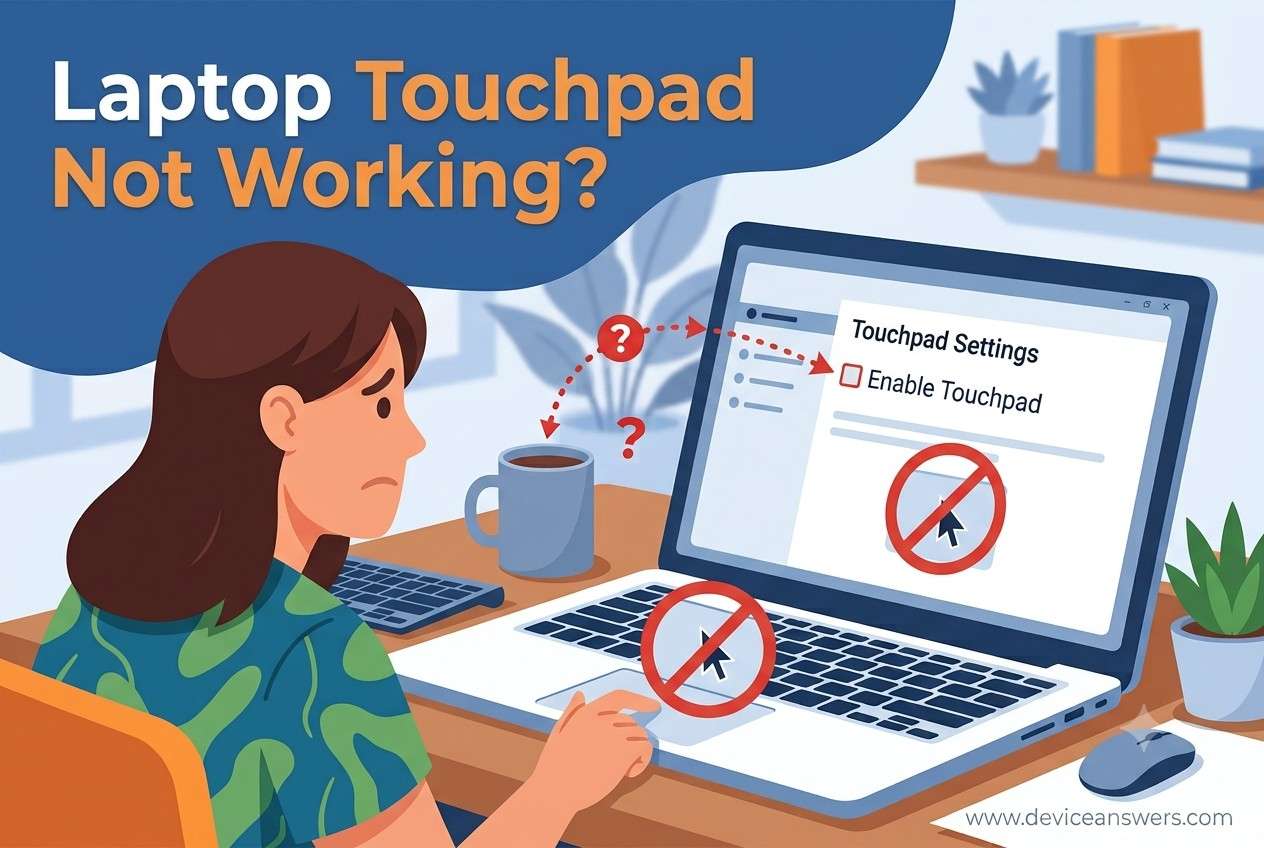
Laptop Touchpad Not Working: Complete Troubleshooting Guide (Windows 11 & Windows 10)
Introduction
A laptop touchpad is one of the most important input devices on any notebook computer. Whether you’re working from home, attending online classes, browsing the internet, editing documents, or participating in virtual meetings, the touchpad allows you to control your computer without connecting an external mouse.
When the touchpad suddenly stops working, even simple tasks become frustrating. The cursor may refuse to move, clicking may stop responding, scrolling may no longer work, or multi-touch gestures may disappear unexpectedly. These symptoms often make users think the laptop has developed a serious hardware problem, but that’s not always true.
From years of troubleshooting Windows laptops, one thing becomes clear—most touchpad problems are actually caused by software issues rather than hardware failure. Incorrect Windows Settings, outdated or corrupted Touchpad Drivers, accidental keyboard shortcuts, and Windows updates are among the most common reasons the touchpad stops responding.
Only a small percentage of cases involve physical problems such as liquid damage, battery swelling, loose internal ribbon cables, or a failed touchpad module. This is why it is always recommended to perform software troubleshooting before considering hardware replacement.
This guide has been written for:
- Home users
- Students
- Office professionals
- Remote workers
- Small business owners
- IT beginners
Whether you own a Dell, HP, Lenovo, ASUS, Acer, MSI, Samsung, LG, or Microsoft Surface laptop, the troubleshooting methods explained in this guide follow a logical sequence that technicians commonly use when diagnosing touchpad-related issues.
Instead of randomly changing settings or reinstalling Windows immediately, you’ll learn how to identify the actual cause of the problem and apply the safest solution first. This saves time, reduces unnecessary repairs, and helps avoid accidental data loss.
By the end of this guide, you’ll understand how to determine whether the problem is related to Windows, Touchpad Drivers, BIOS Settings, or actual hardware, allowing you to choose the right fix with confidence.
Quick Answer
If your Laptop Touchpad Not Working, the issue is usually caused by a disabled touchpad, outdated or corrupted Touchpad Driver, incorrect Windows Settings, recent Windows Update, or hardware damage.
Begin by restarting your laptop and checking whether the touchpad has been disabled using the keyboard Function Key or Windows settings. Next, verify the touchpad status inside Device Manager and install the latest driver provided by your laptop manufacturer. If software troubleshooting doesn’t restore functionality, inspect the laptop for physical damage or seek professional hardware diagnostics.
If an external USB Mouse works normally while the touchpad doesn’t, the motherboard is usually functioning correctly. In many cases, the problem is limited to the touchpad driver or Windows configuration.
Common Symptoms of a Laptop Touchpad Problem
Touchpad problems don’t always appear in the same way. Some users completely lose cursor movement, while others experience delayed response, missing gestures, or intermittent operation. Identifying the exact symptom helps narrow down the root cause much faster.
1. Cursor Not Moving
The most common symptom is a completely frozen Cursor. Moving your finger across the touchpad has no effect, making it impossible to navigate Windows without an external mouse.
Possible causes:
- Touchpad disabled
- Driver corruption
- BIOS configuration
- Hardware failure
- Loose internal cable
2. Touchpad Click Not Working
Sometimes the cursor moves normally, but left-click or right-click no longer responds. This often indicates a driver issue, incorrect settings, or physical wear of the click mechanism.
3. Two-Finger Scroll Not Working
If scrolling suddenly stops while normal cursor movement continues, the problem is often related to Precision Touchpad Settings, disabled gestures, or incompatible drivers.
4. Touchpad Gestures Not Working
Modern laptops support two-finger scrolling, pinch-to-zoom, three-finger multitasking, and four-finger desktop switching. When these gestures disappear, the touchpad driver or Windows gesture settings are usually responsible.
5. Cursor Freezes Randomly
The cursor may move normally for several seconds before freezing unexpectedly. High CPU usage, software conflicts, or unstable touchpad drivers commonly cause this behavior.
6. Touchpad Works Only After Restart
Some users report that the touchpad works immediately after Windows starts but stops responding after a few minutes. Startup software conflicts or faulty background services often trigger this issue.
7. Touchpad Lagging
A delayed or sluggish cursor usually indicates excessive system load, incorrect touchpad sensitivity settings, outdated drivers, or memory-related performance issues.
8. Cursor Moves Randomly
If the cursor jumps around the screen without touching the touchpad, dirt, moisture, electrical interference, or hardware damage should be considered.
Symptoms Overview
| Symptom | Possible Cause | Difficulty |
|---|---|---|
| Cursor won’t move | Disabled Touchpad | Easy |
| Click not working | Driver issue | Medium |
| Scroll stopped | Gesture settings | Easy |
| Gestures missing | Precision Driver problem | Medium |
| Cursor freezing | Software conflict | Medium |
| Cursor jumping | Dirty touchpad | Easy |
| Works after restart only | Startup software conflict | Medium |
| External mouse works | Touchpad Driver issue | Easy |
Different symptoms often point to different root causes. For example, if the cursor moves but scrolling doesn’t work, the problem is likely software-related. If the touchpad doesn’t respond at all—even in the BIOS—it may indicate a hardware issue requiring further inspection.
Why Is My Laptop Touchpad Not Working?
A Laptop Touchpad Not Working problem can occur for many different reasons. Sometimes the issue appears immediately after a Windows Update, while in other cases it may start after installing new software, updating drivers, or accidentally changing system settings.
In day-to-day troubleshooting, most touchpad issues are related to software rather than hardware. Before assuming your laptop requires repair, it’s important to identify the actual cause. Understanding why the touchpad has stopped responding helps you choose the correct solution and avoid unnecessary repairs.
1. Touchpad Has Been Disabled
Many laptop manufacturers include a built-in option to disable the Touchpad. This feature is useful when using an external mouse but can easily be enabled accidentally.
A disabled touchpad is one of the most common reasons the cursor stops moving completely. Fortunately, it is also one of the easiest problems to fix.
Common Signs
- Cursor doesn’t move at all.
- No touch response.
- External USB mouse works normally.
- No error message appears.
2. Function Key Was Pressed Accidentally
Most laptops include a dedicated keyboard shortcut that enables or disables the touchpad. Accidentally pressing this shortcut can instantly turn off the touchpad without displaying a warning.
Depending on the laptop manufacturer, the shortcut may use one of the following keys:
- Fn + F5
- Fn + F6
- Fn + F7
- Fn + F9
- Fn + F11
Look for a small touchpad icon printed on one of the function keys. Pressing Fn together with that key usually toggles the touchpad on or off.
3. Incorrect Windows Settings
Windows allows users to configure touchpad behavior through the Settings app. Sometimes these settings change after a major update or during the installation of new drivers.
For example, Windows can automatically disable the built-in touchpad whenever an external mouse is connected. If that option is enabled, disconnecting the mouse may not immediately restore touchpad functionality.
Possible Settings Issues
- Touchpad disabled
- Low sensitivity
- Gestures turned off
- External mouse priority enabled
4. Corrupted Touchpad Driver
The Touchpad Driver acts as the communication bridge between Windows and the touchpad hardware. If the driver becomes corrupted, Windows may fail to recognize the device correctly.
Driver corruption can occur because of interrupted updates, unexpected shutdowns, malware removal, or operating system errors.
Typical Symptoms
- Cursor frozen
- Gestures missing
- Touchpad not detected
- Unknown device appears in Device Manager
5. Outdated Driver
An older driver may work perfectly for years until Windows installs a major feature update. After the update, compatibility problems can appear, causing the touchpad to behave unpredictably.
Installing the latest driver directly from your laptop manufacturer’s website usually restores full functionality.
6. Missing Driver
Sometimes Windows installs only a generic pointing device driver instead of the manufacturer’s dedicated touchpad software.
Although the cursor may still move, advanced features such as:
- Two-finger scrolling
- Pinch-to-zoom
- Three-finger gestures
- Palm rejection
may no longer function correctly.
7. Windows Update Compatibility Problems
Windows updates frequently improve security and stability, but they can occasionally replace the manufacturer’s optimized touchpad driver with a generic Microsoft driver.
When this happens, users often experience:
- Touchpad disabled
- Cursor lag
- Scroll failure
- Gesture problems
- Random cursor freezes
Avoid installing unofficial driver packages downloaded from unknown websites. Always use drivers from your laptop manufacturer’s official support page.
8. BIOS Configuration Changed
Business laptops often include BIOS settings that control the internal pointing device.
If the touchpad has been disabled in BIOS, Windows cannot detect or use it, regardless of how many drivers are installed.
This situation is uncommon but should always be considered when software troubleshooting does not resolve the issue.
9. Software Conflicts
Applications that customize mouse behavior can interfere with the built-in touchpad driver.
Examples include:
- Gaming mouse software
- Cursor enhancement utilities
- Mouse macro applications
- Third-party gesture software
Removing or updating these programs often restores normal touchpad operation.
10. Synaptics Driver Problems
Many Dell, HP, Lenovo, and ASUS laptops use Synaptics touchpad drivers.
If the Synaptics driver becomes damaged or incompatible, users may notice:
- Cursor not moving
- Scrolling disabled
- Click failure
- Missing gestures
11. ELAN Driver Issues
Some laptops use ELAN touchpad hardware instead of Synaptics.
Corrupted ELAN drivers can produce symptoms such as:
- Random cursor jumps
- Slow response
- Touch delay
- Occasional freezing
12. Precision Touchpad Problems
Modern Windows laptops use Precision Touchpad technology to support advanced gestures and smooth cursor movement.
When Precision settings become damaged, only certain functions may stop working while basic cursor movement continues normally.
Common examples include:
- Two-finger scrolling stops.
- Three-finger gestures disappear.
- Pinch-to-zoom no longer works.
13. Dust, Dirt, or Moisture
A dirty touchpad surface can reduce sensitivity and cause inconsistent cursor movement.
Dust, skin oil, moisture, and debris may interfere with the touch sensor, especially on older laptops.
Cleaning the touchpad gently using a microfiber cloth can often improve responsiveness.
14. Battery Swelling
One hardware-related issue that many users overlook is battery swelling.
As lithium-ion batteries age, they can expand and push upward against the underside of the touchpad. This pressure may cause:
- Touchpad lifting upward
- Click buttons becoming difficult to press
- Intermittent cursor movement
- Complete touchpad failure
A swollen battery should never be ignored. Stop using the laptop and have the battery replaced by a qualified technician as soon as possible.
15. Loose Internal Ribbon Cable
If the laptop has recently been dropped, repaired, or opened for cleaning, the touchpad ribbon cable may have become partially disconnected.
This usually results in:
- Touchpad works occasionally.
- Cursor freezes randomly.
- No touch response after moving the laptop.
16. Liquid Damage
Even a small coffee spill or water splash can damage the touchpad electronics.
Liquid damage doesn’t always cause immediate failure. Corrosion may develop gradually, causing the touchpad to stop working days or even weeks later.
17. Physical Hardware Failure
Although less common than software issues, the touchpad itself can eventually fail due to age, manufacturing defects, or accidental impact.
If the device isn’t detected in BIOS, all software troubleshooting has failed, and external hardware tests confirm normal system operation, replacing the touchpad assembly may be necessary.
Common Causes Summary
| Cause | Type | Likelihood |
|---|---|---|
| Touchpad Disabled | Software | ★★★★★ |
| Function Key | Software | ★★★★★ |
| Windows Settings | Software | ★★★★☆ |
| Corrupted Driver | Software | ★★★★★ |
| Outdated Driver | Software | ★★★★☆ |
| Windows Update | Software | ★★★★☆ |
| BIOS Settings | Software | ★★★☆☆ |
| Software Conflict | Software | ★★★☆☆ |
| Synaptics Driver | Software | ★★★★☆ |
| ELAN Driver | Software | ★★★☆☆ |
| Precision Touchpad | Software | ★★★☆☆ |
| Dust or Dirt | Environmental | ★★☆☆☆ |
| Battery Swelling | Hardware | ★★☆☆☆ |
| Loose Ribbon Cable | Hardware | ★★☆☆☆ |
| Liquid Damage | Hardware | ★☆☆☆☆ |
| Touchpad Failure | Hardware | ★★☆☆☆ |
Based on real-world repair experience, most Laptop Touchpad Not Working cases are resolved without replacing hardware. Start with simple checks such as the Function Key, Windows Settings, and Touchpad Driver. Only investigate hardware causes after software troubleshooting has been completed.
How to Fix Laptop Touchpad Not Working
Before assuming your laptop has a hardware problem, work through the troubleshooting methods below in order. In many cases, the issue can be resolved within a few minutes by correcting a setting or reinstalling the correct driver.
These methods start with the simplest fixes and gradually move toward more advanced troubleshooting. After completing each method, test the touchpad before moving to the next one.
Method 1: Restart Your Laptop
Why This Works
A restart clears temporary system processes, reloads Windows services, and reinitializes hardware drivers. If the touchpad stopped responding because of a temporary software glitch, restarting the laptop may restore normal operation.
Steps
- Save all open files.
- Select Start → Power → Restart.
- Allow Windows to restart completely.
- Do not interrupt the startup process.
- After signing in, test the touchpad.
Expected Result
If a temporary Windows process caused the issue, the touchpad should begin responding normally.
Avoid using Shut Down if Fast Startup is enabled. A full Restart reloads drivers more effectively.
Use this as your very first troubleshooting step whenever the touchpad suddenly stops responding.
Method 2: Check the Touchpad Function Key
Why This Works
Most laptops include a keyboard shortcut that can instantly enable or disable the touchpad. Users sometimes press this key accidentally without realizing it.
Common Keyboard Shortcuts
| Brand | Typical Shortcut |
|---|---|
| Dell | Fn + F3 or Fn + F5 |
| HP | Double-tap Touchpad Icon or Fn Key |
| Lenovo | Fn + F6 |
| ASUS | Fn + F9 |
| Acer | Fn + F7 |
| MSI | Fn + F3 |
Steps
- Locate the key showing a touchpad icon.
- Hold the Fn key.
- Press the touchpad shortcut once.
- Wait a few seconds.
- Test the touchpad again.
Expected Result
If the touchpad was disabled accidentally, it should become active immediately.
Some HP laptops use a small LED or a double-tap zone in the upper-left corner of the touchpad instead of a function key.
Method 3: Enable the Touchpad in Windows Settings
Why This Works
Windows allows users to disable the touchpad manually. Certain updates or third-party applications can also change this setting automatically.
Steps for Windows 11
- Open Settings.
- Select Bluetooth & Devices.
- Choose Touchpad.
- Ensure the main Touchpad switch is turned On.
- Expand additional settings if available.
- Verify gestures and sensitivity options.
Steps for Windows 10
- Open Settings.
- Select Devices.
- Choose Touchpad.
- Enable the touchpad.
- Save the changes.
Expected Result
Once enabled, cursor movement, clicking, and scrolling should function normally if no other issue exists.
Some laptops include an option that disables the touchpad whenever an external USB mouse is connected. Disable that option if necessary.
Method 4: Check Device Manager for Driver Errors
Why This Works
The Device Manager shows whether Windows has detected the touchpad correctly. Missing drivers, disabled devices, or hardware errors usually appear here.
Steps
- Press Windows + X.
- Select Device Manager.
- Expand Mice and other pointing devices.
- Locate your touchpad device.
- Look for warning icons.
- Right-click the device.
- Select Enable Device if available.
What to Look For
- Yellow warning icon
- Unknown device
- Disabled device
- Missing touchpad entry
Expected Result
Windows should recognize the touchpad without warning symbols.
If the touchpad doesn’t appear at all, select Scan for hardware changes from the Action menu.
Method 5: Verify Touchpad Services and Basic Configuration
Why This Works
Some laptops rely on background Windows services and manufacturer utilities for advanced touchpad functions. If these services stop running, gestures or touchpad functionality may stop working.
Steps
- Press Windows + R.
- Type services.msc.
- Press Enter.
- Check services related to your touchpad software if installed.
- Restart the affected service if it has stopped.
- Restart the computer.
Expected Result
Touchpad features such as gestures, scrolling, and clicking should return if the issue was caused by a stopped background service.
Do not disable Windows system services unless you understand their purpose. Changing unrelated services can create additional system problems.
Quick Troubleshooting Progress Checklist
| Method | Difficulty | Average Time | Success Rate* |
|---|---|---|---|
| Restart Laptop | Easy | 2 Minutes | ★★★★☆ |
| Function Key Check | Easy | 1 Minute | ★★★★★ |
| Windows Settings | Easy | 3 Minutes | ★★★★★ |
| Device Manager | Medium | 5 Minutes | ★★★★☆ |
| Touchpad Services | Medium | 5 Minutes | ★★★☆☆ |
*Success rates are based on common troubleshooting scenarios and vary depending on the underlying cause.
If your touchpad still isn’t working after completing these first five methods, don’t skip directly to hardware repair. Most remaining software-related problems are resolved by updating, rolling back, or reinstalling the correct touchpad driver, which will be covered in Part 3B.
Advanced Driver Troubleshooting
If the first five troubleshooting methods didn’t solve the problem, the next step is to examine your Touchpad Driver. Drivers allow Windows to communicate with your laptop hardware. When a driver becomes outdated, corrupted, or incompatible after a Windows update, the touchpad may stop responding or lose advanced features such as scrolling and gestures.
The following methods focus on repairing driver-related issues without affecting your personal files.
Method 6: Update the Touchpad Driver
Why This Works
An outdated driver may not be fully compatible with the latest version of Windows. Installing the newest driver from your laptop manufacturer can restore proper communication between Windows and the touchpad.
Step-by-Step Instructions
- Press Windows + X and choose Device Manager.
- Expand Mice and other pointing devices.
- Locate your Touchpad device (such as Synaptics, ELAN, or HID-compliant Touchpad).
- Right-click the device and select Update Driver.
- Select Search automatically for drivers.
- If Windows doesn’t find a newer version, visit your laptop manufacturer’s support website.
- Download the latest driver designed for your laptop model.
- Install the driver and restart your computer.
Expected Result
The touchpad should respond normally, and scrolling, clicking, and gesture support should be restored if the issue was caused by an outdated driver.
Whenever possible, install drivers from your laptop manufacturer’s support page instead of relying only on Windows Update. Manufacturer drivers often include performance improvements and additional touchpad features.
Choose this method if the touchpad stopped working after upgrading Windows or if Device Manager shows an outdated driver version.
Method 7: Roll Back the Touchpad Driver
Why This Works
Sometimes a newly installed driver introduces compatibility problems instead of fixing them. Rolling back restores the previously working driver version without reinstalling Windows.
Step-by-Step Instructions
- Open Device Manager.
- Expand Mice and other pointing devices.
- Right-click the touchpad device.
- Select Properties.
- Open the Driver tab.
- Click Roll Back Driver if the option is available.
- Select a reason when prompted.
- Restart the laptop.
Expected Result
If the latest driver caused the issue, the touchpad should return to its previous working state after the restart.
The Roll Back Driver button is only available if Windows still has the previous driver stored on the system.
Do not interrupt the restart process after rolling back a driver. Windows needs to reload the restored driver during startup.
Method 8: Reinstall the Touchpad Driver
Why This Works
A damaged or incomplete driver installation can prevent Windows from recognizing the touchpad correctly. Reinstalling removes corrupted files and installs a fresh copy of the driver.
Step-by-Step Instructions
- Open Device Manager.
- Expand Mice and other pointing devices.
- Right-click the touchpad device.
- Select Uninstall device.
- If prompted, check Delete the driver software for this device only if you already have the correct replacement driver downloaded.
- Click Uninstall.
- Restart the laptop.
- Allow Windows to reinstall the driver automatically, or manually install the latest driver from the manufacturer’s website.
Expected Result
Windows should detect the touchpad during startup and install a working driver. Cursor movement, clicking, and gestures should return if driver corruption was the underlying cause.
Before uninstalling the driver, connect an external USB Mouse. This makes navigation much easier while reinstalling the touchpad software.
If Windows installs only a generic driver, download the official Synaptics, ELAN, or Precision Touchpad driver provided by your laptop manufacturer for the best experience.
Driver Troubleshooting Summary
| Method | Best Used When | Difficulty | Estimated Time |
|---|---|---|---|
| Update Driver | Driver is outdated or incompatible | Easy | 10–15 Minutes |
| Roll Back Driver | Problem started after a recent driver update | Medium | 5–10 Minutes |
| Reinstall Driver | Driver is corrupted or missing | Medium | 15–20 Minutes |
In real-world support cases, driver-related issues account for a large percentage of touchpad failures after Windows updates. If updating the driver doesn’t help, rolling back or reinstalling the manufacturer-approved driver is often the most effective solution before investigating hardware problems.
Method 9: Install the Latest Windows Updates
Why This Works
Although some Windows Updates can introduce driver compatibility issues, Microsoft also releases updates that fix hardware bugs, improve device compatibility, and resolve known touchpad problems. If your system is missing important updates, installing them may restore normal touchpad functionality.
Step-by-Step Instructions
- Open Settings.
- Select Windows Update.
- Click Check for updates.
- Download and install all available updates.
- Restart your laptop.
- Test the touchpad after Windows loads completely.
Expected Result
If Microsoft has released a fix for your touchpad or driver compatibility issue, the touchpad should begin working normally after the update is installed.
After installing Windows updates, visit your laptop manufacturer’s support page to check for updated chipset and touchpad drivers. Manufacturers sometimes release newer drivers before they become available through Windows Update.
Use this method if your laptop hasn’t been updated for a long time or Microsoft has recently released a fix related to hardware compatibility.
Method 10: Check BIOS Settings
Why This Works
The BIOS (Basic Input/Output System) controls how your laptop hardware operates before Windows starts. Many business and professional laptops allow the internal touchpad to be enabled or disabled directly from the BIOS.
If the touchpad is disabled here, Windows will not recognize it even if the correct driver is installed.
Step-by-Step Instructions
- Restart your laptop.
- Press the BIOS access key repeatedly during startup (such as F2, Delete, Esc, or F10, depending on your laptop model).
- Navigate to the Advanced or Internal Devices section.
- Locate the Internal Pointing Device or Touchpad option.
- Ensure it is set to Enabled.
- Save your changes.
- Exit the BIOS and restart the laptop.
Expected Result
If the touchpad had been disabled in the BIOS, Windows should detect it automatically after restarting.
If you are unsure about a BIOS setting, take a photo of each screen before making changes. This makes it easy to restore the original configuration if needed.
Do not modify unrelated BIOS settings such as CPU, storage, memory, or security options unless you fully understand their purpose. Incorrect changes can prevent your laptop from booting properly.
Quick Troubleshooting Summary
| Method | Recommended When | Difficulty | Estimated Time |
|---|---|---|---|
| Restart Laptop | Touchpad stopped suddenly | Easy | 2 Minutes |
| Check Function Key | Touchpad accidentally disabled | Easy | 1 Minute |
| Enable Touchpad in Settings | Touchpad turned off in Windows | Easy | 3 Minutes |
| Device Manager Check | Driver error suspected | Medium | 5 Minutes |
| Verify Touchpad Services | Gestures or features missing | Medium | 5 Minutes |
| Update Driver | Driver outdated | Easy | 10 Minutes |
| Roll Back Driver | Problem after recent driver update | Medium | 10 Minutes |
| Reinstall Driver | Driver corrupted | Medium | 20 Minutes |
| Install Windows Updates | Known Windows bug | Easy | 15–30 Minutes |
| Check BIOS Settings | Touchpad not detected by Windows | Advanced | 10 Minutes |
When Should You Stop Troubleshooting?
If you have completed all ten troubleshooting methods and the Touchpad still doesn’t respond, the problem is more likely to be hardware-related than software-related.
Consider professional diagnosis if you notice any of the following:
- The touchpad is not detected in Device Manager.
- The touchpad is disabled even after enabling it in the BIOS.
- The laptop has been dropped or exposed to liquid.
- The touchpad surface is physically cracked or lifted.
- The battery appears swollen.
- The touchpad intermittently disconnects when the laptop is moved.
Based on real-world repair experience, approximately most touchpad issues are resolved through software troubleshooting, particularly by correcting settings, reinstalling the appropriate manufacturer driver, or fixing Windows-related conflicts. Hardware replacement should be considered only after completing these troubleshooting steps and confirming that the touchpad is not being detected by the system.
Brand-Specific Touchpad Solutions
Although Windows troubleshooting steps are generally similar across all laptops, each manufacturer uses different Touchpad Drivers, keyboard shortcuts, firmware settings, and support utilities. Understanding these brand-specific differences can save time and help identify the correct solution more quickly.
The following sections highlight the most common touchpad issues found on popular laptop brands and the troubleshooting steps technicians typically recommend.
Dell Laptop Touchpad Not Working
Dell laptops commonly use Precision Touchpad or Synaptics drivers. After major Windows updates, users may notice that scrolling, gestures, or the entire touchpad stops responding because the driver has been replaced with a generic version.
Common Causes
- Outdated Dell touchpad driver
- Touchpad disabled using a keyboard shortcut
- Windows installed a generic HID driver
- BIOS touchpad settings changed
Recommended Fixes
- Restart the laptop.
- Press the Dell touchpad shortcut (varies by model).
- Open Settings → Bluetooth & Devices → Touchpad.
- Check Device Manager for driver errors.
- Install the latest touchpad driver from Dell Support.
- Update the system BIOS if Dell recommends it.
Dell SupportAssist can automatically identify outdated drivers and recommend the correct touchpad updates for your laptop model.
HP Laptop Touchpad Not Working
Many HP laptops include a built-in touchpad lock feature. Users sometimes disable the touchpad accidentally by double-tapping the small indicator area located in the upper-left corner of the touchpad.
Common Causes
- Touchpad lock enabled
- Corrupted Synaptics driver
- Windows update compatibility issue
- Touchpad disabled in Settings
Recommended Fixes
- Double-tap the upper-left corner of the touchpad.
- Check Windows touchpad settings.
- Update the Synaptics or Precision Touchpad driver.
- Restart the laptop.
- Run HP hardware diagnostics if available.
Some HP business laptops include additional touchpad settings inside the BIOS that allow the internal pointing device to be enabled or disabled.
Lenovo Laptop Touchpad Not Working
Lenovo laptops frequently use ELAN, Synaptics, or Precision Touchpad drivers depending on the model. Driver mismatches after Windows updates are among the most common causes of touchpad issues.
Common Causes
- Outdated Lenovo driver
- Function key disabled touchpad
- Corrupted ELAN driver
- Incorrect Windows settings
Recommended Fixes
- Use the Lenovo touchpad shortcut key.
- Open Lenovo Vantage and check for driver updates.
- Install the latest touchpad driver.
- Restart Windows after installation.
- Verify touchpad settings inside Windows.
Lenovo Vantage often provides newer drivers than Windows Update and should be checked whenever touchpad issues appear.
ASUS Laptop Touchpad Not Working
ASUS laptops commonly include advanced gesture support through the Precision Touchpad. Incorrect driver installation or disabled touchpad settings may cause gestures and cursor movement to stop working.
Common Causes
- Touchpad disabled using Fn shortcut
- Incorrect ASUS driver
- Driver conflict after Windows update
- MyASUS utility settings
Recommended Fixes
- Press the ASUS touchpad shortcut key.
- Verify the touchpad is enabled in Windows Settings.
- Install the latest driver from ASUS Support.
- Check MyASUS for recommended updates.
- Restart the laptop.
Always install ASUS chipset drivers before installing touchpad drivers after a clean Windows installation.
Acer Laptop Touchpad Not Working
Acer laptops usually rely on ELAN or Precision Touchpad drivers. Users frequently encounter touchpad issues after upgrading Windows or reinstalling the operating system without installing Acer’s official drivers.
Common Causes
- Missing Acer touchpad driver
- Disabled touchpad shortcut
- Outdated chipset driver
- Windows installed a generic driver
Recommended Fixes
- Enable the touchpad using the Acer keyboard shortcut.
- Update Windows completely.
- Install the latest Acer touchpad driver.
- Restart the laptop.
- Test scrolling and gestures.
After reinstalling Windows, always install Acer chipset drivers first, followed by graphics, storage, and finally the touchpad driver.
Brand Comparison Table
| Brand | Common Driver | Typical Cause | Best Solution |
|---|---|---|---|
| Dell | Synaptics / Precision | Driver replaced after Windows Update | Install Dell-certified driver |
| HP | Synaptics | Touchpad Lock enabled | Double-tap touchpad corner and update driver |
| Lenovo | ELAN / Precision | Driver compatibility issue | Update using Lenovo Vantage |
| ASUS | Precision | Disabled shortcut or outdated driver | Update through MyASUS and ASUS Support |
| Acer | ELAN / Precision | Generic Windows driver installed | Install official Acer driver |
Regardless of the laptop brand, avoid downloading touchpad drivers from unofficial websites. Use the official support page for your exact laptop model to ensure compatibility, security, and access to advanced features such as multi-touch gestures and Precision Touchpad functionality.
More Brand-Specific Touchpad Troubleshooting
Some laptop manufacturers use customized firmware, hardware utilities, and proprietary drivers that require additional troubleshooting steps beyond the standard Windows methods. If your touchpad still isn’t working, review the recommendations below for your laptop brand.
MSI Laptop Touchpad Not Working
MSI gaming and creator laptops often use Microsoft Precision Touchpad drivers combined with MSI-specific firmware. Touchpad problems can occur after BIOS updates, Windows upgrades, or driver conflicts.
Common Causes
- Touchpad accidentally disabled using the keyboard shortcut.
- Outdated Precision Touchpad driver.
- MSI Center settings conflict.
- Windows installed an incompatible driver.
Recommended Solutions
- Restart your MSI laptop.
- Enable the touchpad using the appropriate Fn shortcut.
- Open Settings → Bluetooth & Devices → Touchpad.
- Update Windows completely.
- Install the latest touchpad driver from the MSI support website.
- Check MSI Center for firmware or driver updates.
If you recently upgraded Windows, reinstall both the chipset driver and the touchpad driver instead of updating only the touchpad driver.
Samsung Laptop Touchpad Not Working
Samsung laptops generally use Precision Touchpad or ELAN drivers. Driver replacement after Windows updates is one of the most common reasons the touchpad stops responding.
Common Causes
- Missing Samsung touchpad driver.
- Disabled touchpad settings.
- Windows compatibility issue.
- Corrupted driver installation.
Recommended Solutions
- Restart the laptop.
- Verify the touchpad is enabled in Windows Settings.
- Update Windows.
- Install the latest Samsung touchpad driver.
- Restart and test scrolling, clicking, and gestures.
Older Samsung laptops may require installing chipset drivers before the touchpad driver functions correctly.
LG Laptop Touchpad Not Working
LG Gram laptops are designed for lightweight portability and commonly use Microsoft Precision Touchpad drivers. In many cases, installing the latest LG drivers restores full touchpad functionality.
Common Causes
- Driver corruption.
- Touchpad disabled after Windows update.
- Incorrect BIOS configuration.
- Outdated firmware.
Recommended Solutions
- Enable the touchpad in Windows Settings.
- Check the BIOS for an enabled internal pointing device.
- Install the latest LG drivers.
- Restart the system.
- Test gestures and multi-touch features.
Keep both BIOS firmware and chipset drivers updated, especially after major Windows feature updates.
Microsoft Surface Touchpad Not Working
Surface devices use Microsoft Precision Touchpad technology integrated with Windows. Problems are commonly caused by incomplete Windows updates, firmware issues, or removable keyboard connection problems on Surface Pro models.
Common Causes
- Surface Type Cover connection issue.
- Pending firmware updates.
- Driver corruption.
- Windows update failure.
Recommended Solutions
- Disconnect and reconnect the Type Cover.
- Restart the Surface device.
- Run Windows Update until no updates remain.
- Install Surface firmware updates.
- Check Device Manager for driver errors.
Avoid forcing the Type Cover connector into place. Dirty or damaged connector pins can also prevent the touchpad from working correctly.
Windows 11 Touchpad Not Working
Windows 11 includes improved support for Precision Touchpads, advanced gestures, and customizable sensitivity settings. However, some users experience touchpad issues after installing feature updates or upgrading from Windows 10.
Common Windows 11 Problems
- Touchpad disabled after an update.
- Two-finger scrolling not working.
- Gesture support missing.
- Cursor freezing intermittently.
- Touchpad not detected after restart.
Recommended Fixes
- Install the latest Windows updates.
- Verify Touchpad settings are enabled.
- Update or reinstall the Precision Touchpad driver.
- Restart Windows after driver installation.
- Install the latest BIOS update if recommended by the manufacturer.
If gestures disappear while basic cursor movement still works, reinstall the manufacturer’s Precision Touchpad driver instead of using the generic Windows driver.
Windows 10 Touchpad Not Working
Windows 10 remains widely used on business and home laptops. Although generally stable, driver conflicts, accidental setting changes, and outdated firmware can still cause touchpad failures.
Common Windows 10 Issues
- Touchpad disabled after driver installation.
- Cursor movement stops randomly.
- Scrolling no longer works.
- Touchpad disappears from Settings.
- Unknown device appears in Device Manager.
Recommended Fixes
- Restart the laptop.
- Enable the touchpad in Windows Settings.
- Update or reinstall the touchpad driver.
- Check Device Manager for hardware errors.
- Install the latest chipset and BIOS updates if available.
After reinstalling Windows 10, install drivers in this order: Chipset → Storage → Graphics → Touchpad → Audio → Network. This sequence helps prevent hardware detection issues.
Brand & Operating System Comparison
| System | Most Common Issue | Primary Solution |
|---|---|---|
| MSI | Driver conflict after Windows update | Install MSI-certified driver |
| Samsung | Generic Windows driver | Install official Samsung driver |
| LG | Firmware or BIOS issue | Update firmware and touchpad driver |
| Microsoft Surface | Firmware or Type Cover connection | Reconnect keyboard and install firmware updates |
| Windows 11 | Gesture and Precision driver problems | Reinstall Precision Touchpad driver |
| Windows 10 | Outdated or corrupted driver | Update or reinstall manufacturer driver |
Most touchpad problems across MSI, Samsung, LG, Surface, Windows 10, and Windows 11 are resolved by installing the latest manufacturer-approved driver instead of relying solely on the generic Windows driver. Keeping BIOS firmware, chipset drivers, and Windows fully updated also improves long-term touchpad stability.
The next part includes:
- Hardware vs. Software Touchpad Problems
- Common Touchpad Error Messages
- Troubleshooting Decision Table
- Preventive Maintenance Tips
- Frequently Asked Questions (FAQs)
How to Tell Whether the Problem Is Hardware or Software
One of the most common questions users ask is whether a non-working touchpad is caused by software or a hardware failure. Fortunately, there are several signs that can help identify the root cause before spending money on repairs.
In many situations, software-related issues can be resolved by updating drivers, adjusting Windows settings, or installing system updates. Hardware problems, however, usually require professional repair or replacement.
Signs of a Software Problem
- Touchpad stopped working after a Windows Update.
- The cursor works intermittently.
- Two-finger scrolling or gestures stopped working.
- The touchpad appears in Device Manager with a warning icon.
- The issue began after installing new drivers.
- The touchpad works in Safe Mode.
- A restart temporarily fixes the problem.
Software-related touchpad problems are often resolved by updating drivers, reinstalling Windows touchpad software, or correcting system settings.
Signs of a Hardware Problem
- The touchpad is not detected in BIOS.
- Device Manager does not show the touchpad at all.
- The touchpad is physically cracked or damaged.
- The laptop was dropped recently.
- Liquid spilled onto the keyboard or palm rest.
- The battery is swollen and pressing against the touchpad.
- The touchpad clicks but the cursor never moves.
A swollen battery can push against the touchpad from inside the laptop, causing erratic cursor movement, clicking problems, or complete failure. If you suspect battery swelling, stop using the laptop and have it inspected promptly.
Hardware vs. Software Comparison
| Symptom | Likely Cause | Recommended Solution |
|---|---|---|
| Stopped after Windows Update | Software | Update or reinstall the touchpad driver. |
| Works in Safe Mode | Software | Remove conflicting drivers or startup software. |
| Touchpad missing in Device Manager | Hardware or BIOS | Check BIOS settings and hardware connection. |
| Cursor freezes randomly | Software | Install updated drivers and Windows updates. |
| No response after accidental drop | Hardware | Inspect internal touchpad cable and hardware. |
| Physical cracks or broken buttons | Hardware | Replace the touchpad assembly. |
| Swollen battery affecting touchpad | Hardware | Replace the battery immediately. |
Common Touchpad Error Messages and Solutions
Windows may display different messages when it cannot communicate properly with the touchpad hardware or driver. These messages provide useful clues about the underlying issue.
| Error Message | Possible Cause | Recommended Fix |
|---|---|---|
| This device cannot start (Code 10) | Driver corruption | Reinstall the touchpad driver. |
| Device not detected | Disabled BIOS setting or hardware issue | Enable the touchpad in BIOS or inspect hardware. |
| Unknown Device | Incorrect or missing driver | Install the correct manufacturer driver. |
| Driver unavailable | Windows driver failure | Update or roll back the driver. |
| Touchpad disappeared from Settings | Driver or Windows issue | Reinstall the Precision Touchpad driver. |
| Scrolling not working | Gesture settings disabled | Enable scrolling in Touchpad Settings. |
| Gestures unavailable | Generic HID driver installed | Install the official Precision Touchpad driver. |
Troubleshooting Decision Guide
| If You Notice… | Do This First |
|---|---|
| Cursor does not move | Restart the laptop and check Windows Touchpad Settings. |
| Touchpad disabled | Use the keyboard shortcut or enable it in Settings. |
| Scrolling stopped working | Update or reinstall the touchpad driver. |
| Touchpad missing | Check Device Manager and BIOS settings. |
| Cursor freezes frequently | Install Windows updates and updated drivers. |
| Problem started after Windows Update | Roll back the driver if available. |
| Laptop suffered physical damage | Inspect hardware or contact an authorized repair center. |
Related Laptop & Windows Troubleshooting Guides

Related Posts

Kavinthira
- July 30, 2026
- 0 Comments
Laptop Microphone Not Working? 15 Proven Fixes That Actually Work A laptop microphone not working is usually caused by incorrect Windows settings, disabled microphone permissions, outdated audio drivers, or the…
- July 30, 2026
- 0 Comments
Fix 1: Restart Your Laptop A restart can clear temporary Windows and network problems. If the Wi-Fi stopped working after the laptop had been running for a long time or…