Kavinthira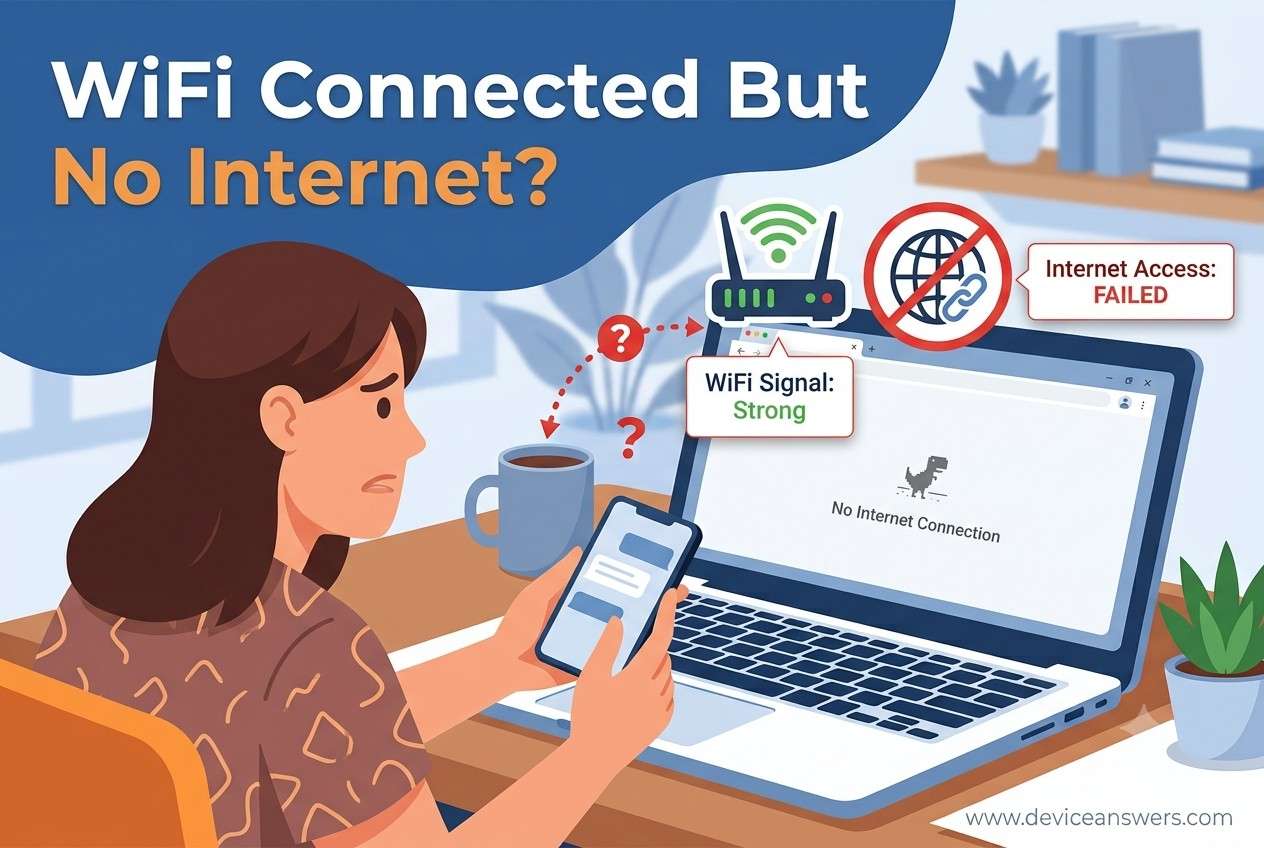
WiFi Connected But No Internet – Causes and Step-by-Step Fixes
Seeing your device connected to WiFi but unable to browse websites or use online apps can be incredibly frustrating. Whether you’re using a Windows laptop, Android phone, iPhone, Smart TV, wireless printer, or another connected device, this problem usually means your device is connected to your wireless network but cannot reach the internet.
In most cases, the issue is caused by a router problem, modem issue, ISP outage, incorrect DNS settings, outdated network drivers, or a temporary software glitch. Fortunately, most of these problems can be fixed at home without replacing your networking equipment.
This guide explains why WiFi says connected but no internet, what the message actually means, and the most effective troubleshooting methods to restore your internet connection. The solutions are arranged from the easiest fixes to more advanced techniques, making them suitable for beginners as well as experienced users.
Quick Answer
WiFi Connected But No Internet means your device has successfully connected to your wireless router, but the router cannot provide internet access. Your local wireless network is working correctly, but your internet connection is unavailable.
Before trying advanced troubleshooting, perform these quick checks:
- Restart your router and modem.
- Restart your computer or mobile device.
- Disconnect and reconnect to the WiFi network.
- Test the internet on another device.
- Check whether your Internet Service Provider (ISP) is experiencing an outage.
If these steps do not solve the issue, continue through the troubleshooting methods in this guide.
Key Takeaways
- Connecting to WiFi does not always mean you have internet access.
- Most internet connection issues can be fixed without replacing your router.
- The problem may originate from your router, modem, ISP, DNS settings, or your device.
- Following the troubleshooting methods in order makes it easier to identify the exact cause.
- Many users can restore internet access within 10 to 20 minutes.
What Does “WiFi Connected But No Internet” Mean?
When your device displays “WiFi Connected But No Internet”, it means the wireless connection between your device and the router is working correctly, but the router cannot communicate with the internet.
Many users assume that seeing the WiFi icon automatically means they are online. In reality, a WiFi connection only confirms that your device is connected to your home network. It does not guarantee that your router has an active internet connection.
1. WiFi Connection
A WiFi connection is simply the wireless link between your device and your router or wireless access point.
Once connected, your device receives a local IP address and can communicate with other devices on the same network. However, this connection alone does not provide internet access.
2. Internet Connection
An internet connection exists when your router successfully connects to your Internet Service Provider (ISP). This connection allows you to browse websites, stream videos, send emails, and access cloud services.
If this connection fails, your device may remain connected to WiFi while online services stop working.
3. Router Connection
Your router acts as the gateway between your local network and the internet. It distributes the internet connection to every connected device in your home or office.
If the router freezes, loses its WAN connection, or experiences configuration issues, every connected device may display Connected, No Internet.
4. ISP Connection
Your Internet Service Provider (ISP) supplies internet service through fiber, cable, DSL, or fixed wireless technology.
If your ISP experiences an outage, scheduled maintenance, damaged cables, or account-related issues, your router will continue broadcasting WiFi even though internet access is unavailable.
Example Scenario
Think of your network like a road system.
- Your device is your car.
- Your WiFi network is your driveway.
- Your router is the neighborhood gate.
- The internet is the highway beyond the gate.
Your car can easily reach the neighborhood gate, but if the highway is closed, you cannot continue your journey. Likewise, your device may connect successfully to your WiFi network while remaining unable to access websites or online services.
Why Does This Message Appear?
Modern smartphones, laptops, tablets, smart TVs, printers, and gaming consoles automatically reconnect to previously saved WiFi networks whenever they are within range.
If the router later loses internet connectivity because of an ISP outage, modem failure, DNS problem, or network configuration error, your device remains connected to WiFi even though no internet traffic can pass through the router.
This is why operating systems display messages such as “Connected, No Internet”, “No Internet, Secured”, or “Limited Connectivity.”
Method 6: Renew the IP Address
Difficulty: Easy | Time Required: 3–5 Minutes
Why This Works
Every device connected to your network receives an IP address from your router through DHCP (Dynamic Host Configuration Protocol). If the assigned IP address expires, conflicts with another device, or becomes invalid, your computer may connect to WiFi but lose internet access.
Renewing the IP address forces your device to request a fresh network configuration from the router, often resolving temporary connectivity problems.
How to Renew Your IP Address in Windows
- Press Windows + S and search for Command Prompt.
- Choose Run as Administrator.
- Type the following command and press Enter:
ipconfig /release
Wait until Windows releases the current IP address.
Next, enter:
ipconfig /renew
Allow Windows a few seconds to obtain a new IP address.
Expected Result
Your device receives a new IP address from the router and internet access should return if an IP conflict caused the problem.
Extra Troubleshooting Tip
If Windows displays an error while renewing the address, restart both your router and computer before trying again.
Method 7: Flush the DNS Cache
Difficulty: Easy | Time Required: 2 Minutes
Why This Works
Your computer stores recently visited website addresses inside a DNS cache. If this cache becomes outdated or corrupted, websites may stop loading even though your internet connection is active.
Flushing the DNS cache forces Windows to retrieve fresh website information from DNS servers.
Steps to Flush DNS Cache
- Open Command Prompt as Administrator.
- Enter the following command:
ipconfig /flushdns
You should see the message:
“Successfully flushed the DNS Resolver Cache.”
Expected Result
Previously inaccessible websites should begin loading normally if corrupted DNS records were responsible.
Pro Tip
After flushing the cache, close your browser completely before reopening it.
Method 8: Change DNS Server to Google DNS
Difficulty: Moderate | Time Required: 5 Minutes
Why This Works
Sometimes your Internet Service Provider’s DNS servers become slow or temporarily unavailable. Switching to Google’s public DNS servers provides a reliable alternative and often restores internet access.
Steps
- Open Settings.
- Select Network & Internet.
- Click Advanced Network Settings.
- Select More Network Adapter Options.
- Right-click your WiFi adapter.
- Select Properties.
- Open Internet Protocol Version 4 (TCP/IPv4).
- Select Use the following DNS server addresses.
Enter:
- Preferred DNS: 8.8.8.8
- Alternate DNS: 8.8.4.4
Click OK and reconnect to WiFi.
Expected Result
Website loading should become faster and internet connectivity may return immediately.
Important Note
You can also use other trusted public DNS providers if preferred, but Google’s DNS is widely supported and easy to configure.
Method 9: Reset the TCP/IP Stack
Difficulty: Moderate | Time Required: 5 Minutes
Why This Works
The TCP/IP stack manages communication between your device and the internet. Corrupted network settings or software conflicts can prevent proper communication.
Resetting TCP/IP restores the default networking configuration without affecting your personal files.
Steps
- Open Command Prompt as Administrator.
- Run the following command:
netsh int ip reset
Then restart your computer.
Expected Result
Windows rebuilds its network configuration and eliminates many hidden networking problems.
Extra Tip
If internet access still doesn’t return, continue with the next troubleshooting method before making additional changes.
Method 10: Restart Your Modem
Difficulty: Easy | Time Required: 5 Minutes
Why This Works
Your modem connects your home network to your Internet Service Provider. Temporary ISP communication errors or modem software glitches can interrupt internet access while your WiFi network continues operating normally.
Steps
- Turn off the modem.
- Disconnect the power cable.
- Wait at least 60 seconds.
- Reconnect the power cable.
- Wait until all internet indicator lights become stable.
- Reconnect your device to WiFi.
Expected Result
If the modem successfully reconnects to your ISP, internet service should resume automatically.
Expert Tip
If your modem and router are separate devices, always restart the modem first, wait until it is fully online, and then restart the router.
Method 11: Check for an ISP Outage
Difficulty: Easy | Time Required: 5 Minutes
Why This Works
Sometimes the problem isn’t inside your home. Your Internet Service Provider may be performing maintenance, repairing damaged infrastructure, or experiencing a temporary service outage.
How to Check
- Test internet access on another device.
- Check whether your neighbors have internet service.
- Review your ISP’s service status page or mobile app.
- Look for outage notifications through your provider.
- Contact customer support if necessary.
Expected Result
If an outage is confirmed, no further troubleshooting is required. Internet service will usually return once your provider resolves the issue.
Important Note
A router showing a red or amber Internet indicator often points to an ISP-related problem rather than a WiFi issue.
Method 12: Update WiFi Network Drivers
Difficulty: Moderate | Time Required: 10 Minutes
Why This Works
Outdated, incompatible, or corrupted network adapter drivers can prevent Windows from communicating properly with your wireless hardware, especially after major Windows updates.
Installing the latest driver improves compatibility, stability, and overall network performance.
Steps
- Press Windows + X.
- Select Device Manager.
- Expand Network Adapters.
- Right-click your wireless adapter.
- Select Update Driver.
- Choose Search Automatically for Drivers.
- Install any available updates.
- Restart your computer.
Expected Result
Your WiFi adapter should reconnect using the updated driver, resolving compatibility or communication issues that prevented internet access.
Pro Tip
If Windows cannot find a newer driver, visit your laptop or network adapter manufacturer’s support website to download the latest driver designed specifically for your hardware model.
Quick Troubleshooting Summary
| Method | Difficulty | Best For | Average Time |
|---|---|---|---|
| Renew IP Address | Easy | IP conflicts | 5 Minutes |
| Flush DNS Cache | Easy | Website loading issues | 2 Minutes |
| Change DNS Server | Moderate | Slow or unavailable DNS | 5 Minutes |
| Reset TCP/IP | Moderate | Network configuration errors | 5 Minutes |
| Restart Modem | Easy | ISP communication issues | 5 Minutes |
| Check ISP Outage | Easy | Service interruption | 5 Minutes |
| Update WiFi Drivers | Moderate | Driver compatibility issues | 10 Minutes |
What’s Next: In Part 3, we’ll cover Methods 13–18, including disabling VPNs and proxy settings, resetting network settings, factory resetting your router, determining when to replace faulty hardware, and when it’s time to contact your Internet Service Provider. We’ll also include a troubleshooting comparison table, common mistakes to avoid, benefits of fixing the issue, and expert troubleshooting tips.
Method 13: Disable VPN Temporarily
Difficulty: Easy | Time Required: 2–3 Minutes
Why This Works
A Virtual Private Network (VPN) encrypts your internet traffic and routes it through a remote server. If the VPN server is unavailable, overloaded, or incorrectly configured, your device may stay connected to WiFi while losing internet access.
Temporarily disabling the VPN helps determine whether it is causing the connection problem.
How to Disable a VPN
- Open your VPN application.
- Click Disconnect or Turn Off VPN.
- Wait about 30 seconds.
- Open your web browser and test a few websites.
If you use Windows VPN settings:
- Open Settings.
- Select Network & Internet.
- Click VPN.
- Disconnect any active VPN connection.
Expected Result
If the VPN was blocking internet traffic, your connection should begin working immediately after disconnecting.
Extra Tip
If internet access returns, try updating your VPN software or switching to a different VPN server before reconnecting.
Method 14: Disable Proxy Server
Difficulty: Easy | Time Required: 3 Minutes
Why This Works
A misconfigured proxy server can prevent your device from reaching websites, even when your WiFi connection is working normally.
Steps
- Open Settings.
- Select Network & Internet.
- Click Proxy.
- Turn Use a Proxy Server to Off.
- Restart your web browser.
Expected Result
If an incorrect proxy configuration caused the problem, websites should load normally.
Important Note
If your workplace or school requires a proxy server, contact your IT administrator before changing these settings.
Method 15: Reset Network Settings
Difficulty: Moderate | Time Required: 10 Minutes
Why This Works
Over time, network settings may become corrupted due to Windows updates, software installations, or configuration changes. Resetting the network restores the default settings and often resolves persistent connectivity issues.
Steps
- Open Settings.
- Select Network & Internet.
- Click Advanced Network Settings.
- Select Network Reset.
- Click Reset Now.
- Restart your computer.
- Reconnect to your WiFi network.
Expected Result
Your computer creates fresh network configurations, removing many hidden software-related networking problems.
Pro Tip
You’ll need your WiFi password because Windows removes all saved wireless networks during the reset.
Method 16: Factory Reset Your Router
Difficulty: Advanced | Time Required: 15–20 Minutes
Why This Works
If your router has incorrect settings, corrupted firmware, or configuration errors, restoring the factory defaults can eliminate software-related problems.
Steps
- Locate the small Reset button on the back of the router.
- Press and hold it for 10–15 seconds.
- Wait for the router to restart.
- Reconnect using the default WiFi name and password.
- Complete the router setup if required.
Expected Result
The router returns to its original factory settings and establishes a fresh internet connection.
Important Warning
A factory reset removes:
- Custom WiFi names (SSID)
- WiFi passwords
- Guest network settings
- Parental controls
- Port forwarding rules
- Custom DNS settings
Only perform this step after trying the earlier troubleshooting methods.
Method 17: Replace a Faulty Router
Difficulty: Advanced | Time Required: Depends on Installation
Why This Works
Routers don’t last forever. Aging hardware, overheating, damaged antennas, or failing internal components can cause repeated internet disconnections.
Signs Your Router May Need Replacement
- Frequent internet drops
- Random router restarts
- Weak WiFi signal throughout the home
- Router becomes unusually hot
- Internet problems continue after every troubleshooting step
- Router is more than five to seven years old
Expected Result
A newer router can provide improved stability, faster speeds, stronger security, and better wireless coverage.
Expert Recommendation
If you’re upgrading, choose a router that supports Wi-Fi 6 or newer standards for better performance and future compatibility.
Method 18: Contact Your Internet Service Provider (ISP)
Difficulty: Easy | Time Required: Varies
Why This Works
If you’ve completed every troubleshooting step and still have no internet access, the issue may involve your internet service, modem activation, damaged cables, or account provisioning.
Information to Have Ready
- Your account number
- Router model
- Modem model
- Error messages displayed on your device
- Internet status lights on the modem
- Troubleshooting steps already completed
Expected Result
Your ISP can remotely test your connection, identify outages, reset your modem, or schedule a technician if necessary.
Pro Tip
Taking a photo of the modem’s indicator lights before contacting support can help explain the issue more clearly.
Troubleshooting Table
| Problem | Most Likely Cause | Recommended Solution |
|---|---|---|
| Connected to WiFi but websites won’t open | DNS issue | Flush DNS cache or change DNS servers |
| All devices have no internet | Router or ISP problem | Restart modem and check ISP outage |
| Only one laptop has no internet | Network adapter issue | Update drivers or reset network settings |
| Internet disconnects frequently | Weak signal or faulty router | Move closer to the router or replace hardware |
| Connected after Windows Update | Driver compatibility issue | Update or reinstall the WiFi driver |
| Internet works after restarting router | Temporary router software glitch | Update router firmware if available |
Common Mistakes to Avoid
- Restarting only the computer while leaving the router running.
- Ignoring modem indicator lights that clearly show an ISP connection problem.
- Skipping simple fixes and immediately changing advanced network settings.
- Using outdated WiFi drivers after a major Windows update.
- Installing multiple VPN applications that interfere with network traffic.
- Changing router settings without recording the original configuration.
- Performing a factory reset too early before trying easier troubleshooting methods.
- Assuming the problem is your laptop without testing another device.
Benefits of Fixing “WiFi Connected But No Internet”
- Restore a stable and reliable internet connection.
- Improve web browsing and streaming performance.
- Reduce unexpected connection interruptions.
- Enhance online gaming and video call quality.
- Prevent recurring network configuration problems.
- Avoid unnecessary router replacements.
- Improve overall home network reliability.
- Save time and reduce technical support costs.
Expert Tips for Preventing Future Internet Problems
1. Restart Your Router Regularly
Restarting your router every few weeks helps clear temporary memory issues and maintain stable performance.
2. Keep Router Firmware Updated
Install firmware updates provided by your router manufacturer to improve stability, security, and compatibility.
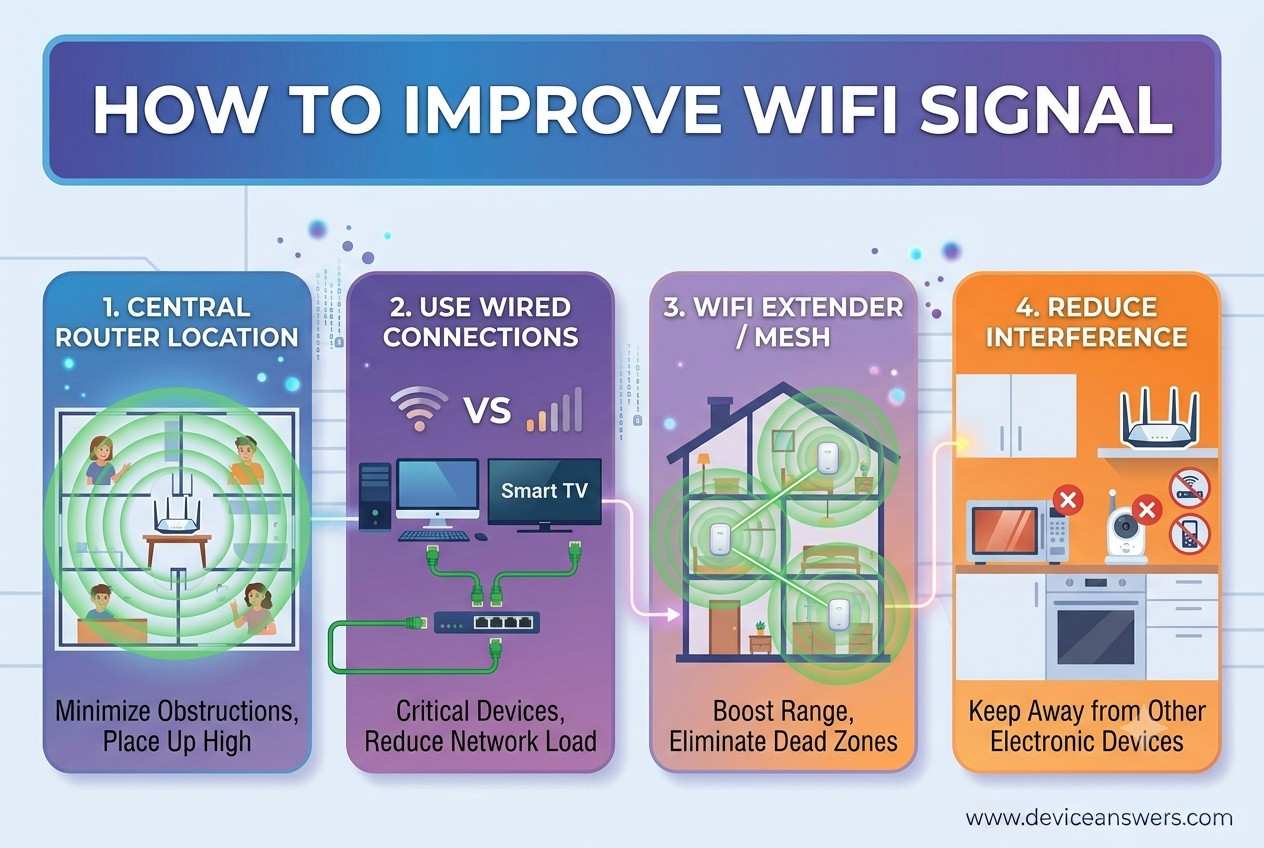
3. Place the Router in a Central Location
Keep your router away from thick walls, microwaves, cordless phones, and large metal objects to improve signal strength.
4. Secure Your WiFi Network
Use a strong WPA2 or WPA3 password to prevent unauthorized devices from consuming your bandwidth.
5. Update Network Drivers
Check for updated WiFi adapter drivers regularly, especially after major operating system updates.
6. Monitor Connected Devices
Disconnect devices that are no longer in use to reduce unnecessary network congestion.
7. Use Quality Networking Equipment
If your router is several years old or struggles to handle multiple devices, upgrading to newer hardware can significantly improve reliability.
8. Test Your Internet Periodically
Running occasional speed and connectivity tests helps identify problems before they become serious.
Important Note
Most cases of WiFi Connected But No Internet are caused by temporary router issues, ISP outages, incorrect DNS settings, or outdated network configurations—not permanent hardware failures. Working through the troubleshooting steps from the simplest to the most advanced gives you the best chance of restoring your internet connection quickly while avoiding unnecessary repairs or equipment replacement.
Frequently Asked Questions (FAQs)
1. Why does my WiFi say connected but I have no internet?
Quick Answer: This usually means your device is successfully connected to your wireless router, but the router cannot access the internet. Common causes include an ISP outage, router malfunction, DNS problems, or incorrect network settings.
Start by checking whether other devices connected to the same WiFi network can access the internet. If every device has the same problem, restart your modem and router. If only one device is affected, the issue is likely related to that device’s network configuration.
2. Can a router connect to WiFi without internet?
Quick Answer: Yes. A router can continue broadcasting a WiFi network even when it has lost its internet connection.
Your router creates the local wireless network inside your home. If the connection between the router and your Internet Service Provider fails, your devices can still connect to WiFi, but websites and online services will not load.
3. Why does only my laptop show “Connected, No Internet”?
Quick Answer: If other devices work normally, the problem is usually caused by your laptop’s network settings, WiFi driver, VPN, proxy, or DNS configuration.
Restart the laptop first, then renew the IP address, flush the DNS cache, update the wireless adapter driver, and perform a network reset if necessary.
4. Can outdated WiFi drivers cause internet problems?
Quick Answer: Yes. Outdated or corrupted network drivers can prevent Windows from communicating correctly with your wireless adapter.
This commonly occurs after major Windows updates or when using an older laptop. Installing the latest driver from your device manufacturer often restores stable connectivity.
5. How do I know if my ISP is experiencing an outage?
Quick Answer: If every device connected to your home WiFi has no internet access, the problem may be with your Internet Service Provider.
Check your ISP’s service status page, mobile app, or customer support line. You can also ask nearby neighbors whether they are experiencing similar issues.
6. Should I restart my modem or router first?
Quick Answer: If you have separate devices, always restart the modem first, wait until it reconnects to your ISP, and then restart the router.
This sequence allows the router to establish a fresh internet connection after the modem is fully online.
7. Does changing DNS fix internet connection issues?
Quick Answer: Sometimes. If your ISP’s DNS servers are unavailable or responding slowly, switching to a trusted public DNS service can restore internet access.
Changing DNS won’t fix hardware failures or ISP outages, but it often resolves website loading problems caused by DNS resolution errors.
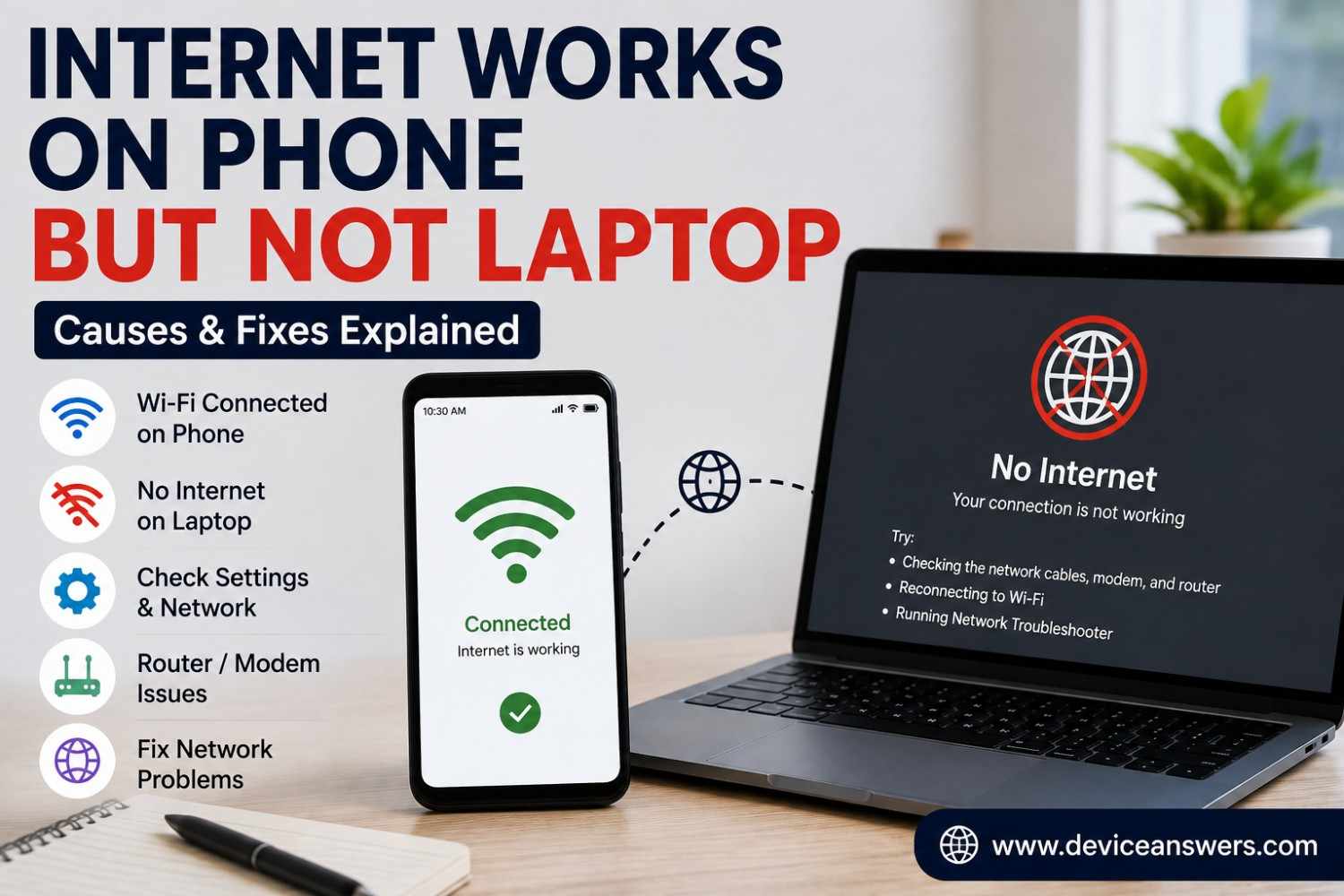
8. Why does my phone have internet while my computer doesn’t?
Quick Answer: This usually indicates a device-specific problem rather than a router or ISP issue.
Your computer may have incorrect network settings, outdated drivers, a VPN conflict, or damaged TCP/IP settings that prevent internet access.
9. Is it safe to reset my network settings?
Quick Answer: Yes. A network reset removes saved WiFi networks and restores default networking components without affecting your personal files.
Before resetting, make sure you know your WiFi password because you’ll need to reconnect after the reset completes.
10. Will a factory reset erase my router settings?
Quick Answer: Yes. A factory reset removes all custom router settings.
This includes your WiFi name, wireless password, guest network, parental controls, port forwarding rules, and custom DNS settings. Only perform a factory reset after other troubleshooting methods have failed.
11. How long should I unplug my router?
Quick Answer: Leave the router powered off for at least 30 to 60 seconds.
This allows temporary memory and software processes to clear before the router starts a fresh connection with your modem and ISP.
12. Can too many connected devices cause this issue?
Quick Answer: Yes. Older routers may struggle when too many devices are connected simultaneously.
If your network regularly supports dozens of devices, upgrading to a newer router with better capacity may improve overall stability.
13. When should I replace my router?
Quick Answer: Consider replacing your router if it frequently disconnects, overheats, or is more than five to seven years old.
Modern routers provide stronger security, improved wireless coverage, faster speeds, and better support for multiple connected devices.
14. Does restarting my computer help?
Quick Answer: Yes. Restarting your computer clears temporary software issues, reloads network drivers, and refreshes your internet connection.
Although simple, this step often resolves temporary networking problems caused by background processes or recent system updates.
15. What should I do if none of these fixes work?
Quick Answer: If every troubleshooting step fails, contact your Internet Service Provider for additional testing.
Your ISP can check for line faults, reset your modem remotely, verify account status, and arrange a technician visit if the problem is caused by damaged equipment or an external network issue.
Conclusion
Experiencing WiFi Connected But No Internet can be frustrating, especially when you rely on a stable connection for work, online learning, video calls, gaming, or streaming. Fortunately, this issue is usually caused by a temporary network configuration problem rather than a serious hardware failure.
Begin with the simplest solutions, including restarting your router and modem, reconnecting to your WiFi network, and checking whether your Internet Service Provider is experiencing an outage. If the problem continues, work through the remaining troubleshooting methods in order, such as renewing your IP address, flushing the DNS cache, updating network drivers, resetting your network settings, and reviewing your VPN or proxy configuration.
Following the troubleshooting steps systematically helps identify the exact cause while avoiding unnecessary hardware replacement or expensive service calls. In many cases, a few minutes of careful troubleshooting is all that’s needed to restore a fast and reliable internet connection.
If you’ve completed every method in this guide and your connection still isn’t working, it’s time to contact your Internet Service Provider or your device manufacturer’s support team for additional assistance.
With the right approach, most WiFi Connected But No Internet problems can be resolved quickly, allowing you to get back online with confidence.
Next Troubleshooting Guides You May Find Helpful
- Windows 11 WiFi Not Working
- Laptop Connected to WiFi but No Internet
- Router Connected but Internet Not Working
- DNS Server Not Responding
- Internet Keeps Disconnecting
- WiFi Keeps Disconnecting on Windows 11
- Android WiFi Connected but No Internet
- iPhone WiFi Connected but No Internet
- Smart TV Not Connecting to WiFi
- How to Reset Network Settings in Windows 11
Key Takeaways
- WiFi connection and internet connection are not the same.
- Restarting your modem and router resolves many connectivity problems.
- Incorrect DNS settings, outdated drivers, VPNs, and proxy servers are common causes.
- Test multiple devices before assuming your computer is at fault.
- Work through troubleshooting methods from the simplest to the most advanced.
- Contact your ISP if all devices lose internet access after completing every troubleshooting step.