Kavinthira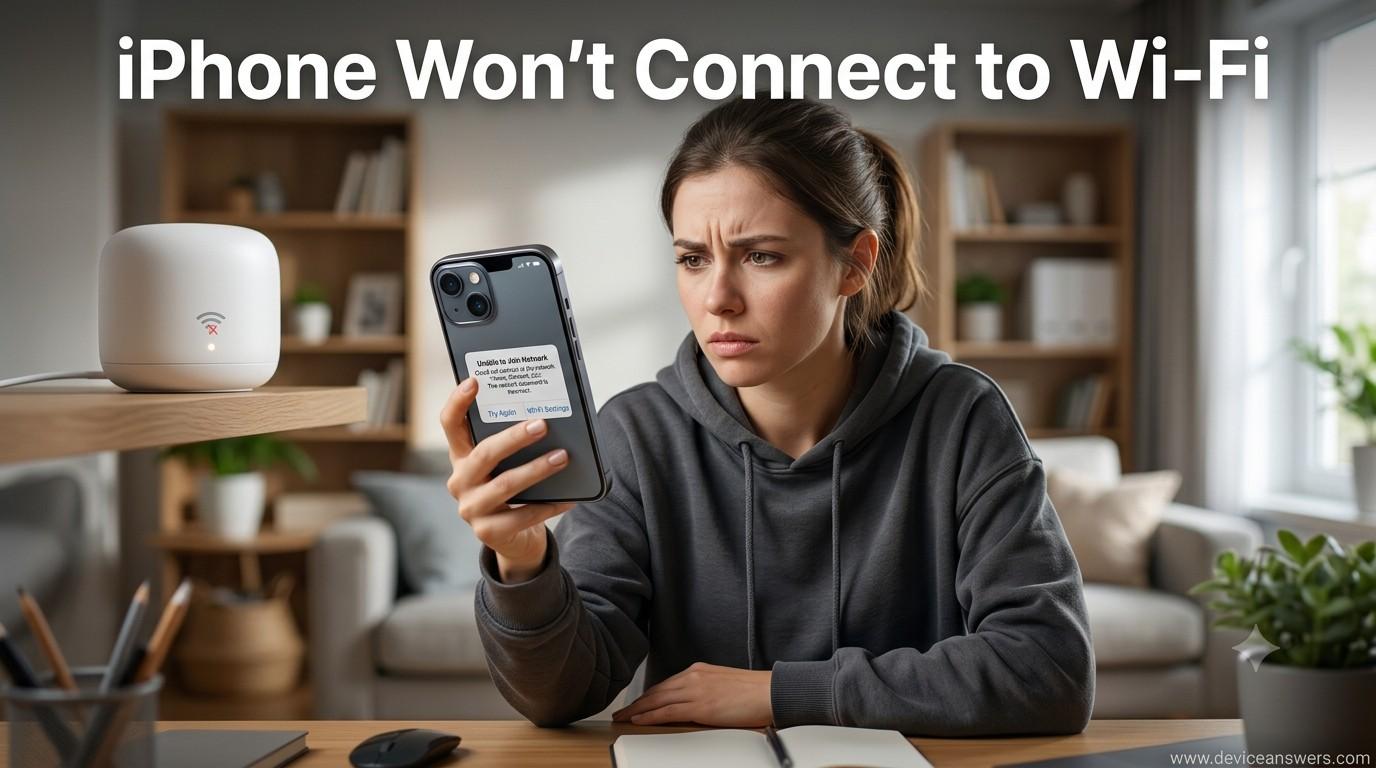
iPhone Won’t Connect to Wi-Fi: 12 Easy Fixes That Actually Work
Having trouble getting your iPhone to connect to Wi-Fi? It can be frustrating, especially when you need internet access for work, streaming, messaging, or browsing.
Sometimes your Wi-Fi network appears in the list, but the iPhone refuses to connect. In other cases, it connects for a few seconds and then disconnects, or shows an “Incorrect Password” message even when you know the password is correct.
The good news is that most Wi-Fi connection problems can be checked and fixed without taking your iPhone to a repair shop. A temporary software problem, router issue, weak signal, outdated iOS version, or saved network information could be responsible.
In this guide, you’ll find practical ways to troubleshoot an iPhone that won’t connect to Wi-Fi, starting with the easiest fixes.
Quick Answer
If your iPhone won’t connect to Wi-Fi, start by turning Wi-Fi off and back on. Then restart your iPhone and reboot your router.
If that doesn’t solve the problem, forget the Wi-Fi network and reconnect using the current password. You can also check for an iOS update, temporarily disable a VPN, and reset your network settings if necessary.
For many users, these steps are enough to restore the connection.
Signs Your iPhone Isn’t Connecting to Wi-Fi
Wi-Fi problems can appear in several different ways. You may notice one or more of these symptoms:
- “Can’t Join Network” appears.
- “Incorrect Password” appears even though the password is correct.
- Wi-Fi connects but there is no internet access.
- Websites keep loading without opening.
- The Wi-Fi connection keeps dropping.
- The Wi-Fi option is greyed out.
- Internet speeds are unusually slow.
- Your iPhone cannot find nearby Wi-Fi networks.
- An authentication error appears.
- Apps show network unavailable messages.
- FaceTime or iMessage stops working over Wi-Fi.
- Downloads keep pausing.
These symptoms can be caused by the iPhone, the router, the wireless signal, or the network settings.
Why Your iPhone Won’t Connect to Wi-Fi
1. Temporary Software Glitch
A small software or networking glitch can temporarily stop Wi-Fi from working. Restarting the iPhone often clears the problem.
2. Router Problem
The problem may not be your iPhone at all. The router could be overloaded, frozen, or temporarily disconnected from your internet provider.
3. Weak Wi-Fi Signal
If you’re far away from the router or several walls are between you and it, the signal may not be strong enough for a stable connection.
4. Incorrect Wi-Fi Password
If the password was recently changed, your iPhone may still have the old password saved. This prevents the phone from authenticating with the network.
5. Network Congestion
When many devices are using the same Wi-Fi network, the available bandwidth can become limited. This may result in slow speeds or an unstable connection.
6. VPN Interference
A VPN normally works in the background, but a connection problem or incorrect configuration can sometimes interfere with internet access.
7. Private Wi-Fi Address
Private Wi-Fi Address is an Apple privacy feature that uses a private MAC address for a network. Some managed networks at offices, schools, hotels, or other locations may not handle this properly.
8. Low Power Mode
Low Power Mode reduces background activity to save battery. It isn’t usually responsible for Wi-Fi problems, but turning it off is worth trying when troubleshooting an unstable connection.
9. Outdated iOS Version
An older iOS version may contain networking bugs that have been addressed in a later update.
10. DNS Settings
DNS problems can prevent websites from loading even when your iPhone appears to be connected to Wi-Fi.
11. Corrupted Network Settings
Saved Wi-Fi networks, VPN information, and other network configurations can occasionally become problematic and prevent a successful connection.
12. Hardware Failure
If the iPhone has suffered physical damage, the Wi-Fi antenna, wireless components, or logic board could be affected.
Quick Troubleshooting Table
| Problem | What to Try |
|---|---|
| Can’t join Wi-Fi | Forget the network and reconnect |
| Incorrect password | Enter the current Wi-Fi password again |
| Wi-Fi connected but no internet | Restart the router |
| Wi-Fi keeps disconnecting | Restart the iPhone and check the signal |
| Wi-Fi option is greyed out | Restart, update iOS, or seek hardware inspection |
| Slow Wi-Fi | Move closer to the router |
| Authentication failed | Forget the network and reconnect |
| Network unavailable | Restart the router and iPhone |
| VPN causing problems | Temporarily disable the VPN |
| Other devices also have no internet | Restart the router |
Fix 1: Turn Wi-Fi Off and Back On
Start with the simplest fix. Sometimes the iPhone just needs to establish the wireless connection again.
- Open Settings.
- Tap Wi-Fi.
- Turn Wi-Fi off.
- Wait about 10–15 seconds.
- Turn Wi-Fi back on.
- Select your Wi-Fi network and reconnect.
If the iPhone connects normally afterward, it was probably a temporary connection glitch.
Fix 2: Restart Your iPhone
A restart clears temporary processes and reloads the phone’s wireless services. It’s one of the first things worth trying when Wi-Fi suddenly stops working.
For iPhone X and Later
- Press and hold the Side button and either Volume button.
- Drag the Power Off slider.
- Wait about 30 seconds.
- Press and hold the Side button until the Apple logo appears.
For older iPhone models, use the physical Power button to turn the phone off and back on.
Once the iPhone restarts, reconnect to your Wi-Fi network and test the connection.
Fix 3: Restart the Wi-Fi Router
If other phones, laptops, or TVs are also having trouble connecting, the router may be the real problem.
How to Restart Your Router
- Turn off the router.
- Unplug the power cable.
- Wait 30–60 seconds.
- Plug the router back in.
- Turn it on.
- Wait for the indicator lights to settle.
- Try connecting your iPhone again.
Restarting the router can clear temporary connection problems and re-establish its connection with your internet provider.
Fix 4: Forget the Wi-Fi Network
If your iPhone has saved outdated network information, forgetting the network gives you a fresh connection.
- Open Settings.
- Tap Wi-Fi.
- Tap the ⓘ button next to your network.
- Select Forget This Network.
- Confirm by tapping Forget.
- Select the network again.
- Enter the current Wi-Fi password.
This removes the saved password and network information for that connection.
Fix 5: Check the Wi-Fi Password
A password problem is easy to overlook, especially if the router password was changed recently.
Before reconnecting, check the following:
- Make sure you’re using the current password.
- Check uppercase and lowercase letters.
- Make sure there are no accidental spaces.
- Confirm that you’re selecting the correct Wi-Fi network.
If you recently changed the router password, your other devices may also need to reconnect using the new password.
Fix 6: Temporarily Disable Your VPN
A VPN can occasionally interfere with internet access when its configuration is incorrect or its server is unavailable.
How to Disable a VPN
- Open Settings.
- Look for VPN or VPN & Device Management.
- Turn the VPN off.
- Try connecting to Wi-Fi again.
If Wi-Fi works normally after disabling the VPN, the VPN service or configuration may be involved.
Note: If the VPN is managed by your employer or school, check with the network administrator before changing its settings.
Fix 7: Check Private Wi-Fi Address
Private Wi-Fi Address is designed to improve privacy by using a private MAC address. Most home networks should work normally with this feature enabled, but some managed networks may have compatibility issues.
How to Turn It Off Temporarily
- Open Settings.
- Tap Wi-Fi.
- Tap the ⓘ next to your network.
- Find Private Wi-Fi Address.
- Turn it off temporarily.
- Reconnect to the Wi-Fi network.
If this fixes the connection, the network may have a restriction related to device MAC addresses.
Fix 8: Update iOS
Apple regularly releases iOS updates that include bug fixes and other improvements. If your iPhone is running an older version of iOS, installing the latest available update may resolve networking problems.
- Open Settings.
- Tap General.
- Select Software Update.
- If an update is available, tap Download and Install.
After the update finishes, reconnect to your Wi-Fi network and check whether the problem has gone away.
Fix 9: Reset Network Settings
If the previous steps haven’t helped, resetting network settings is worth trying. This gives the iPhone a clean start with its network configuration.
Go to:
Settings → General → Transfer or Reset iPhone → Reset → Reset Network Settings
What Will Be Removed?
- Saved Wi-Fi networks
- Saved Wi-Fi passwords
- VPN-related network settings
- Bluetooth pairings
- Network preferences
Your photos, videos, contacts, apps, and other personal files will not be deleted.
After the reset, you’ll need to reconnect to your Wi-Fi network and enter the password again.
Fix 10: Check DNS Settings
Sometimes Wi-Fi connects successfully but websites still won’t open. DNS could be the reason.
DNS, or Domain Name System, translates website names into IP addresses. If the DNS server isn’t responding properly, you may appear to have an internet connection while websites fail to load.
Try Google DNS
- Open Settings → Wi-Fi.
- Tap the ⓘ next to your network.
- Select Configure DNS.
- Choose Manual.
- Remove the existing DNS entries.
- Add 8.8.8.8.
- Add 8.8.4.4.
- Save the changes.
Reconnect to Wi-Fi and check whether websites load normally.
Fix 11: Turn Off Low Power Mode
Low Power Mode is designed to extend battery life by reducing background activity. It isn’t normally the cause of Wi-Fi problems, but turning it off is another quick test you can make.
- Open Settings.
- Tap Battery.
- Turn Low Power Mode off.
- Reconnect to Wi-Fi.
Check whether the connection remains stable afterward.
Fix 12: Contact Apple Support
If none of the troubleshooting steps work, there could be a hardware problem involving the Wi-Fi antenna, wireless components, or logic board.
Consider getting professional help if:
- Wi-Fi remains greyed out.
- Your iPhone cannot find any nearby networks.
- The problem started after dropping the phone.
- The iPhone has suffered physical or water damage.
- You’ve tried the software troubleshooting steps without success.
A qualified technician can inspect the device and determine whether it needs repair.
Troubleshooting Checklist
- ☐ Restarted the iPhone
- ☐ Restarted the router
- ☐ Turned Wi-Fi off and back on
- ☐ Forgot and rejoined the Wi-Fi network
- ☐ Checked the Wi-Fi password
- ☐ Disabled VPN temporarily
- ☐ Checked Private Wi-Fi Address
- ☐ Updated iOS
- ☐ Reset Network Settings
- ☐ Checked DNS settings
- ☐ Turned off Low Power Mode
- ☐ Contacted Apple Support if necessary
Tips to Prevent Wi-Fi Problems
- Keep your iPhone updated.
- Restart your router occasionally if it becomes unreliable.
- Keep the router in an open location.
- Avoid placing the router behind thick walls or large metal objects.
- Disconnect devices that are no longer being used.
- Use a strong Wi-Fi password.
- Keep your router firmware updated.
- Install VPN applications only from trusted providers.
- Move closer to the router when the signal is weak.
- Use the 5 GHz band when your router supports it and you are close enough to the router.
Frequently Asked Questions
Why won’t my iPhone connect to Wi-Fi even with the correct password?
The password may not be the problem. Router issues, saved network information, software problems, VPN settings, or network restrictions can also prevent the connection.
Try forgetting the Wi-Fi network and joining it again first.
Why does my iPhone keep disconnecting from Wi-Fi?
A weak signal, unstable router, network congestion, VPN configuration, or outdated software can cause repeated disconnections.
Check whether other devices remain connected to the same network. That can help determine whether the issue is with the iPhone or the router.
How do I reset Network Settings on an iPhone?
Go to:
Settings → General → Transfer or Reset iPhone → Reset → Reset Network Settings
You’ll need to reconnect to your Wi-Fi networks after completing the reset.
Can an iOS update fix Wi-Fi problems?
It can. Software updates may include fixes for networking bugs and other connection-related issues.
Does resetting Network Settings erase my photos?
No. Resetting Network Settings removes network-related information such as saved Wi-Fi connections and passwords. Your photos, videos, contacts, and apps are not deleted.
Why is my Wi-Fi button greyed out?
A greyed-out Wi-Fi option can be caused by a temporary software problem or, in some cases, hardware trouble.
Restart the iPhone and check for an iOS update. If Wi-Fi remains greyed out, professional inspection may be necessary.
Can a VPN stop Wi-Fi from working?
A VPN can sometimes interfere with internet access if its configuration is causing a problem. Temporarily disabling it can help determine whether the VPN is involved.
Should I replace my iPhone if Wi-Fi isn’t working?
Not immediately. Try the troubleshooting steps first. If Wi-Fi still doesn’t work, have the device checked before deciding whether repair or replacement is necessary.
Final Thoughts
An iPhone that won’t connect to Wi-Fi doesn’t necessarily mean the phone has a serious hardware problem.
In many cases, the cause is something simple, such as a temporary connection glitch, an old saved password, a router problem, or incorrect network settings.
Start with the basics: restart the iPhone, restart the router, and reconnect to the Wi-Fi network. If that doesn’t help, check the VPN, Private Wi-Fi Address, iOS version, DNS settings, and Network Settings.
If Wi-Fi still doesn’t work after you’ve tried these steps, especially if the phone has been physically damaged, consider having it inspected by a qualified technician.
Related Articles
- Wi-Fi Connected but No Internet – Simple Fixes
- How to Improve Wi-Fi Signal at Home
- How to Reset Network Settings in Windows 11
- How to Fix iPhone Touch Screen Not Responding
- How to Fix iPhone Screen Black While Phone Is On
- How to Fix iPhone Microphone Not Working
- iPhone Battery Health Tips to Extend Battery Life