Kavinthira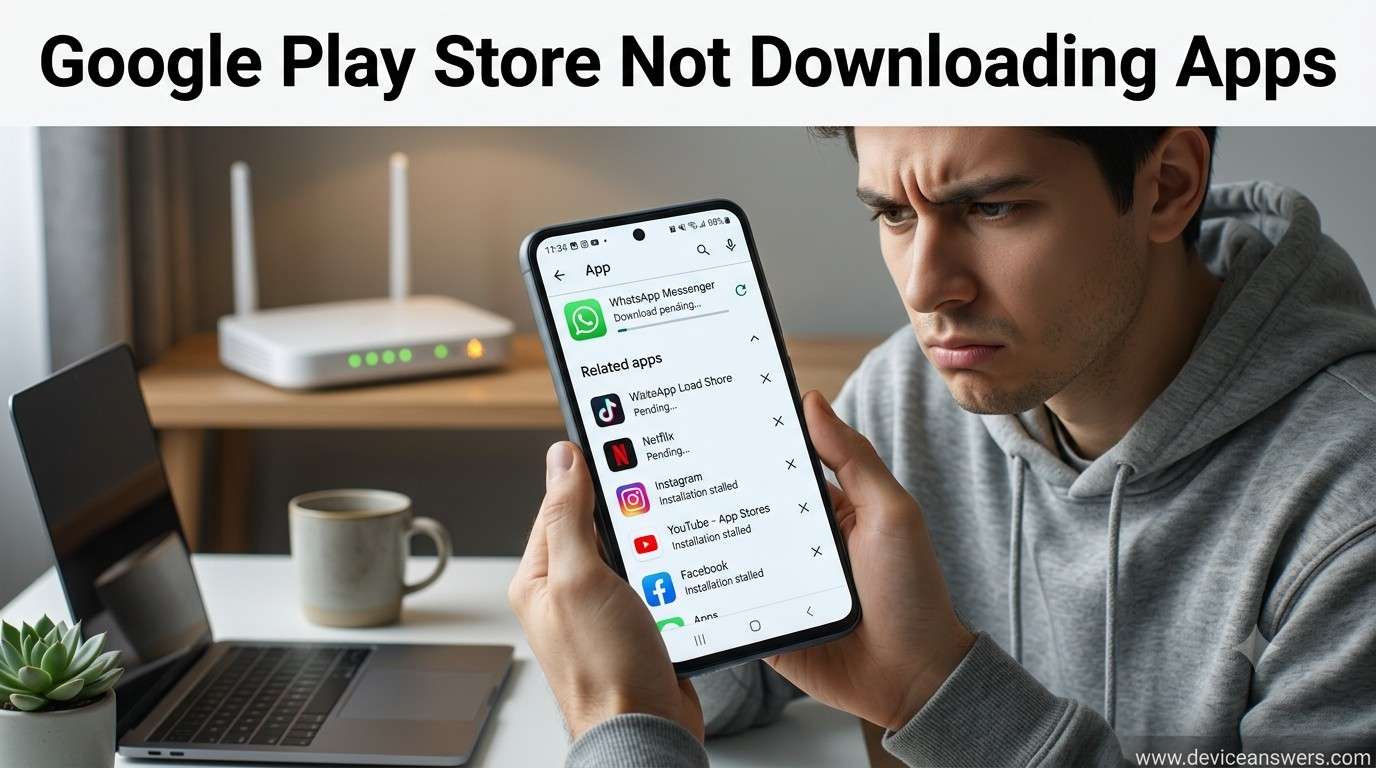
Google Play Store Not Downloading Apps: 12 Proven Fixes That Actually Work
Introduction
If the Google Play Store is not downloading apps, even though you’ve tapped the Install button, you’re not alone. Many Android users experience download problems such as “Download Pending,” apps stuck at 0%, or installations that never finish. These issues can prevent you from installing new apps or updating existing ones, making your device less useful.
Fortunately, most Google Play Store download problems are caused by software-related issues rather than hardware failures. A poor internet connection, corrupted cache, insufficient storage, disabled Download Manager, or outdated Google Play Services can all interrupt the download process. In most cases, you can fix the problem yourself without visiting a repair center.
This guide explains the most common reasons why the Google Play Store won’t download apps and provides step-by-step troubleshooting methods that work on most Android phones and tablets.
Quick Answer
If the Google Play Store is not downloading apps, restart your Android phone, check your Wi-Fi or mobile data connection, clear the Google Play Store cache, update Google Play Services, and ensure Download Manager is enabled. If downloads are still stuck, free up storage space, update Android, or remove and re-add your Google Account. These steps resolve most Play Store download problems without requiring a factory reset.
Common Signs Google Play Store Isn’t Downloading Apps
Google Play Store download issues may appear in different ways depending on the cause.
Common symptoms include:
- Download Pending message remains on screen.
- Waiting for download appears indefinitely.
- Download stays at 0%.
- App downloads start but never finish.
- Installation fails unexpectedly.
- Google Play Store crashes while downloading.
- Error messages appear during installation.
- Very slow app downloads.
- Authentication Required message appears.
- Apps refuse to install after downloading.
- Downloads pause automatically.
- Updates remain stuck for hours.
These symptoms usually indicate a problem with the Play Store, network connection, storage, or system settings.
Why Google Play Store Is Not Downloading Apps
1. Poor Internet Connection
A weak Wi-Fi signal or unstable mobile data connection can interrupt downloads or prevent them from starting.
2. Temporary Software Glitch
Minor Android software bugs may temporarily stop the Play Store from communicating with Google’s servers.
3. Low Storage Space
If your phone doesn’t have enough free storage, Android cannot download or install new applications.
4. Corrupted Google Play Store Cache
The Play Store stores temporary cache files to improve performance. Damaged cache files may prevent downloads from working correctly.
5. Corrupted Google Play Services
Many Play Store functions rely on Google Play Services. If this system component becomes outdated or corrupted, downloads may fail.
6. Disabled Download Manager
Android uses Download Manager to process app downloads. If this service is disabled, the Play Store cannot install applications.
7. Outdated Google Play Store
Older Play Store versions may contain bugs or compatibility issues that affect downloads.
8. Outdated Android Version
Running an older Android version may cause compatibility problems with newer Play Store features.
9. Google Account Synchronization Problem
If your Google Account isn’t syncing properly, app downloads and purchases may fail.
10. Battery Saver Restrictions
Some battery-saving modes limit background activity, preventing downloads from completing successfully.
11. Background Data Disabled
If Background Data is disabled, the Play Store may not be able to continue downloading apps while running in the background.
12. Temporary Google Server Issue
Occasionally, the issue may be caused by temporary server maintenance or outages on Google’s side.
Quick Troubleshooting Table
| Problem | Recommended Fix |
|---|---|
| Download Pending | Restart your phone |
| Download stuck at 0% | Check internet connection |
| Play Store crashes | Clear Play Store cache |
| Apps won’t install | Clear Play Store data |
| Download never starts | Enable Download Manager |
| Authentication Required | Remove and re-add Google Account |
| Slow downloads | Switch between Wi-Fi and mobile data |
| Insufficient storage | Free up storage space |
| Play Store errors | Update Google Play Services |
| Multiple download failures | Update Android |
Fix 1: Restart Your Android Phone
Restarting your Android device refreshes system services and clears temporary software glitches that may prevent the Google Play Store from downloading apps.
Steps
- Press and hold the Power Button.
- Tap Restart.
- If Restart isn’t available, tap Power Off.
- Wait about 30 seconds.
- Turn the phone back on.
After restarting, open the Play Store and try downloading the app again.
Tip: A simple restart often fixes temporary download problems without affecting your personal data.
Fix 2: Check Internet Connection
A stable internet connection is essential for downloading apps from the Google Play Store.
Check Wi-Fi
- Move closer to the router.
- Restart your Wi-Fi router.
- Test another website or app to confirm the connection.
Check Mobile Data
- Verify that Mobile Data is turned on.
- Ensure you have enough available data.
- Check if your carrier is experiencing network issues.
Switch Networks
If you’re using Wi-Fi, try switching to mobile data. If you’re using mobile data, connect to a reliable Wi-Fi network instead.
If downloads start after switching networks, the issue is likely related to your internet connection rather than the Play Store.
Fix 3: Clear Google Play Store Cache
The Google Play Store cache stores temporary files that help the app load faster. If these files become corrupted, downloads may stop working properly.
Steps
- Open Settings.
- Tap Apps.
- Select Google Play Store.
- Tap Storage & Cache.
- Choose Clear Cache.
Clearing the cache removes temporary files only. Your installed apps, purchases, and account information remain safe.
Fix 4: Clear Google Play Store Data
If clearing the cache doesn’t solve the problem, clearing the Play Store’s data resets the app to its default state.
Steps
- Open Settings.
- Tap Apps.
- Select Google Play Store.
- Open Storage & Cache.
- Tap Clear Storage or Clear Data.
What Happens?
- Resets app settings.
- Removes temporary download information.
- Clears local preferences.
- Does not delete your installed apps or purchased content.
After clearing the data, reopen the Play Store and sign in if prompted.
Fix 5: Clear Google Play Services Cache
Google Play Services supports app downloads, authentication, notifications, and many background functions required by the Play Store.
Steps
- Open Settings.
- Tap Apps.
- Select Google Play Services.
- Tap Storage & Cache.
- Choose Clear Cache.
Restart your phone after clearing the cache, then try downloading the app again.
Important: Clearing the Play Services cache does not remove your Google account or personal files.
Fix 6: Enable Download Manager
Download Manager is a built-in Android service responsible for downloading apps and files. If it’s disabled, the Play Store cannot complete downloads.
Steps
- Open Settings.
- Tap Apps.
- Tap See All Apps if necessary.
- Tap the three-dot menu and choose Show System Apps (if available).
- Locate Download Manager.
- If it’s disabled, tap Enable.
Once enabled, restart your phone and try downloading the app again.
Note: Some Android manufacturers may place Download Manager under a different system menu, but the function remains the same.
“`html id=”gpplaystore-part2″
Fix 7: Free Up Storage Space
Your Android device needs enough storage space to download, install, and update applications. If your storage is nearly full, the Google Play Store may stop downloading apps or display an “Insufficient Storage” error.
Keeping at least 10% to 15% of your storage free helps Android perform smoothly and reduces installation problems.
Steps to Free Up Storage
- Open Settings.
- Tap Storage.
- Review which files are using the most space.
- Delete unnecessary photos, videos, downloads, and duplicate files.
- Remove apps you no longer use.
- Empty the recycle bin if your device includes one.
Tip: Upload photos and videos to cloud storage to free up space without permanently deleting your memories.
Fix 8: Update Google Play Store
An outdated Google Play Store may contain bugs that prevent downloads from working properly. Google frequently releases updates that improve performance, security, and compatibility.
Steps
- Open the Google Play Store.
- Tap your Profile icon.
- Select Settings.
- Expand About.
- Tap Update Play Store.
If your Play Store is already updated, you’ll see a confirmation message. Otherwise, the latest version will download and install automatically.
Fix 9: Update Android System
Running an outdated Android version can cause compatibility issues with newer Play Store features and applications.
Steps
- Open Settings.
- Tap System.
- Select Software Update or System Update.
- Tap Check for Updates.
- If an update is available, tap Download and Install.
Keep your phone connected to Wi-Fi and ensure the battery has sufficient charge before installing updates.
Fix 10: Remove and Add Google Account
If your Google Account isn’t syncing correctly, the Play Store may be unable to verify your account or download applications.
Remove Your Google Account
- Open Settings.
- Tap Passwords & Accounts or Accounts.
- Select your Google Account.
- Tap Remove Account.
Add the Account Again
- Restart your phone.
- Go back to Accounts.
- Select Add Account.
- Sign in using your Google credentials.
This refreshes account synchronization and often resolves Play Store download problems.
Fix 11: Disable Battery Saver and Enable Background Data
Battery Saver and disabled Background Data can prevent the Play Store from downloading apps while running in the background.
Disable Battery Saver
- Open Settings.
- Tap Battery.
- Turn Battery Saver off.
Enable Background Data
- Open Settings.
- Tap Apps.
- Select Google Play Store.
- Tap Mobile Data & Wi-Fi.
- Enable Background Data.
These settings allow downloads to continue even when the Play Store is running in the background.
Fix 12: Factory Reset (Last Resort)
If every troubleshooting method fails and the Play Store still won’t download apps, performing a Factory Reset may resolve serious software corruption.
Warning: A factory reset permanently erases your apps, settings, photos, videos, contacts, and personal files.
Before Performing a Factory Reset
- Back up your photos and videos.
- Save important documents.
- Sync contacts with your Google Account.
- Remember your Google account password.
Factory Reset Steps
- Open Settings.
- Tap System.
- Select Reset Options.
- Tap Erase All Data (Factory Reset).
- Follow the on-screen instructions.
Use this method only after every other troubleshooting step has failed.
Troubleshooting Checklist
| Task | Status |
|---|---|
| Restarted Android phone | ☐ |
| Checked Wi-Fi or mobile data | ☐ |
| Cleared Google Play Store cache | ☐ |
| Cleared Google Play Store data | ☐ |
| Cleared Google Play Services cache | ☐ |
| Enabled Download Manager | ☐ |
| Freed storage space | ☐ |
| Updated Google Play Store | ☐ |
| Updated Android | ☐ |
| Re-added Google Account | ☐ |
| Disabled Battery Saver | ☐ |
| Factory Reset completed | ☐ |
Tips to Prevent Play Store Download Problems
- Keep your Google Play Store updated.
- Update Google Play Services regularly.
- Maintain enough free storage space.
- Use a stable Wi-Fi connection for large downloads.
- Restart your phone occasionally.
- Keep your Android system updated.
- Avoid disabling Download Manager.
- Enable Background Data for Play Store.
- Install apps only from trusted sources.
- Clear Play Store cache periodically.
Frequently Asked Questions
1. Why is Google Play Store stuck on “Download Pending”?
This usually happens because of slow internet, multiple queued downloads, or corrupted Play Store cache.
2. Why won’t apps download over Wi-Fi?
Your Wi-Fi connection may be unstable, or your router may be blocking downloads. Switching to mobile data can help identify the cause.
3. How do I clear Google Play Store cache?
Go to Settings → Apps → Google Play Store → Storage & Cache → Clear Cache.
4. Does clearing Play Store data delete purchased apps?
No. Clearing Play Store data resets the app but does not remove purchased apps or your Google account.
5. Why does Download Manager matter?
Download Manager is responsible for processing downloads. If it is disabled, the Play Store cannot install applications.
6. Can low storage stop app downloads?
Yes. Android requires available storage to download and install applications successfully.
7. Should I factory reset my phone?
Only after trying every other troubleshooting method and backing up all important data.
8. When should I contact support?
If the Play Store still cannot download apps after completing every troubleshooting step, contact your device manufacturer or Google Support for further assistance.
Conclusion
If the Google Play Store is not downloading apps, the problem is usually related to software, network connectivity, or device settings rather than hardware failure. Restarting your phone, clearing the Play Store cache, enabling Download Manager, updating Android, and maintaining enough free storage solve most download issues.
By keeping your device updated, using a reliable internet connection, and performing regular maintenance, you can prevent future Play Store download problems and enjoy a smoother Android experience.