Kavinthira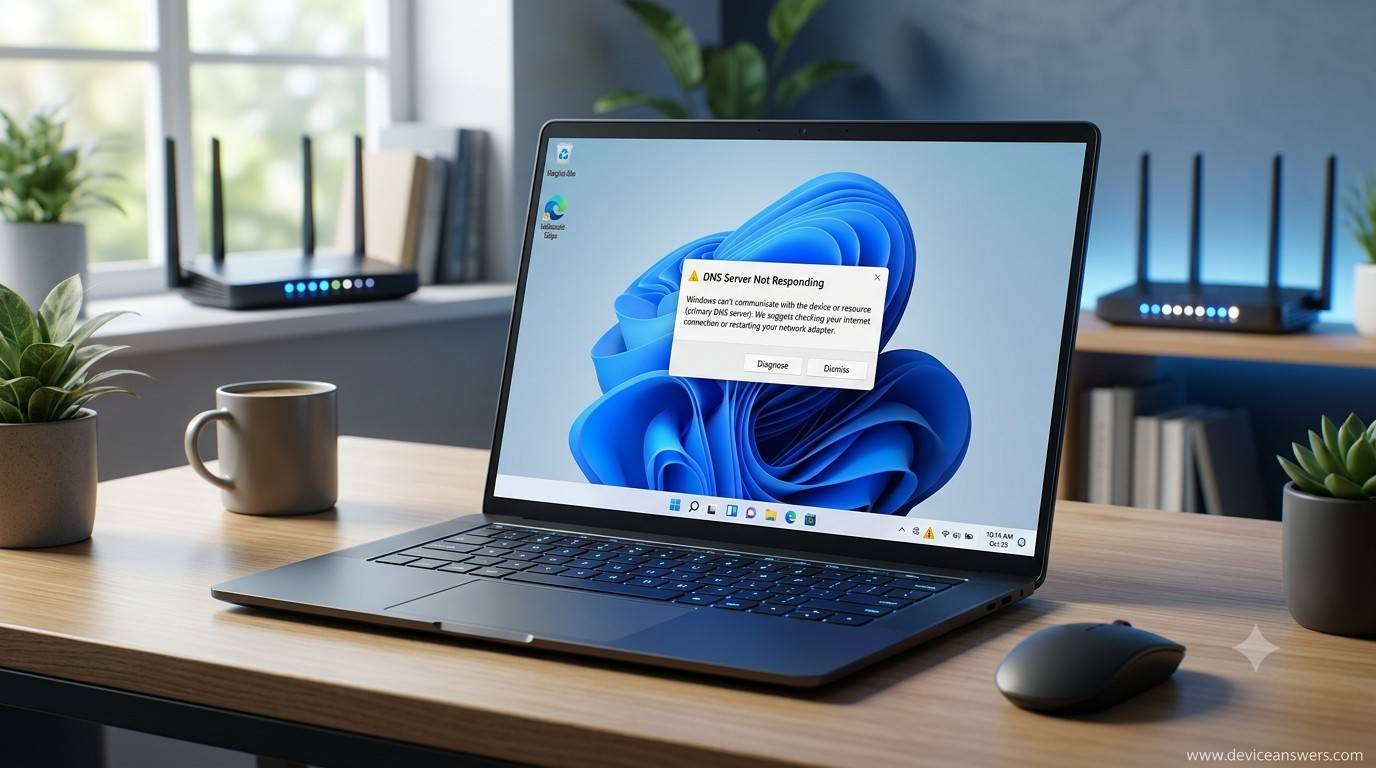
Windows 11 DNS Server Not Responding
A Windows 11 DNS Server Not Responding error prevents your computer from translating website names into IP addresses, making it impossible to access web pages even when your internet connection appears active. Many users encounter this message while browsing, streaming, or working remotely, often without warning. The issue can stem from incorrect DNS settings, a malfunctioning Router, an ISP outage, or temporary software conflicts. This article explains what the error means, why it occurs, the warning signs to look for, and the basic checks you should complete before trying advanced troubleshooting.
Quick Answer
A Windows 11 DNS Server Not Responding error means your computer cannot communicate with the DNS server responsible for converting website names into IP addresses. The problem may be caused by incorrect network settings, router issues, ISP outages, or software conflicts. Before making advanced changes, restart your computer and router, verify your internet connection, and temporarily disable any VPN or proxy services.
Why Does Windows 11 DNS Server Not Responding Occur?
Incorrect DNS Settings
Incorrect or manually configured DNS settings can prevent your computer from locating websites properly. If the preferred or alternate DNS address is invalid, Windows 11 may display the dns server not responding windows 11 error even though the network is connected.
Router Problems
Your Router acts as the gateway between your computer and the internet. If it experiences firmware issues, temporary glitches, or overloaded connections, DNS requests may fail before reaching the internet.
ISP DNS Outage
Sometimes the issue originates with your ISP rather than your computer. If the provider’s DNS servers become unavailable, every connected device may struggle to open websites despite showing an active internet connection.
Windows Network Configuration Errors
Corrupted TCP/IP settings or incorrect Network Adapter configurations can interfere with DNS communication. These configuration issues often appear after network changes or unexpected system interruptions.
VPN or Proxy Conflicts
A configured VPN or proxy server may redirect internet traffic through unavailable DNS servers. This can result in windows 11 internet not working even when your Wi-Fi or Ethernet connection remains active.
Firewall or Antivirus Blocking DNS
Some Firewall or Antivirus programs aggressively monitor network traffic. Incorrect security settings may accidentally block legitimate DNS requests, preventing browsers from accessing websites.
Corrupted Network Driver
An outdated or damaged Network Adapter driver can interrupt communication between Windows and your networking hardware. Driver-related issues frequently contribute to windows 11 network problems.
Temporary Windows Update Issues
Although updates generally improve performance and security, a recent Windows 11 update can occasionally introduce temporary networking conflicts until compatible drivers or patches become available.
Common Signs of DNS Problems
If your computer is experiencing DNS-related issues, you may notice one or more of the following symptoms:
- Websites fail to load even though your internet connection appears active.
- Your browser displays a DNS or dns lookup failed message.
- Your PC shows “Connected” but web pages won’t open.
- Some websites load normally while others remain inaccessible.
- Web pages take an unusually long time to load.
- Windows Network Diagnostics detects a DNS problem.
- The Internet works correctly on another device connected to the same network.
- The Windows troubleshooter reports a DNS Server Not Responding error.
Quick Checks Before Troubleshooting
Before making advanced network changes, it’s worth performing a few simple checks. These quick steps can help determine whether the issue is caused by your computer, your Router, or your ISP.
- Restart your Windows 11 computer.
- Restart your Router and modem.
- Open several different websites to rule out a temporary website outage.
- Temporarily disable your VPN.
- Disconnect any configured proxy server.
- Check whether another device can access the internet.
- Confirm that your ISP is not experiencing a service outage.
- Try using another web browser.
Key Takeaways
- Windows 11 DNS Server Not Responding usually means your computer cannot communicate with a working DNS server.
- Incorrect DNS settings, Router issues, or ISP outages are the most common causes.
- Firewall, Antivirus, outdated Network Adapter drivers, or Windows updates can also interrupt DNS communication.
- Testing another device on the same network helps identify whether the problem is with Windows or your internet provider.
- Simple checks often resolve many windows network troubleshooting issues before advanced repairs are needed.
Conclusion
A Windows 11 DNS Server Not Responding message doesn’t always indicate a major networking failure. In many situations, the issue is caused by temporary software conflicts, incorrect DNS settings, router communication problems, or an ISP service interruption. Performing a few quick checks can often identify the source of the problem before more advanced troubleshooting becomes necessary. Once you’ve confirmed the basics, you can continue with detailed repair methods to restore reliable internet access and resolve the DNS error permanently.