Kavinthira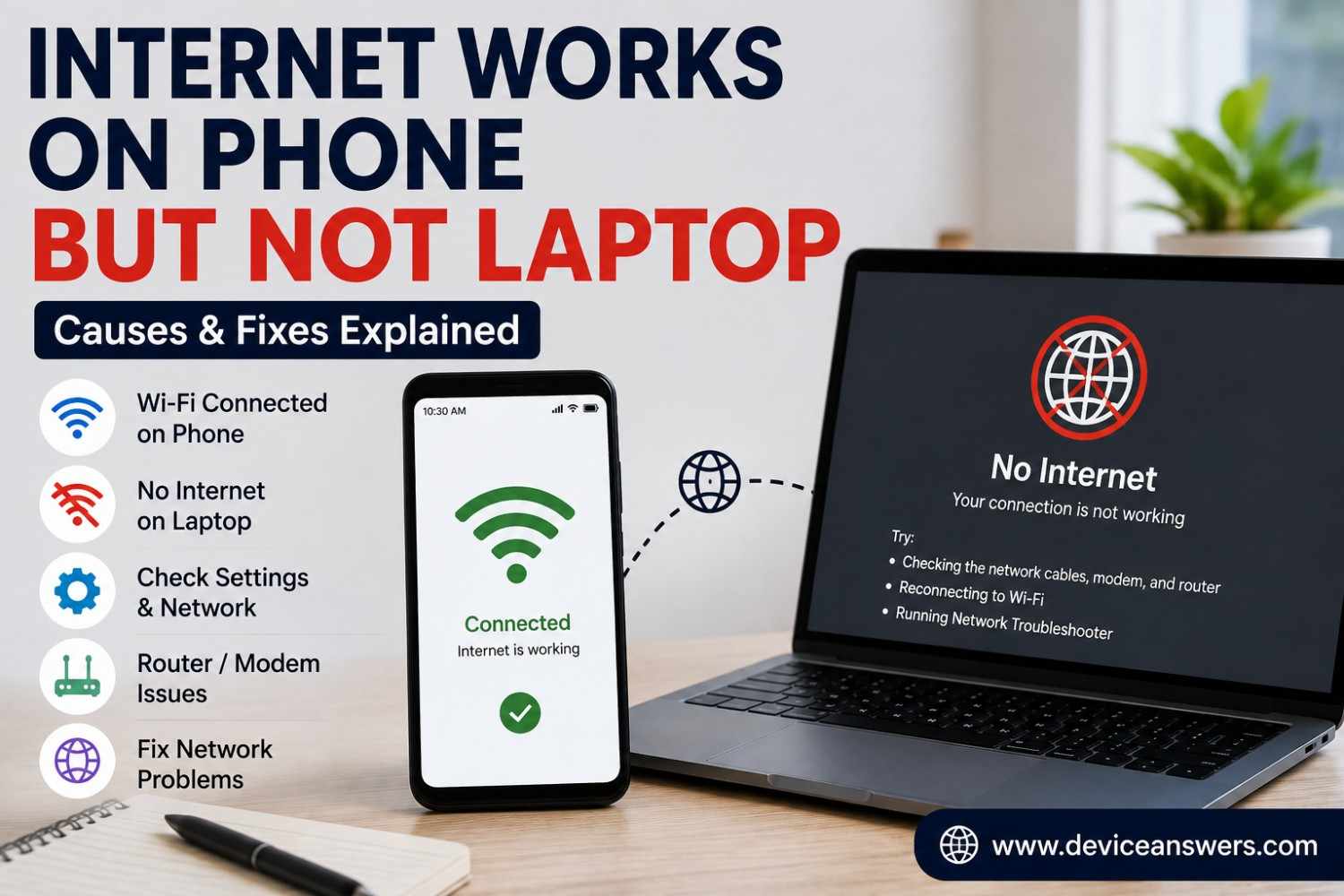
Internet Works on Phone But Not Laptop? Here’s How to Fix It
If the internet works on your phone but not your laptop, the internet connection itself may be working normally. The problem is more likely to be specific to the laptop, such as its WiFi adapter, network settings, DNS configuration, driver, proxy, VPN, or browser.
This is useful because you can use your phone as a comparison. If your phone connects to the same WiFi network and browses normally, start by troubleshooting the laptop rather than immediately resetting the router.
Why Does Internet Work on My Phone But Not My Laptop?
If your phone has internet access on the same WiFi network but your laptop does not, the problem is often specific to the laptop’s network connection or configuration. Possible causes include a WiFi adapter problem, incorrect IP settings, DNS issues, an outdated driver, proxy settings, VPN interference, or a Windows networking problem.
The good news is that many of these problems can be fixed without replacing the laptop or router.
Quick Checks Before Trying Advanced Fixes
Start with the simplest solutions. You may not need to change any advanced settings.
- Make sure WiFi is turned on.
- Confirm Airplane Mode is disabled.
- Disconnect from your WiFi network.
- Connect to the network again.
- Restart the laptop.
- Try opening another website.
- Test a different browser.
- Move the laptop closer to the router.
- Temporarily disconnect unnecessary VPN connections.
If the phone continues to browse normally while the laptop cannot, continue with the laptop-focused fixes below.
Find Out Why the Internet Is Not Working on Your Laptop
Before changing advanced settings, compare the laptop’s behavior
across different connections. These tests can help narrow down the
likely cause.
| Test result | What it may indicate | Next step |
|---|---|---|
| Phone and laptop work on the same Wi-Fi. | The issue may be intermittent or related to a specific app or website. | Test the affected website and browser again. |
| Phone works on home Wi-Fi, but laptop does not. | A laptop configuration or compatibility problem is possible. | Reconnect to Wi-Fi and check IP, DNS, proxy, and driver settings. |
| Laptop works with a phone hotspot. | The home router or saved Wi-Fi configuration may be involved. | Investigate the home network before resetting Windows. |
| Laptop fails on multiple known-working networks. | A laptop driver, configuration, or hardware issue is more likely. | Check Device Manager and Windows network settings. |
| Only one browser or website fails. | A browser, extension, DNS, or website-specific problem may be involved. | Test another browser and another website. |
These results help narrow down the problem but do not prove a single
cause. Router settings, device restrictions, and network compatibility
can also affect the results.
Forget and Reconnect to the WiFi Network
Windows saves information about networks you have previously used. Sometimes that saved information can cause connection problems.
On Windows 11:
- Open Settings.
- Select Network & internet.
- Select Wi-Fi.
- Open the saved or known networks section.
- Select your WiFi network.
- Choose Forget.
- Return to the available WiFi networks.
- Select your network and enter the WiFi password again.
This gives the laptop a fresh connection to the wireless network.
Restart the WiFi Adapter
Sometimes the wireless adapter simply needs to be refreshed.
You can try turning WiFi off and back on first. If that does not help, open Device Manager and look under Network adapters.
If your wireless adapter is listed, you can disable it and then enable it again.
Be careful when changing Device Manager settings. If you are unsure which adapter is your WiFi device, do not remove random network devices.
Run the Windows Network Troubleshooter
Windows includes network troubleshooting tools designed to identify common connectivity problems.
Open Get Help and search for Windows network or internet troubleshooting. Follow the diagnostic steps shown on your screen.
The troubleshooter may identify a configuration problem or recommend another action. However, it cannot detect every possible hardware, driver, or network issue.
Check Your IP Address and DNS Settings
Your laptop needs an IP address to communicate with the local network. It also uses DNS to translate website names, such as example.com, into the network addresses computers use.
If these settings are not working correctly, the laptop might appear connected to WiFi but still fail to load websites.
Windows normally receives IP information automatically from the router. If you have manually configured network settings in the past, checking those settings may be worthwhile.
An address beginning with 169.254.x.x can indicate that Windows was unable to obtain an IP address from the router.
If your laptop has an address beginning with 169.254, first disconnect
and reconnect to Wi-Fi, then restart the router if you are authorized
to manage it. You can also try the IP renewal commands in the next
section.
If the laptop continues receiving a 169.254 address, it may not be
obtaining an IP address from the router. Check the Wi-Fi connection
and router settings before changing DNS servers, because DNS changes
alone will not fix a missing IP address.
Renew the IP Address and Flush DNS
Renew the IP Address and Flush DNS
If the laptop connects to Wi-Fi but cannot reach websites, refreshing
its IP configuration and clearing the local DNS cache may help.
These commands are most useful when the problem involves IP assignment
or cached DNS information.
Open Command Prompt. If Windows requests administrator permission,
approve it. Run each command separately:
ipconfig /release
ipconfig /renew
ipconfig /flushdns
The first command releases the current IPv4 configuration, the second
requests a new configuration, and the third clears the local DNS cache.
If a command returns an error, read the message rather than repeatedly
running it.
After the commands finish, try opening a website again. If the laptop
still cannot obtain an IP address, return to the Wi-Fi connection and
router checks rather than changing several network settings at once.
Check Proxy and VPN Settings
A proxy or VPN can change how your laptop connects to websites. If one is incorrectly configured, websites may fail to load even though the laptop is connected to WiFi.
In Windows, check:
Settings → Network & internet → Proxy
Look for a manually configured proxy that you did not intentionally set.
If you use a VPN, disconnect it temporarily and test the internet connection again. If the internet starts working after disconnecting the VPN, the VPN configuration may need attention.
Do not permanently disable security protections simply to test a connection.
Update or Reinstall the WiFi Driver
A network driver allows Windows to communicate with the laptop’s WiFi hardware. A faulty or incompatible driver can cause connection problems.
Open:
Device Manager → Network adapters
Find the wireless adapter and check whether Windows reports an error.
If a driver needs to be updated, it is best to use Windows Update or the laptop manufacturer’s official support website rather than downloading drivers from an unfamiliar third-party website.
If the problem started immediately after a driver update, rolling back the driver may also be worth considering.
Try a Different WiFi Network
One of the most useful tests is to connect the laptop to another network.
For example, you can temporarily use your phone’s mobile hotspot.
The results can tell you where to focus:
- Laptop works with the hotspot: The home router or WiFi configuration may be involved.
- Laptop fails with the hotspot too: The problem is more likely related to the laptop.
- Phone works on home WiFi: The internet connection is probably available, so focus on the laptop.
This simple comparison can save you from changing settings unnecessarily.
Reset Network Settings as a Last Resort
If the normal fixes do not work, Windows provides a Network reset option.
Network reset should generally be treated as a later troubleshooting step rather than the first solution. It removes installed network adapters and their settings, then reinstalls the adapters after restarting the computer.
Before using it, remember that you may need to reconnect to your WiFi network afterward. Some networking software, such as VPN clients or virtual networking tools, may also need additional configuration.
What If WiFi Is Connected But Websites Still Do Not Open?
If the WiFi status looks normal but websites still fail, the problem may be higher up the connection chain.
Check these possibilities:
- DNS problem
- Incorrect proxy settings
- VPN connection
- Browser extension
- Browser cache
- Security software interference
- Incorrect system date and time
- Problem affecting only one website
Try another browser first. If one browser works while another does not, the problem may be browser-specific rather than a general WiFi problem.
If no browser works, continue with the Windows network troubleshooting steps.
When Could the Laptop WiFi Adapter Be the Problem?
The WiFi hardware or its driver deserves more attention when you notice symptoms such as:
- The WiFi option disappears.
- No wireless networks are detected.
- The adapter does not appear correctly in Device Manager.
- The laptop disconnects frequently from multiple networks.
- WiFi fails on both home and public networks.
- The problem continues after Windows networking is reset.
- A network adapter shows an error in Device Manager.
If the laptop cannot connect to multiple known-working networks, hardware or driver problems become more plausible.
Frequently Asked Questions
Why does internet work on my phone but not my laptop?
If your phone works on the same WiFi network, the internet connection may be fine. The laptop could have a problem with its WiFi adapter, IP configuration, DNS, driver, proxy, VPN, or Windows network settings.
Why is WiFi connected but there is no internet on my laptop?
A laptop can connect to the local WiFi network without successfully reaching the wider internet. Possible causes include DNS problems, incorrect IP configuration, router communication issues, proxy settings, or driver problems.
How do I fix WiFi that works on my phone but not my laptop?
Start by reconnecting to WiFi and restarting the laptop. Then run Windows network troubleshooting, renew the IP address, flush DNS, check proxy settings, update the WiFi driver, and test another network.
Why does my laptop say connected but no internet?
The laptop may be connected to the router but unable to reach the internet. Windows can display a No Internet status when it cannot successfully communicate with an internet destination.
Can DNS cause internet problems on a laptop?
Yes. DNS problems can prevent a laptop from translating website names into the addresses needed to reach those sites. Flushing the DNS cache can sometimes resolve temporary DNS-related problems.
Can a WiFi driver cause no internet?
Yes. A faulty, outdated, or incompatible WiFi driver can affect wireless connectivity. Checking Device Manager and obtaining drivers from the laptop manufacturer’s official support resources can help.
Why does my laptop work with a hotspot but not home WiFi?
If the laptop works through your phone’s hotspot, the laptop’s WiFi hardware is less likely to be the main problem. You can then investigate the home router, saved WiFi configuration, DNS, or network settings.
Should I reset my network settings?
Network reset is best used as a last resort after simpler troubleshooting steps. It resets network adapters and settings, so you may need to reconnect to WiFi and reconfigure some networking software.
When should I contact a technician?
Consider professional help if the laptop cannot connect to multiple working networks, the WiFi adapter is missing, hardware errors appear, or the problem continues after reasonable software troubleshooting.
Final Thoughts
When internet works on your phone but not your laptop, do not immediately assume that your router or internet provider is the problem. The phone working normally gives you a useful clue: the laptop deserves closer attention.
Start with simple steps such as reconnecting to WiFi, restarting the laptop, and testing another browser. If those do not help, move to IP renewal, DNS troubleshooting, proxy and VPN checks, driver updates, and network reset.
Work through the solutions one at a time. That makes it easier to identify the actual cause instead of changing several settings at once.
SEO Details
SEO Title: Internet Works on Phone But Not Laptop? Fix It
Meta Description: Internet works on your phone but not laptop? Learn how to fix WiFi, DNS, IP, driver, proxy, VPN, and Windows network problems step by step.
SEO Slug: /internet-works-on-phone-but-not-laptop/
Image Alt Text
- Internet works on phone but not laptop troubleshooting
- WiFi works on phone but not laptop Windows
- Laptop connected to WiFi but no internet
Suggested Internal Links
- WiFi Connected But No Internet
- Windows 11 WiFi Not Working
- How to Improve WiFi Signal
- Windows 11 DNS Server Not Responding
- Windows 11 Reset Network Settings
- Laptop WiFi Not Working
- Windows 11 Network Troubleshooting
- WiFi Keeps Disconnecting