
 Kavinthira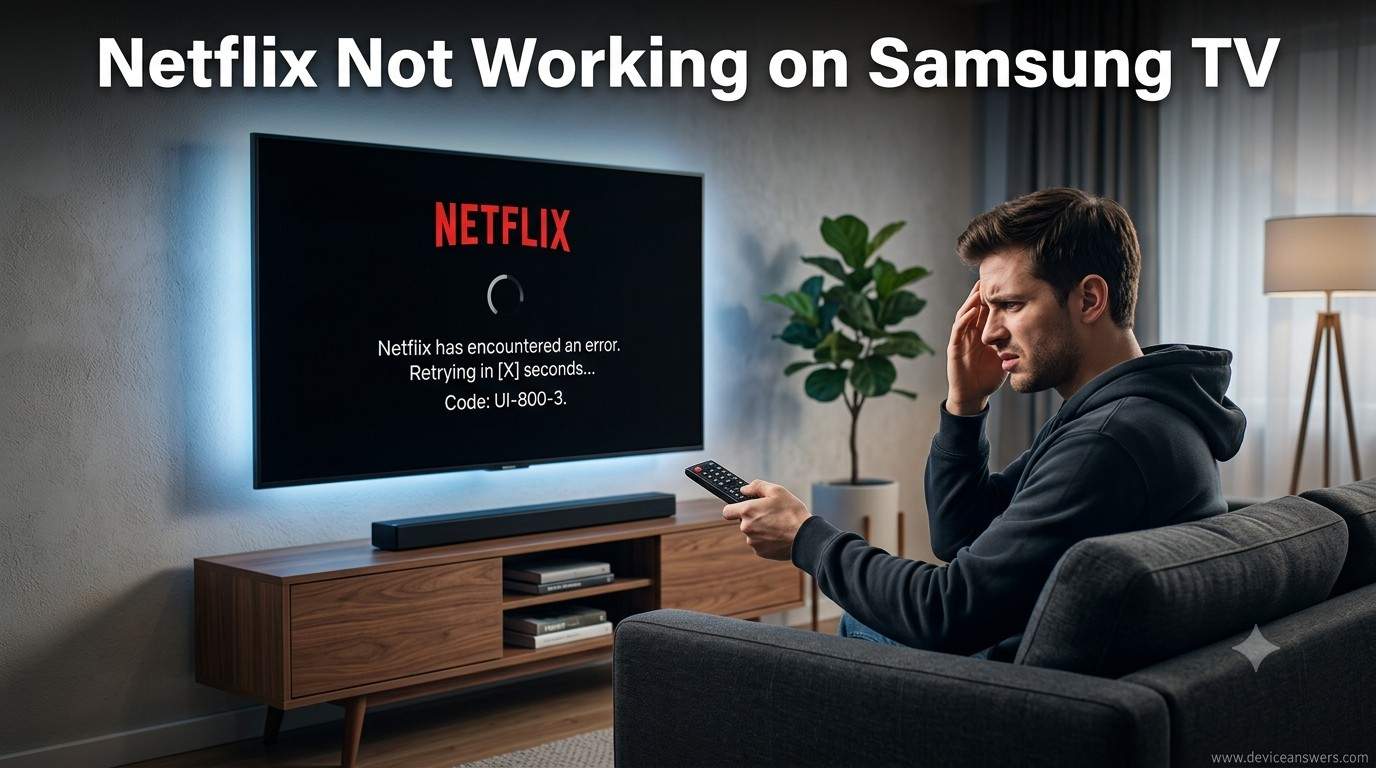
Netflix Not Working on Samsung TV? 10 Ways to Fix It
Is Netflix not working on your Samsung Smart TV? You might see a black screen, a loading circle, an error message, or an app that closes unexpectedly. Sometimes Netflix opens but refuses to play videos.
These problems can happen because of a weak internet connection, a temporary TV software issue, an outdated Netflix app, or corrupted app data. Fortunately, you can try several troubleshooting steps before contacting Samsung or Netflix support.
In this guide, you will learn how to fix Netflix not working on a Samsung TV, starting with simple solutions and moving to more advanced troubleshooting methods.
Why Is Netflix Not Working on My Samsung TV?
Netflix may stop working on a Samsung Smart TV for several reasons, including:
- A slow or unstable internet connection.
- A temporary problem with the Samsung TV or Netflix app.
- Outdated Samsung TV software.
- Corrupted app data or a problem with the Netflix installation.
- A temporary Netflix service outage.
- Incorrect network settings.
- A problem with Samsung Smart Hub.
Try the following solutions one at a time. Check Netflix after each step so you can identify which solution fixes the problem.
1. Restart Your Samsung TV
A simple restart can fix temporary software glitches that prevent Netflix from opening or playing videos.
Instead of turning the TV off and on using only the remote, try a cold restart.
How to restart your Samsung TV
- Turn on your Samsung TV.
- Press and hold the Power button on the remote until the TV turns off and starts again. This may take several seconds.
- If that does not work, turn off the TV and unplug it from the power outlet.
- Wait approximately 60 seconds.
- Reconnect the power cable and turn on the TV.
- Open Netflix and check whether it works.
Why this helps: Restarting the TV can clear temporary system problems without deleting your installed apps or settings.
2. Check Your Internet Connection
Netflix requires a working internet connection to load its home screen and stream videos. If your Samsung TV has a weak Wi-Fi connection, Netflix may remain stuck on the loading screen or display a network error.
How to check your internet connection
- Open another streaming app on your Samsung TV, if available.
- Check whether that app can load content and play a video.
- If other apps also fail, restart your router or modem.
- Unplug the router from its power source for about 30 seconds.
- Reconnect it and wait until the internet connection is restored.
- Reconnect your TV to Wi-Fi if necessary.
- Open Netflix again.
If possible, test Netflix using another internet connection. For example, you can temporarily connect your TV to a mobile hotspot. Be aware that streaming may use a significant amount of mobile data.
If Netflix works on the alternative connection, your home network or router settings may be causing the problem.
3. Check Whether Netflix Is Experiencing an Outage
Sometimes Netflix stops working because of a service-side issue rather than a problem with your Samsung TV.
Before changing your TV settings, check Netflix’s official service status page.
Check whether Netflix is down.
If Netflix reports a service problem, wait for it to be resolved and try again later. Restarting your TV or resetting Smart Hub will not fix an outage affecting Netflix’s service.
4. Run the Samsung Smart Hub Connection Test
Samsung Smart Hub provides access to apps and other smart TV features. Running its connection test can help identify internet or Smart Hub connectivity problems.
How to run the connection test
- Press the Home button on your Samsung TV remote.
- Open Settings.
- Navigate to Support or Device Care, depending on your TV model.
- Look for Self Diagnosis or Smart Hub Connection Test.
- Run the available connection test.
- Follow any troubleshooting instructions displayed on the screen.
The menu names can vary depending on your Samsung TV model and software version. If you cannot find this option, consult your TV’s user manual or Samsung support.
For more information, visit Samsung’s guide to the Smart Hub Connection Test.
5. Update Your Samsung TV Software
Outdated TV software can sometimes cause app compatibility problems. Check whether a software update is available for your Samsung Smart TV.
How to update Samsung TV software
- Connect your Samsung TV to the internet.
- Press the Home button on your remote.
- Open Settings.
- Select Support, if available.
- Choose Software Update.
- Select Update Now.
- If an update is available, follow the on-screen instructions.
Keep the TV powered on while the update is being installed. The TV may restart automatically when the process finishes.
After updating, open Netflix and check whether the problem has been resolved.
Note: Menu names and update options vary by model. If your TV is already running the latest software, move to the next solution.
6. Reinstall the Netflix App
If Netflix continues to crash, freeze, or display an error, reinstalling the app may help. However, the option to uninstall Netflix depends on your Samsung TV model and software version. Some preinstalled apps cannot be removed.
How to reinstall Netflix
- Press the Home button on your Samsung TV remote.
- Open Apps.
- Navigate to the Settings icon in the Apps section, if available.
- Select Netflix.
- If an Uninstall option is available, select it and confirm.
- Return to the Apps section and search for Netflix.
- Install the app again, if the option is available.
- Open Netflix and sign in to your account.
If Netflix cannot be uninstalled, check whether your TV offers an app update or another app troubleshooting option.
Reinstalling the app may remove locally stored app information, so make sure you know your Netflix sign-in details before proceeding.
7. Sign Out of Netflix and Sign In Again
If Netflix opens but does not load your profile or play content, signing out and signing in again may help resolve an account session issue.
How to sign out of Netflix
- Open Netflix on your Samsung TV.
- Navigate to the Netflix menu or Get Help section, if available.
- Select Sign Out, Log Out, or the equivalent option.
- Confirm that you want to sign out.
- Close and reopen Netflix.
- Sign in again using your Netflix account.
If you cannot find the sign-out option, the available method may depend on your TV’s Netflix app version. Follow Netflix’s official troubleshooting guidance for your device.
Visit the Netflix Help Center for additional account and app support.
8. Check Your Samsung TV DNS Settings
Incorrect or problematic DNS settings can sometimes interfere with network connectivity. If Netflix still does not connect after you have checked your internet connection, review the TV’s DNS settings.
How to check DNS settings
- Open Settings on your Samsung TV.
- Navigate to General or Connection, depending on your model.
- Open Network.
- Select Network Status or Network Settings.
- Look for IP Settings or DNS Settings.
- If you previously configured a manual DNS server, consider switching DNS to Obtain Automatically.
- Save the settings and reconnect to the network if required.
- Open Netflix and test the connection.
Do not change other network values unless you understand what they do. If DNS is already set to automatic, leave it unchanged and try the next solution.
9. Reset Samsung Smart Hub
If Netflix still does not work after the previous troubleshooting steps, resetting Smart Hub may help resolve persistent app-related problems.
Important: Resetting Smart Hub can sign you out of apps and may remove app-related settings. Make sure you have the required login details before continuing.
How to reset Smart Hub
- Open Settings on your Samsung TV.
- Navigate to Support or Device Care, depending on the model.
- Open Self Diagnosis, if available.
- Select Reset Smart Hub.
- Enter the TV PIN if requested.
- Follow the on-screen instructions to complete the reset.
- Open Netflix again and sign in if necessary.
The location of this setting varies by model and year. If you cannot find Reset Smart Hub, consult the official Samsung support instructions for your TV.
See Samsung’s troubleshooting guide for apps that are not working on Smart TVs.
10. Factory Reset Your Samsung TV as a Last Resort
If none of the previous solutions works, a factory reset may help resolve a persistent TV software problem. However, this should be your last option because it restores the TV to its original settings.
A factory reset may


