Kavinthira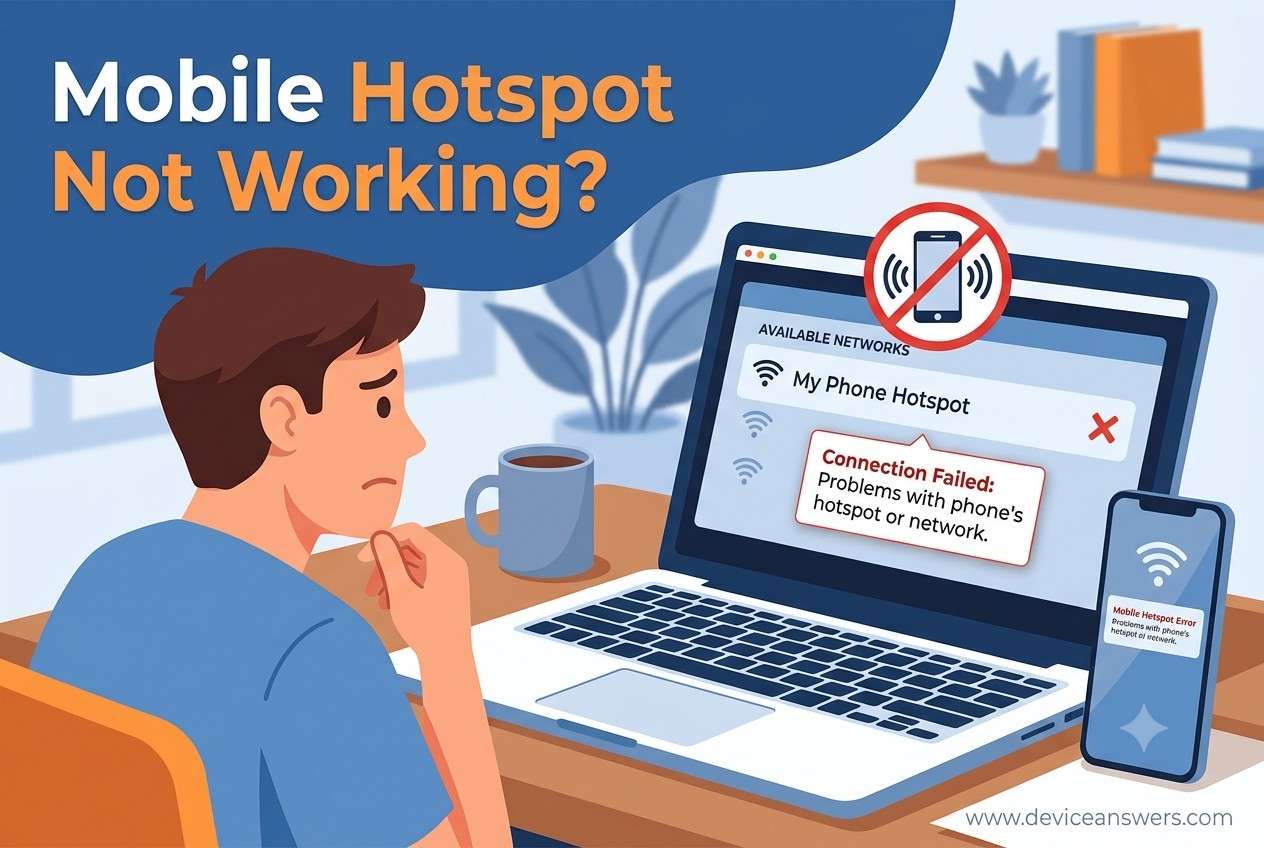
Mobile Hotspot Not Working (Complete Troubleshooting Guide)
Have you enabled your mobile hotspot only to find that other devices can’t connect, the hotspot isn’t visible, or there’s no internet even after connecting? This is one of the most common networking problems on Android phones, iPhones, Windows laptops, and tablets.
A mobile hotspot allows your smartphone or computer to share its internet connection with other devices using Wi-Fi, Bluetooth, or USB tethering. When it works correctly, you can browse the web, attend online meetings, stream videos, or continue working even without a traditional Wi-Fi network.
Unfortunately, many users encounter problems such as:
- Mobile hotspot connected but no internet
- Hotspot not showing up
- Can’t connect to hotspot
- Hotspot keeps disconnecting
- Laptop won’t detect mobile hotspot
- Android hotspot not working
- iPhone Personal Hotspot not working
- Windows Mobile Hotspot won’t turn on
These issues can be caused by simple settings, outdated software, mobile carrier restrictions, poor cellular signal, network configuration problems, VPN apps, battery optimization, or hardware-related faults.
The good news is that most hotspot issues can be fixed without replacing your phone or contacting your mobile carrier. In many cases, a few small changes to your device settings are enough to restore a stable hotspot connection.
This guide explains the most common causes of hotspot failures and provides step-by-step troubleshooting methods for Android, iPhone, Windows, and Mac devices. Every solution includes an explanation of why it works, making it easier to understand and prevent the problem from happening again.
Quick Answer
If your Mobile Hotspot is not working, first turn the hotspot off and back on, restart both devices, verify that mobile data is active, disable Airplane Mode, and reconnect. If the issue continues, update your device, reset network settings, check your mobile carrier’s hotspot support, and temporarily disable VPN or battery optimization features.
Quick Checklist
- ✅ Restart your phone.
- ✅ Restart the device trying to connect.
- ✅ Verify Mobile Data is enabled.
- ✅ Turn Airplane Mode OFF.
- ✅ Toggle Mobile Hotspot OFF and ON.
- ✅ Disable Battery Saver.
- ✅ Turn off VPN.
- ✅ Forget and reconnect to the hotspot.
- ✅ Update your device software.
- ✅ Reset network settings if necessary.
What Does “Mobile Hotspot Not Working” Mean?
A Mobile Hotspot Not Working error means your phone or computer cannot successfully share its internet connection with another device. Depending on the underlying cause, the hotspot may fail at different stages of the connection process.
For example:
- The hotspot does not appear in the available Wi-Fi networks.
- Another device connects but displays “No Internet”.
- The hotspot disconnects after a few minutes.
- The hotspot refuses to turn on.
- Devices repeatedly fail authentication.
- Internet speed becomes extremely slow despite a successful connection.
A normal hotspot connection works through several steps:
- Your phone or computer connects to the mobile network.
- Mobile data provides internet connectivity.
- The hotspot broadcasts a Wi-Fi signal.
- Another device connects using the hotspot password.
- Your device securely shares the internet connection.
If any of these steps fail, the hotspot may stop working correctly.
Common Symptoms
If your mobile hotspot isn’t working correctly, you may experience one or more of the following symptoms:
- Mobile Hotspot won’t turn on
- Hotspot turns off automatically
- Hotspot not visible to nearby devices
- Connected but no internet
- Authentication failed
- Incorrect password error
- Laptop can’t connect to hotspot
- Hotspot disconnects randomly
- Android hotspot not working after an update
- iPhone Personal Hotspot missing
- Windows Mobile Hotspot unavailable
- Slow hotspot internet speed
- Devices repeatedly reconnect
- Websites won’t load after connecting
- Hotspot works briefly before disconnecting
Identifying the exact symptom helps determine the root cause and speeds up the troubleshooting process.
15 Main Causes of Mobile Hotspot Not Working
Understanding the cause of the problem makes troubleshooting much easier. Below are the most common reasons why a mobile hotspot fails to work properly.
1. Mobile Data Is Disabled
If Mobile Data is turned off, the hotspot has no internet connection to share with other devices.
2. Weak Cellular Signal
Poor 4G or 5G coverage can prevent connected devices from accessing the internet.
3. Airplane Mode Is Enabled
Airplane Mode disables cellular connectivity, making internet sharing impossible.
4. Mobile Carrier Restrictions
Some mobile carriers restrict hotspot functionality based on your subscription plan.
5. Temporary Software Bugs
Minor operating system glitches can interrupt hotspot services until the device is restarted.
6. Outdated Operating System
An outdated version of Android, iOS, Windows, or macOS may contain networking bugs affecting hotspot functionality.
7. Incorrect Hotspot Configuration
Incorrect passwords, hidden network names, or incompatible security settings can block new connections.
8. Battery Saver Mode
Power-saving features often disable background networking functions, including hotspot services.
9. VPN Interference
Some VPN applications prevent internet traffic from being shared correctly through a hotspot.
10. Network Configuration Errors
Corrupted DNS settings or network configurations may stop hotspot traffic from reaching connected devices.
11. Too Many Connected Devices
Every hotspot has a maximum device limit. Exceeding it can prevent additional devices from connecting.
12. Wi-Fi Adapter Problems
The receiving device’s wireless adapter may have outdated drivers or hardware issues.
13. Firewall or Security Software
Firewalls and antivirus programs sometimes block hotspot connections for security reasons.
14. Hardware Problems
A damaged Wi-Fi antenna, hotspot chip, or internal hardware component may prevent hotspot broadcasting.
15. Temporary Carrier Outage
Your mobile service provider may be experiencing a temporary network issue affecting hotspot services.
Preparation Before Troubleshooting
Before trying advanced troubleshooting methods, complete the following basic checks. These simple steps often resolve hotspot issues without requiring complex fixes.
Preparation Checklist
- ✔ Verify that Mobile Data is working.
- ✔ Confirm your mobile plan supports hotspot or tethering.
- ✔ Charge your device to at least 20%.
- ✔ Turn Airplane Mode off.
- ✔ Move to an area with a stronger cellular signal.
- ✔ Disconnect unnecessary connected devices.
- ✔ Confirm you know the hotspot password.
- ✔ Install available software updates.
- ✔ Restart both devices.
- ✔ Temporarily disable any VPN connection.
Important: Test your hotspot with another phone, tablet, or laptop. This helps determine whether the issue is with the hotspot device or the device attempting to connect.
Method 1: Turn Mobile Hotspot Off and Back On
Sometimes the hotspot service becomes temporarily stuck due to a minor software glitch. Restarting it refreshes the wireless sharing service without restarting your entire device.
Why This Works
Turning the hotspot off and back on reloads the hotspot service and resets temporary networking errors.
Steps
- Open Settings.
- Select Network & Internet or Connections.
- Open Mobile Hotspot.
- Turn it Off.
- Wait 15–20 seconds.
- Turn it On again.
- Reconnect your other device.
Expected Result
The hotspot should begin broadcasting again, allowing nearby devices to discover and connect to it.
Important: Wait several seconds after enabling the hotspot before scanning for available Wi-Fi networks.
Method 2: Restart Your Phone
Restarting your phone clears temporary memory, restarts networking services, and fixes many temporary software issues affecting hotspot functionality.
Why This Works
A restart refreshes the operating system and reloads network services that may have stopped responding.
Steps
- Press and hold the Power button.
- Select Restart.
- Wait until the phone fully reboots.
- Enable the hotspot again.
- Reconnect your device.
Expected Result
Temporary operating system issues should be cleared, allowing the hotspot to function normally.
Important: Restart both the hotspot device and the device trying to connect for the best results.
Method 3: Verify Mobile Data Is Working
A mobile hotspot shares your phone’s existing mobile internet connection. If mobile data isn’t working, connected devices won’t receive internet access.
Why This Works
Verifying mobile data confirms whether the problem is with your internet connection or the hotspot feature itself.
Steps
- Turn off Wi-Fi on your phone.
- Open a website using mobile data.
- Confirm that pages load correctly.
- If mobile data fails, contact your mobile carrier or check your data allowance.
- Once mobile data works, enable the hotspot again.
Expected Result
If mobile data is functioning normally, your hotspot should also provide internet access to connected devices.
Important: Some unlimited data plans reduce hotspot speeds or disable tethering after reaching certain usage limits.
Method 4: Disable Airplane Mode
Airplane Mode disables your phone’s cellular radio, preventing the hotspot from sharing an internet connection.
Why This Works
Disabling Airplane Mode restores your device’s mobile network connection, allowing hotspot services to operate normally.
Steps
- Open Settings.
- Select Network & Internet or Connections.
- Ensure Airplane Mode is turned Off.
- Wait for your mobile network to reconnect.
- Turn the hotspot back on.
Expected Result
Once the mobile network reconnects, the hotspot should be available for nearby devices.
Important: Some phones take several seconds to reconnect to the mobile network after Airplane Mode is disabled.
Method 5: Forget and Reconnect to the Hotspot
Saved Wi-Fi profiles can become outdated after changing the hotspot password or network settings. Removing the saved connection allows the receiving device to establish a fresh connection.
Why This Works
Deleting the saved network removes old authentication details and forces the device to reconnect using the latest hotspot settings.
Steps
- Open the Wi-Fi settings on the receiving device.
- Select your hotspot network.
- Choose Forget Network.
- Scan for available Wi-Fi networks again.
- Select your hotspot.
- Enter the correct hotspot password.
- Connect to the network.
Expected Result
The device should establish a new connection and regain internet access through the hotspot.
Important: If you recently changed your hotspot password or network name (SSID), make sure you enter the updated credentials when reconnecting.
Method 6: Check Your Mobile Hotspot Password
An incorrect or outdated hotspot password is one of the most common reasons devices fail to connect. If you’ve recently changed your hotspot password, devices that previously connected may continue using the old saved credentials.
Why This Works
Verifying and re-entering the correct password ensures the receiving device can authenticate successfully with your hotspot.
Steps
- Open Settings.
- Go to Mobile Hotspot or Personal Hotspot.
- View your current hotspot password.
- On the receiving device, forget the saved Wi-Fi network.
- Select the hotspot again.
- Enter the correct password carefully.
- Reconnect to the hotspot.
Expected Result
The device should successfully authenticate and establish an internet connection through the hotspot.
Tip: Avoid using overly complicated passwords if multiple family members frequently connect to your hotspot, but always use WPA2 or WPA3 security for protection.
Method 7: Disable Battery Saver or Power Saving Mode
Battery-saving features are designed to extend battery life by limiting background services. On many Android phones and laptops, these features can automatically disable the hotspot or reduce its performance.
Why This Works
Disabling Battery Saver allows the operating system to keep hotspot services running continuously without restricting network activity.
Steps for Android
- Open Settings.
- Select Battery.
- Open Battery Saver or Power Saving Mode.
- Turn the feature Off.
- Enable Mobile Hotspot again.
Steps for Windows Laptop
- Open Settings.
- Select System > Power & Battery.
- Disable Battery Saver.
- Restart the hotspot if needed.
Expected Result
Your hotspot should remain active without disconnecting automatically due to power-saving restrictions.
Important: Battery-saving mode may automatically turn back on when your battery reaches a low percentage.
Method 8: Turn Off VPN Services
Some Virtual Private Network (VPN) applications interfere with internet sharing by routing traffic through encrypted tunnels that are not compatible with hotspot connections.
Why This Works
Temporarily disabling the VPN allows mobile data traffic to pass directly through the hotspot without routing conflicts.
Steps
- Disconnect any active VPN connection.
- Close the VPN application completely.
- Turn Mobile Hotspot off.
- Wait 10 seconds.
- Turn Mobile Hotspot back on.
- Reconnect your other device.
Expected Result
Connected devices should receive internet access normally if the VPN was blocking hotspot traffic.
Tip: If you need both a VPN and hotspot functionality, check whether your VPN provider supports internet sharing or hotspot passthrough.
Method 9: Update Your Device Software
Operating system updates often include fixes for networking bugs, hotspot stability, security improvements, and wireless connectivity issues.
Why This Works
Installing the latest software ensures your device has the newest hotspot improvements and bug fixes released by the manufacturer.
Update Android
- Open Settings.
- Select Software Update or System Update.
- Check for updates.
- Download and install available updates.
- Restart your device.
Update iPhone
- Open Settings.
- Select General.
- Tap Software Update.
- Install any available iOS update.
Update Windows
- Open Settings.
- Select Windows Update.
- Click Check for Updates.
- Install all recommended updates.
- Restart your computer.
Expected Result
Software updates can resolve known hotspot bugs, improve wireless performance, and enhance compatibility with newer devices.
Recommendation: Install operating system updates whenever possible to maintain network stability and security.
Method 10: Reset Network Settings
If your hotspot still isn’t working, corrupted network settings may be preventing internet sharing. Resetting the network configuration restores Wi-Fi, Bluetooth, hotspot, and mobile data settings to their default values.
Why This Works
A network reset removes incorrect configurations that may interfere with hotspot connectivity and rebuilds the networking environment from scratch.
Android
- Open Settings.
- Select System.
- Tap Reset Options.
- Select Reset Wi-Fi, Mobile & Bluetooth.
- Confirm the reset.
iPhone
- Open Settings.
- Select General.
- Tap Transfer or Reset iPhone.
- Select Reset.
- Choose Reset Network Settings.
Windows
- Open Settings.
- Select Network & Internet.
- Open Advanced Network Settings.
- Select Network Reset.
- Restart your computer.
Expected Result
Your hotspot should work with a fresh network configuration, eliminating many software-related connectivity problems.
Important: Resetting network settings removes saved Wi-Fi passwords, paired Bluetooth devices, and customized network preferences. Be sure you know your Wi-Fi passwords before performing this step.
Method 11: Check Your Mobile Data Plan and Hotspot Allowance
Even if your phone has an active mobile data connection, your mobile hotspot may not work if your carrier restricts tethering or you’ve reached your hotspot data limit. Many mobile plans include separate hotspot allowances that differ from your regular mobile data.
Why This Works
Verifying your mobile plan ensures that the problem isn’t caused by carrier restrictions or exhausted hotspot data.
Steps
- Open your carrier’s mobile app or website.
- Check your remaining mobile data balance.
- Verify whether your plan includes hotspot or tethering support.
- Review your monthly hotspot usage.
- Contact your mobile carrier if necessary.
Expected Result
If hotspot service was restricted due to your mobile plan or data limit, upgrading your plan or waiting for the next billing cycle should restore hotspot functionality.
Tip: Some unlimited mobile plans reduce hotspot speeds after a certain amount of usage instead of disabling the hotspot completely.
Method 12: Check the Maximum Connected Devices Limit
Every mobile hotspot supports only a limited number of connected devices. Once this limit is reached, additional devices cannot join the hotspot until another device disconnects.
Why This Works
Reducing the number of connected devices frees up available hotspot connections and improves network performance.
Steps
- Open Mobile Hotspot Settings.
- View the list of connected devices.
- Disconnect devices that are no longer in use.
- If supported, increase the maximum connection limit.
- Reconnect the new device.
Expected Result
The new device should connect successfully once sufficient connection slots become available.
Recommendation: For better speed and battery life, connect only the devices you actually need.
Method 13: Change the Hotspot Band (2.4 GHz or 5 GHz)
Some older laptops, tablets, smart TVs, and IoT devices do not support 5 GHz Wi-Fi. If your hotspot is broadcasting only on 5 GHz, compatible devices may not detect it at all.
Why This Works
Switching between 2.4 GHz and 5 GHz improves compatibility with different devices and can also reduce wireless interference.
Steps
- Open Hotspot Settings.
- Select AP Band, Frequency Band, or Compatibility Mode.
- Choose 2.4 GHz if devices cannot detect the hotspot.
- Use 5 GHz for newer devices that support faster speeds.
- Restart the hotspot.
- Reconnect the receiving device.
Expected Result
Devices that previously couldn’t detect your hotspot should now find and connect to the wireless network successfully.
Tip: Use 2.4 GHz for better range and wider compatibility, while 5 GHz offers faster speeds over shorter distances.
Method 14: Reset the Hotspot Name (SSID) and Password
A corrupted or outdated hotspot profile can prevent devices from connecting correctly. Changing the hotspot network name and password creates a fresh wireless profile that connected devices recognize as a new network.
Why This Works
Creating a new hotspot profile eliminates conflicts caused by saved network settings or damaged Wi-Fi profiles on connected devices.
Steps
- Open Hotspot Settings.
- Change the hotspot name (SSID).
- Create a new secure password.
- Save the changes.
- Disable and re-enable the hotspot.
- Reconnect your devices using the new credentials.
Expected Result
Devices should establish a fresh and stable connection using the updated hotspot network information.
Best Practice: Use a simple but secure hotspot name and a strong password with at least 12 characters.
Method 15: Restart the Receiving Device
Sometimes the problem isn’t with your phone’s hotspot at all. The laptop, tablet, smart TV, or another phone trying to connect may have temporary Wi-Fi or network issues that prevent successful communication.
Why This Works
Restarting the receiving device refreshes its wireless adapter, clears temporary network errors, and reloads saved network services.
Steps
- Disconnect from the hotspot.
- Restart the receiving device completely.
- Wait until it finishes booting.
- Enable Wi-Fi.
- Select your hotspot network.
- Enter the hotspot password.
- Reconnect and test internet access.
Expected Result
If the receiving device had a temporary networking issue, it should now connect successfully and access the internet through the hotspot.
Expert Tip: If your hotspot works with one device but not another, the issue is usually with the receiving device’s Wi-Fi settings, drivers, or hardware—not the hotspot itself. Testing with multiple devices is one of the quickest ways to identify the source of the problem.
Method 11: Check Your Mobile Data Plan and Hotspot Allowance
Even if your phone has an active mobile data connection, your mobile hotspot may not work if your carrier restricts tethering or you’ve reached your hotspot data limit. Many mobile plans include separate hotspot allowances that differ from your regular mobile data.
Why This Works
Verifying your mobile plan ensures that the problem isn’t caused by carrier restrictions or exhausted hotspot data.
Steps
- Open your carrier’s mobile app or website.
- Check your remaining mobile data balance.
- Verify whether your plan includes hotspot or tethering support.
- Review your monthly hotspot usage.
- Contact your mobile carrier if necessary.
Expected Result
If hotspot service was restricted due to your mobile plan or data limit, upgrading your plan or waiting for the next billing cycle should restore hotspot functionality.
Tip: Some unlimited mobile plans reduce hotspot speeds after a certain amount of usage instead of disabling the hotspot completely.
Method 12: Check the Maximum Connected Devices Limit
Every mobile hotspot supports only a limited number of connected devices. Once this limit is reached, additional devices cannot join the hotspot until another device disconnects.
Why This Works
Reducing the number of connected devices frees up available hotspot connections and improves network performance.
Steps
- Open Mobile Hotspot Settings.
- View the list of connected devices.
- Disconnect devices that are no longer in use.
- If supported, increase the maximum connection limit.
- Reconnect the new device.
Expected Result
The new device should connect successfully once sufficient connection slots become available.
Recommendation: For better speed and battery life, connect only the devices you actually need.
Method 13: Change the Hotspot Band (2.4 GHz or 5 GHz)
Some older laptops, tablets, smart TVs, and IoT devices do not support 5 GHz Wi-Fi. If your hotspot is broadcasting only on 5 GHz, compatible devices may not detect it at all.
Why This Works
Switching between 2.4 GHz and 5 GHz improves compatibility with different devices and can also reduce wireless interference.
Steps
- Open Hotspot Settings.
- Select AP Band, Frequency Band, or Compatibility Mode.
- Choose 2.4 GHz if devices cannot detect the hotspot.
- Use 5 GHz for newer devices that support faster speeds.
- Restart the hotspot.
- Reconnect the receiving device.
Expected Result
Devices that previously couldn’t detect your hotspot should now find and connect to the wireless network successfully.
Tip: Use 2.4 GHz for better range and wider compatibility, while 5 GHz offers faster speeds over shorter distances.
Method 14: Reset the Hotspot Name (SSID) and Password
A corrupted or outdated hotspot profile can prevent devices from connecting correctly. Changing the hotspot network name and password creates a fresh wireless profile that connected devices recognize as a new network.
Why This Works
Creating a new hotspot profile eliminates conflicts caused by saved network settings or damaged Wi-Fi profiles on connected devices.
Steps
- Open Hotspot Settings.
- Change the hotspot name (SSID).
- Create a new secure password.
- Save the changes.
- Disable and re-enable the hotspot.
- Reconnect your devices using the new credentials.
Expected Result
Devices should establish a fresh and stable connection using the updated hotspot network information.
Best Practice: Use a simple but secure hotspot name and a strong password with at least 12 characters.
Method 15: Restart the Receiving Device
Sometimes the problem isn’t with your phone’s hotspot at all. The laptop, tablet, smart TV, or another phone trying to connect may have temporary Wi-Fi or network issues that prevent successful communication.
Why This Works
Restarting the receiving device refreshes its wireless adapter, clears temporary network errors, and reloads saved network services.
Steps
- Disconnect from the hotspot.
- Restart the receiving device completely.
- Wait until it finishes booting.
- Enable Wi-Fi.
- Select your hotspot network.
- Enter the hotspot password.
- Reconnect and test internet access.
Expected Result
If the receiving device had a temporary networking issue, it should now connect successfully and access the internet through the hotspot.
Expert Tip: If your hotspot works with one device but not another, the issue is usually with the receiving device’s Wi-Fi settings, drivers, or hardware—not the hotspot itself. Testing with multiple devices is one of the quickest ways to identify the source of the problem.
Method 16: Disable Wi-Fi and Turn It Back On (Receiving Device)
If your laptop, tablet, or another smartphone cannot connect to your mobile hotspot, the problem may be with the receiving device’s Wi-Fi adapter rather than the hotspot itself. Restarting the Wi-Fi connection refreshes the wireless adapter and clears temporary connection errors.
Why This Works
Turning Wi-Fi off and back on forces the wireless adapter to perform a fresh network scan and establish a new connection with your hotspot.
Steps
- Open the Wi-Fi settings on the receiving device.
- Turn Wi-Fi off.
- Wait approximately 15 seconds.
- Turn Wi-Fi back on.
- Search for your hotspot network.
- Select the hotspot.
- Enter the hotspot password if prompted.
Expected Result
The receiving device should discover the hotspot and connect without displaying authentication or connection errors.
Tip: If the hotspot still doesn’t appear, move the devices closer together and try scanning again.
Method 17: Update Network Adapter Drivers (Windows Laptop)
If a Windows laptop cannot connect to any mobile hotspot, outdated or corrupted network adapter drivers may be responsible. Driver updates often improve compatibility with newer Android and iPhone hotspot technologies.
Why This Works
Updated drivers improve communication between Windows and wireless hardware while fixing known connection bugs.
Steps
- Press Windows + X.
- Select Device Manager.
- Expand Network Adapters.
- Right-click your Wi-Fi adapter.
- Select Update Driver.
- Choose Search automatically for drivers.
- Install available updates.
- Restart your computer.
Expected Result
Your laptop should connect more reliably to mobile hotspots and other wireless networks.
Recommendation: If Windows cannot find a newer driver, download the latest wireless driver directly from your laptop manufacturer’s support website.
Method 18: Disable Bluetooth While Using Mobile Hotspot
Although Bluetooth and Wi-Fi operate differently, they both use the 2.4 GHz wireless spectrum. On some devices, Bluetooth activity can interfere with hotspot performance, especially when multiple wireless accessories are connected.
Why This Works
Temporarily disabling Bluetooth reduces wireless interference and allows the hotspot to broadcast a more stable signal.
Steps
- Open your device’s Settings.
- Select Bluetooth.
- Turn Bluetooth Off.
- Restart the mobile hotspot.
- Reconnect the receiving device.
Expected Result
The hotspot connection should become more stable, especially if you previously experienced frequent disconnects.
Tip: If you rely on Bluetooth accessories, reconnect them after confirming the hotspot is working properly.
Method 19: Remove and Recreate the Mobile Hotspot
A damaged hotspot configuration can sometimes prevent devices from connecting correctly. Recreating the hotspot generates a fresh wireless profile with new configuration settings.
Why This Works
Creating a new hotspot profile removes corrupted configuration data that may be causing authentication or connectivity problems.
Steps
- Open Mobile Hotspot Settings.
- Turn the hotspot Off.
- Change the hotspot name (SSID).
- Create a new secure password.
- Save the updated settings.
- Turn the hotspot back On.
- Reconnect your devices using the new credentials.
Expected Result
Devices should detect the hotspot as a new wireless network and connect without using outdated saved settings.
Best Practice: Avoid using special characters or very long hotspot names if older devices have trouble detecting the network.
Method 20: Contact Your Mobile Carrier or Device Manufacturer
If none of the previous troubleshooting methods resolve the issue, the problem may involve your mobile carrier, SIM card, device firmware, or internal hardware. Professional support can help identify account restrictions or hardware-related failures.
Why This Works
Carrier support teams can verify hotspot eligibility, account restrictions, network outages, and SIM-related issues that aren’t visible through your device settings.
Before Contacting Support
- Note the exact error message.
- Record your phone model and operating system version.
- Check whether mobile data works normally.
- Confirm whether the hotspot fails with all devices or only one.
- List the troubleshooting steps you’ve already completed.
When to Seek Professional Assistance
- The hotspot won’t turn on at all.
- Multiple devices fail to detect the hotspot.
- The hotspot feature disappeared after a software update.
- Your carrier confirms hotspot support, but internet sharing still doesn’t work.
- Your phone shows signs of Wi-Fi or network hardware failure.
Expected Result
Your carrier or device manufacturer can identify account limitations, firmware problems, or hardware faults and recommend the appropriate solution, whether it’s a software update, SIM replacement, account change, or device repair.
Final Tip: If your hotspot suddenly stopped working after dropping your phone, water exposure, or physical damage, the issue may be hardware-related. In this situation, software troubleshooting alone is unlikely to resolve the problem, and professional inspection is recommended.
Android-Specific Fixes
Android devices from Samsung, Google Pixel, OnePlus, Xiaomi, Motorola, OPPO, Vivo, and other manufacturers may have different hotspot settings. If your Android hotspot isn’t working, try the following device-specific solutions.
1. Force Stop the Settings App
- Open Settings > Apps.
- Select Settings.
- Tap Force Stop.
- Reopen Settings.
- Enable Mobile Hotspot again.
2. Disable Battery Optimization
Battery optimization can automatically turn off hotspot services when the phone is idle.
- Open Settings > Battery.
- Select Battery Optimization.
- Choose Mobile Hotspot or Settings.
- Select Don’t Optimize.
3. Check APN Settings
Incorrect Access Point Name (APN) settings can prevent hotspot internet access.
- Open Settings > Mobile Network.
- Select Access Point Names (APN).
- Compare your APN with your carrier’s recommended settings.
- Restore default APN if necessary.
4. Update Android System
Install the latest Android update to resolve known hotspot bugs and improve compatibility.
Android Tip: Some manufacturers automatically disable hotspots after 10–20 minutes of inactivity to save battery. Re-enable the hotspot if necessary.
iPhone-Specific Fixes
Apple’s Personal Hotspot relies on iCloud, carrier settings, and cellular connectivity. If Personal Hotspot isn’t working, try these solutions.
1. Toggle Personal Hotspot
- Open Settings.
- Select Personal Hotspot.
- Turn Allow Others to Join off.
- Wait 15 seconds.
- Turn it back on.
2. Update Carrier Settings
- Go to Settings > General > About.
- If a Carrier Settings Update appears, install it.
3. Sign Out and Back Into Apple ID
Refreshing Apple services may resolve hotspot-related issues.
4. Restart Cellular Connection
- Enable Airplane Mode for 30 seconds.
- Disable Airplane Mode.
- Wait until LTE or 5G reconnects.
iPhone Tip: Ensure your carrier supports Personal Hotspot. Some prepaid plans disable hotspot functionality.
Windows Laptop Fixes
If your Windows laptop cannot connect to your phone’s hotspot, Windows networking problems may be responsible.
1. Run the Network Troubleshooter
- Open Settings.
- Select System > Troubleshoot.
- Run the Network Adapter Troubleshooter.
2. Disable and Re-enable Wi-Fi Adapter
- Open Device Manager.
- Expand Network Adapters.
- Disable the Wi-Fi adapter.
- Wait 20 seconds.
- Enable it again.
3. Flush DNS Cache
ipconfig /flushdnsRun the command in Command Prompt as Administrator.
4. Renew IP Address
ipconfig /release
ipconfig /renew
Windows Tip: Install the latest Wi-Fi adapter driver from your laptop manufacturer’s support website rather than relying only on Windows Update.
Mac Fixes
MacBooks occasionally experience hotspot connection issues because of Wi-Fi preferences or outdated network configurations.
1. Forget the Hotspot Network
- Open System Settings > Wi-Fi.
- Select the hotspot.
- Choose Forget This Network.
- Reconnect using the password.
2. Renew DHCP Lease
- Open System Settings > Network.
- Select Wi-Fi.
- Click Details.
- Select TCP/IP.
- Click Renew DHCP Lease.
3. Restart Wi-Fi Service
Turn Wi-Fi off for 20 seconds and reconnect to the hotspot.
Mac Tip: Keep macOS updated to ensure compatibility with the latest Android and iPhone hotspot implementations.
Carrier & Mobile Data Issues
Many hotspot problems are caused by carrier restrictions rather than your phone.
Common Carrier Issues
- Hotspot feature not included in your plan.
- Monthly hotspot data limit reached.
- Temporary network outage.
- SIM card activation issues.
- 5G or LTE network congestion.
- Account restrictions.
How to Check
- Verify mobile data works normally.
- Check your carrier app.
- Review hotspot usage.
- Contact customer support.
Important: Some unlimited plans slow hotspot speeds after reaching a specified monthly data limit.
VPN & Firewall Issues
VPN software and firewall applications may prevent internet traffic from being shared through your hotspot.
Fix VPN Problems
- Disconnect the VPN.
- Close the VPN application.
- Restart the hotspot.
- Reconnect another device.
Fix Firewall Problems
- Temporarily disable the firewall.
- Test hotspot connectivity.
- Re-enable the firewall after testing.
Security Tip: Never leave your firewall permanently disabled. Use it only for temporary troubleshooting.
Network Reset
If multiple troubleshooting methods fail, resetting network settings restores all networking components to their factory defaults.
Android
Settings > System > Reset Options > Reset Wi-Fi, Mobile & Bluetooth
iPhone
Settings > General > Transfer or Reset iPhone > Reset > Reset Network Settings
Windows
Settings > Network & Internet > Advanced Network Settings > Network Reset
Mac
Forget the network and recreate the Wi-Fi connection or remove the Wi-Fi service from Network Settings before adding it again.
Important: Network reset removes saved Wi-Fi passwords, Bluetooth pairings, and customized network settings.
Advanced Troubleshooting
If the hotspot still isn’t working after completing all previous methods, try these advanced solutions.
- Restart both hotspot and receiving device.
- Test the hotspot with multiple devices.
- Try USB tethering instead of Wi-Fi hotspot.
- Try Bluetooth tethering.
- Remove recently installed VPN or security apps.
- Update carrier settings.
- Reset APN settings.
- Reinsert the SIM card.
- Try another SIM card if available.
- Perform a factory reset only as a last resort after backing up your data.
Expert Recommendation: If the hotspot works with another SIM card but not your current one, contact your mobile carrier to investigate possible account or SIM restrictions.
Common Error Messages
| Error Message | Possible Cause | Recommended Fix |
|---|---|---|
| Connected, No Internet | Mobile data unavailable | Verify mobile data and carrier service. |
| Authentication Failed | Incorrect hotspot password | Forget the network and reconnect. |
| Couldn’t Connect | Weak signal or software bug | Restart both devices. |
| Hotspot Not Visible | Hotspot disabled or incompatible Wi-Fi band | Enable hotspot and switch to 2.4 GHz. |
| No Internet Access | Carrier or APN issue | Check APN and carrier restrictions. |
| Obtaining IP Address | DHCP configuration problem | Forget the network and reconnect. |
| Limited Connectivity | Network configuration error | Reset network settings. |
| Connection Timed Out | Poor signal or hotspot interruption | Move closer and restart the hotspot. |
Mobile Hotspot Troubleshooting Table
| Problem | Likely Cause | Best Solution |
|---|---|---|
| Hotspot won’t turn on | Software glitch | Restart the phone. |
| Connected but no internet | Mobile data issue | Verify mobile data works. |
| Hotspot not visible | Wi-Fi band compatibility | Switch to 2.4 GHz. |
| Frequent disconnections | Battery Saver enabled | Disable Battery Saver. |
| Authentication failed | Incorrect password | Forget and reconnect. |
| Very slow hotspot speed | Weak mobile signal | Move to an area with better coverage. |
| Only one device cannot connect | Receiving device issue | Restart or update the receiving device. |
| All devices fail to connect | Carrier or hotspot problem | Check carrier restrictions and reset network settings. |
| Hotspot disconnects automatically | Battery optimization | Disable power-saving features. |
| No hotspot option available | Carrier restriction or software issue | Update the device and contact your carrier. |
15 Expert Tips to Prevent Mobile Hotspot Problems
Following a few best practices can help you avoid hotspot connectivity issues and maintain a faster, more stable internet connection.
-
Keep Your Device Updated
Install the latest Android, iOS, Windows, or macOS updates to receive hotspot bug fixes, security patches, and performance improvements.
-
Use a Strong Cellular Signal
Move to an area with better 4G or 5G coverage before enabling your hotspot for faster and more reliable internet sharing.
-
Restart Your Device Regularly
A quick restart clears temporary software glitches that may affect hotspot performance.
-
Limit Connected Devices
Only connect the devices you actually need to reduce network congestion and improve speed.
-
Use the Correct Wi-Fi Band
Choose 2.4 GHz for better compatibility and range, or 5 GHz for higher speeds over short distances.
-
Disable Battery Saver While Sharing Internet
Battery optimization can automatically disable hotspot services to conserve power.
-
Monitor Hotspot Data Usage
Many mobile plans have separate hotspot limits. Check your remaining allowance regularly.
-
Keep Your Device Charged
Hotspot usage consumes significant battery power. Keep your battery above 30% or connect your device to a charger.
-
Use WPA2 or WPA3 Security
Protect your hotspot with a strong password to prevent unauthorized access.
-
Turn Off VPN When Troubleshooting
VPN services can interfere with internet sharing and should be disabled while diagnosing hotspot problems.
-
Keep Devices Within Range
Maintain a distance of less than 10 meters (33 feet) whenever possible for the strongest signal.
-
Update Network Adapter Drivers
Windows users should regularly install the latest wireless drivers from their computer manufacturer’s website.
-
Restart Both Devices
Restart both the hotspot device and the receiving device before attempting advanced troubleshooting.
-
Use Original Chargers and Accessories
Using certified accessories helps maintain stable performance during extended hotspot sessions.
-
Check Carrier Service Status
If your hotspot suddenly stops working, verify whether your carrier is experiencing a temporary outage.
15 Common Mistakes to Avoid
Many hotspot problems occur because of small mistakes that are easy to overlook. Avoiding these issues can save time and improve your connection.
- Leaving Airplane Mode enabled.
- Assuming the hotspot is broken without testing mobile data.
- Entering an incorrect hotspot password.
- Ignoring available software updates.
- Leaving Battery Saver enabled while using the hotspot.
- Using a VPN during troubleshooting.
- Connecting too many devices at the same time.
- Keeping devices too far apart.
- Ignoring mobile carrier hotspot limits.
- Using outdated Wi-Fi adapter drivers.
- Failing to restart devices after changing settings.
- Using an unsupported Wi-Fi frequency band.
- Skipping network reset when simpler methods fail.
- Immediately performing a factory reset without trying basic fixes first.
- Assuming the problem is with the phone when the receiving device may actually be at fault.
Expert Recommendation: Start with the simplest troubleshooting methods first. Most hotspot problems are resolved by restarting the devices, verifying mobile data, and reconnecting to the hotspot.